

Shipping zones
A shipping zone groups the places you ship to, so you can treat different regions differently. Zones are the where half of CIQRA’s shipping engine — they decide which set of delivery options and prices a shopper is offered based on their destination.
Add a zone, step by step
Section titled “Add a zone, step by step”You need the permission to manage settings. The pictures use a demo store with made-up data.
1. Open Rates & zones and select Add zone
Section titled “1. Open Rates & zones and select Add zone”In the admin, open Settings, then Selling, then Rates & zones. Select Add zone. On a store with no zone yet the page says “No shipping zones yet” and offers the same button.
2. Name the zone and add its countries
Section titled “2. Name the zone and add its countries”Enter a Zone name. Under Countries, select Add country, search for the country and pick it. Add as many as the zone serves. The Remove control next to a country takes it out again.
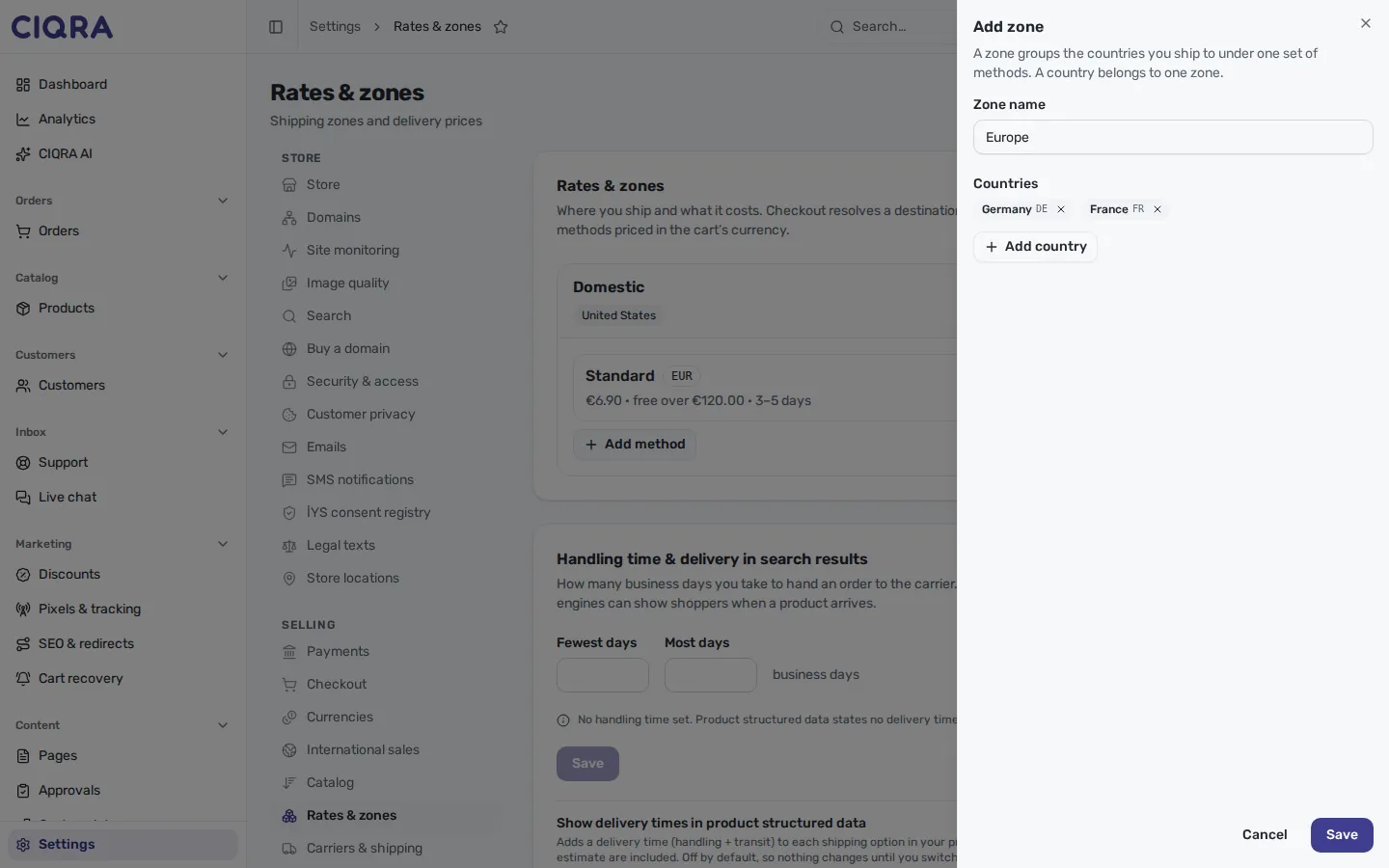
- 1Zone nameAny name that tells you which region it is. The field suggests Domestic, EU or Rest of world.
- 2CountriesOne zone, many countries. A country can belong to only one zone.
- 3SaveCreates the zone. Cancel closes the panel without changing anything.
3. Save and read the list
Section titled “3. Save and read the list”Select Save. A message says “Zone created.” and the zone’s card appears with its country names. A zone starts with no method, and the card says so: “No methods yet. Add one so this zone can be shipped to.”
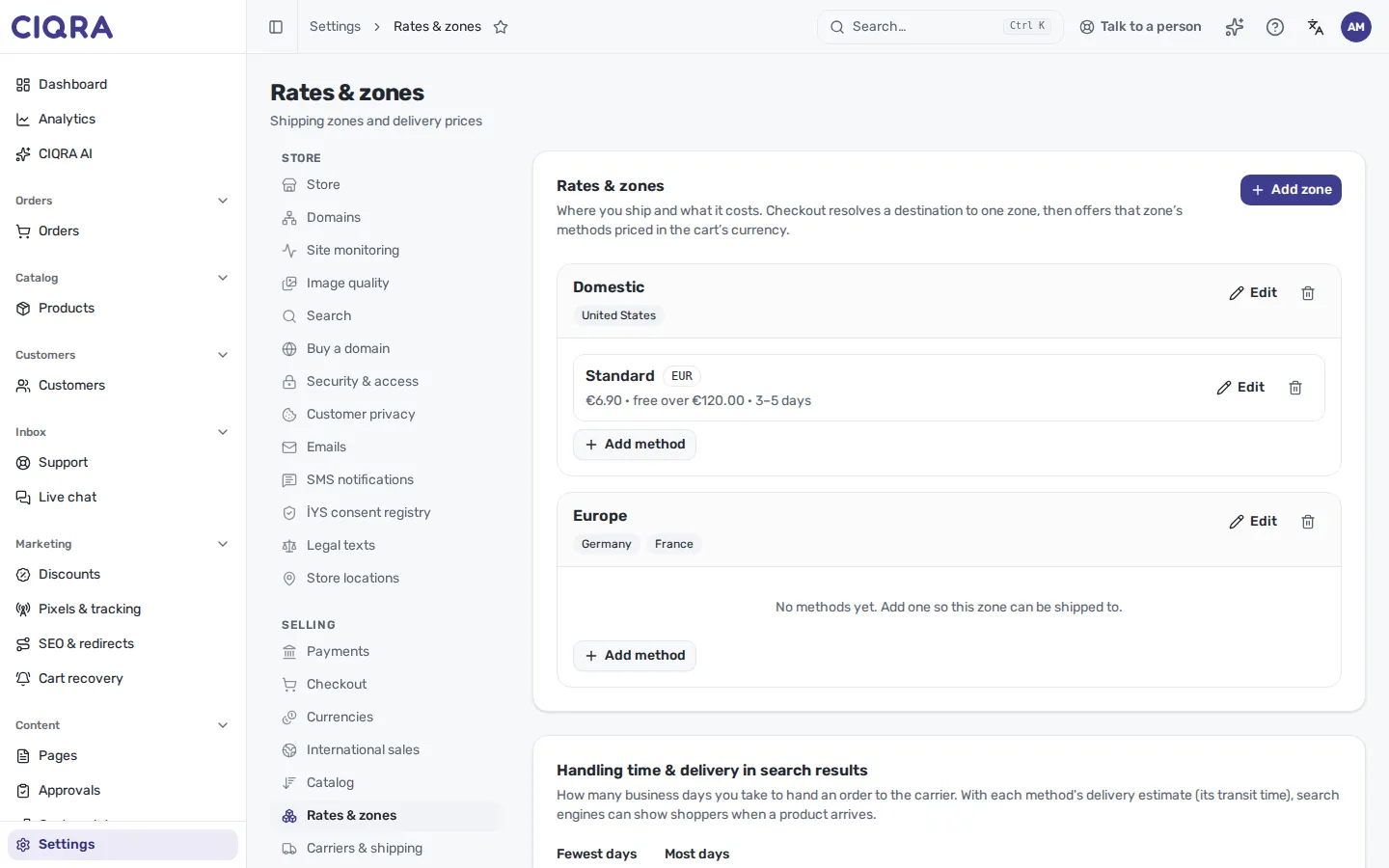
- 1Zone cardThe zone name and one badge per country.
- 2Edit and deleteEdit reopens this panel. The bin deletes the zone and its methods.
4. Add a method
Section titled “4. Add a method”A zone with no method quotes nothing. Select Add method on the card and follow Shipping rates and methods.
When it refuses
Section titled “When it refuses”- No country: “Pick at least one country; an empty zone serves no destination.”
- No name: “Name is required.”
- A country already used: “These countries already belong to another zone: …. A destination resolves to one zone.” The message names the countries. Remove them from the other zone first, or leave them out of this one.
Change or delete a zone
Section titled “Change or delete a zone”Edit on the zone card reopens the panel with the zone’s name and countries. Saving replaces the country list with what the panel shows, so a country you removed there no longer belongs to the zone.
The bin asks “Delete this zone?” and explains: “Delete “Europe” and its methods. Destinations in it will have no shipping until another zone covers them.“ Deleting is the way to stop shipping to a region altogether.
Why group destinations
Section titled “Why group destinations”You rarely want to charge the world the same shipping price. Delivering inside your own country costs less than delivering across a continent, and some places you may not ship to at all. A zone lets you carve up your destinations — the screen’s own examples are “Domestic, EU, Rest of world” — and then attach different methods to each.
A zone is a Zone name and a list of Countries. The screen states the rule that keeps zones from competing: “A zone groups the countries you ship to under one set of methods. A country belongs to one zone.” A zone with no country is refused, because “an empty zone serves no destination.”
How zones decide what a shopper sees
Section titled “How zones decide what a shopper sees”At checkout the engine takes the shopper’s destination country and finds the zone that contains it, then draws the delivery options from that zone. Three consequences follow:
- If no zone contains a shopper’s country, there’s nothing to match — so they see no delivery options. Leaving a country out of every zone is how you stop shipping there.
- Because a country belongs to one zone, an order lands in exactly one zone; there is no priority order between zones to manage.
- Zones match on the country alone, so one zone covers the whole of a country. A price that varies inside a country comes only from a live carrier rate, which the carrier quotes from the shopper’s address.
That makes zones the foundation: rates and methods only ever appear through the zone they’re attached to.
Zones and rates go together
Section titled “Zones and rates go together”A zone on its own doesn’t quote a price — it needs methods and rates attached to it to offer delivery. A zone with no method that resolves a price is invisible to shoppers, the same as having no zone for that destination. Adding those prices is covered in Shipping rates and methods.
Deleting a zone deletes its methods with it. The confirmation says what that means for shoppers: “Destinations in it will have no shipping until another zone covers them.”