

Carriers & shipping labels
The screen states the whole job in one paragraph: “Connect the carriers you ship with. Add each carrier’s credentials and ship-from address, then turn it on to quote live rates and buy labels. Secrets are stored encrypted and never shown again.”
Three steps, in that order, and the order is not optional — a carrier cannot quote a rate without knowing where the package starts.
Connect a carrier, step by step
Section titled “Connect a carrier, step by step”You need the permission to manage settings and an account with the carrier. The pictures use a demo store and a made-up token.
1. Open Carriers & shipping and find the carrier
Section titled “1. Open Carriers & shipping and find the carrier”In the admin, open Settings, then Selling, then Carriers & shipping. Each carrier has a card. One you have not set up says Not configured and “Not connected yet”, with a Configure button.
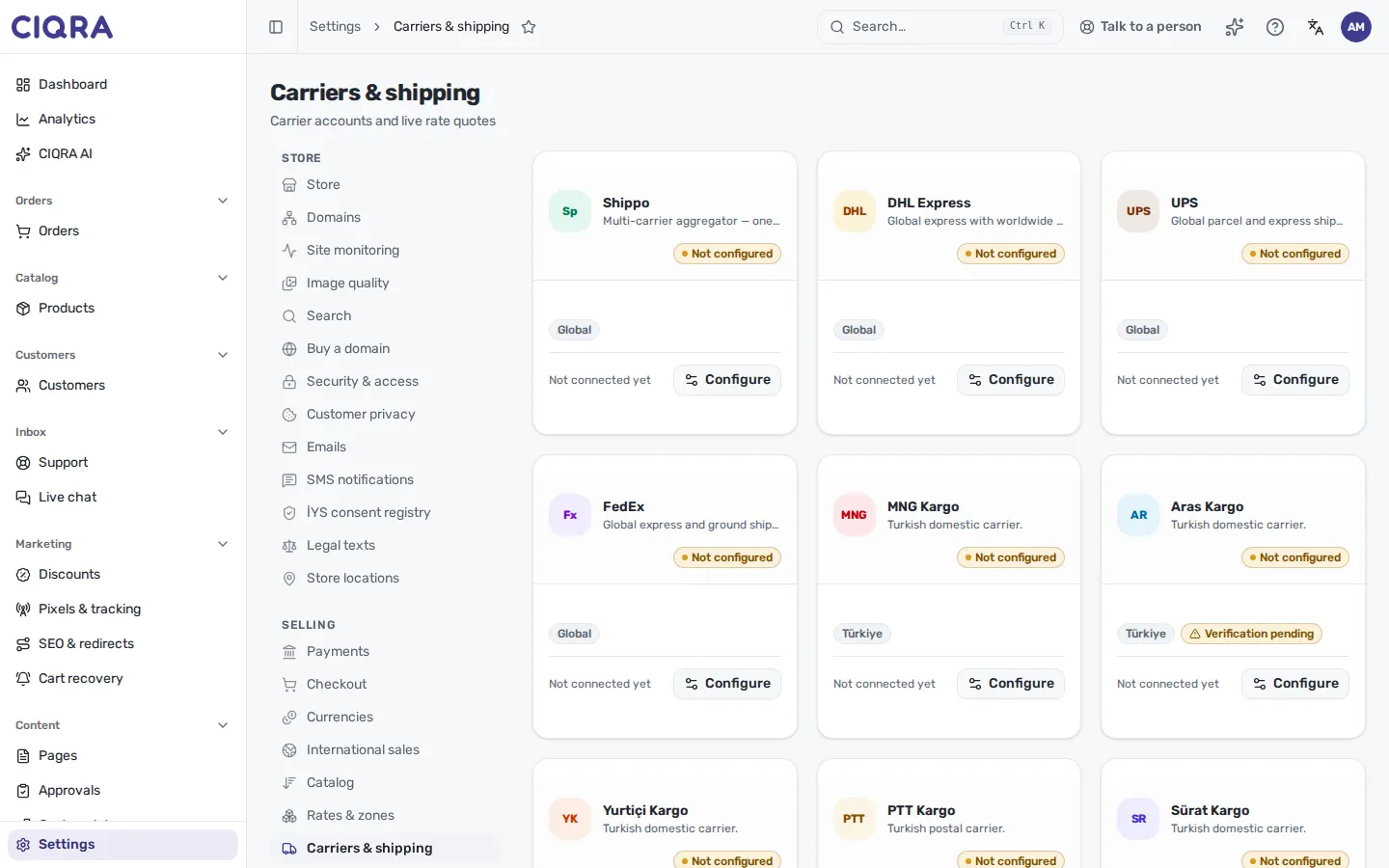
- 1Carrier cardName, region and status. TR carriers also show Verification pending when their live endpoint is not yet verified.
- 2ConfigureOpens the carrier's panel. A connected carrier shows Edit instead.
2. Enter credentials and the ship-from address
Section titled “2. Enter credentials and the ship-from address”Select Configure. The fields depend on the carrier: Shippo asks for an API token; DHL Express, UPS and FedEx for a Client ID and Client secret; the Turkish carriers for usernames, passwords and codes. Secrets are write-only (see below).
Then fill in Ship-from address: Name, Address, City, Postal code, Country (ISO) and, for the US or Canada, State / province. The country is required. Without a state on a US or Canadian address the carrier “will quote a price without one, but refuses to issue the label.”
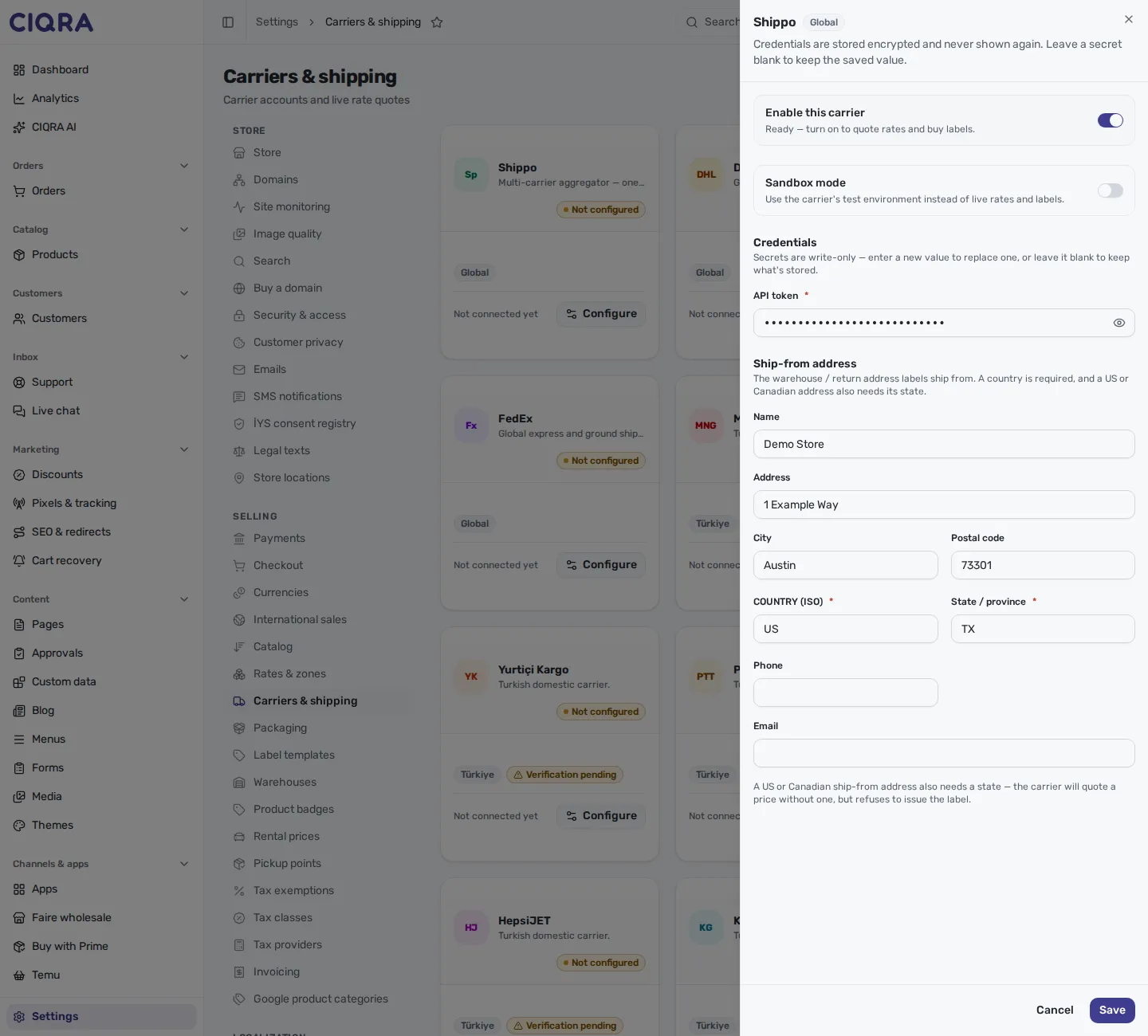
- 1Enable this carrierStays off until the required credentials and a ship-from country are present: Add the required credentials and a ship-from country to enable.
- 2Sandbox modeUses the carrier's test environment. Labels bought there are not real.
- 3Ship-from addressThe origin of every quote and every label.
3. Turn it on and save
Section titled “3. Turn it on and save”Switch on Enable this carrier, then select Save. A message says “Shippo settings saved.” The card now reads Live, or Sandbox when Sandbox mode is on.
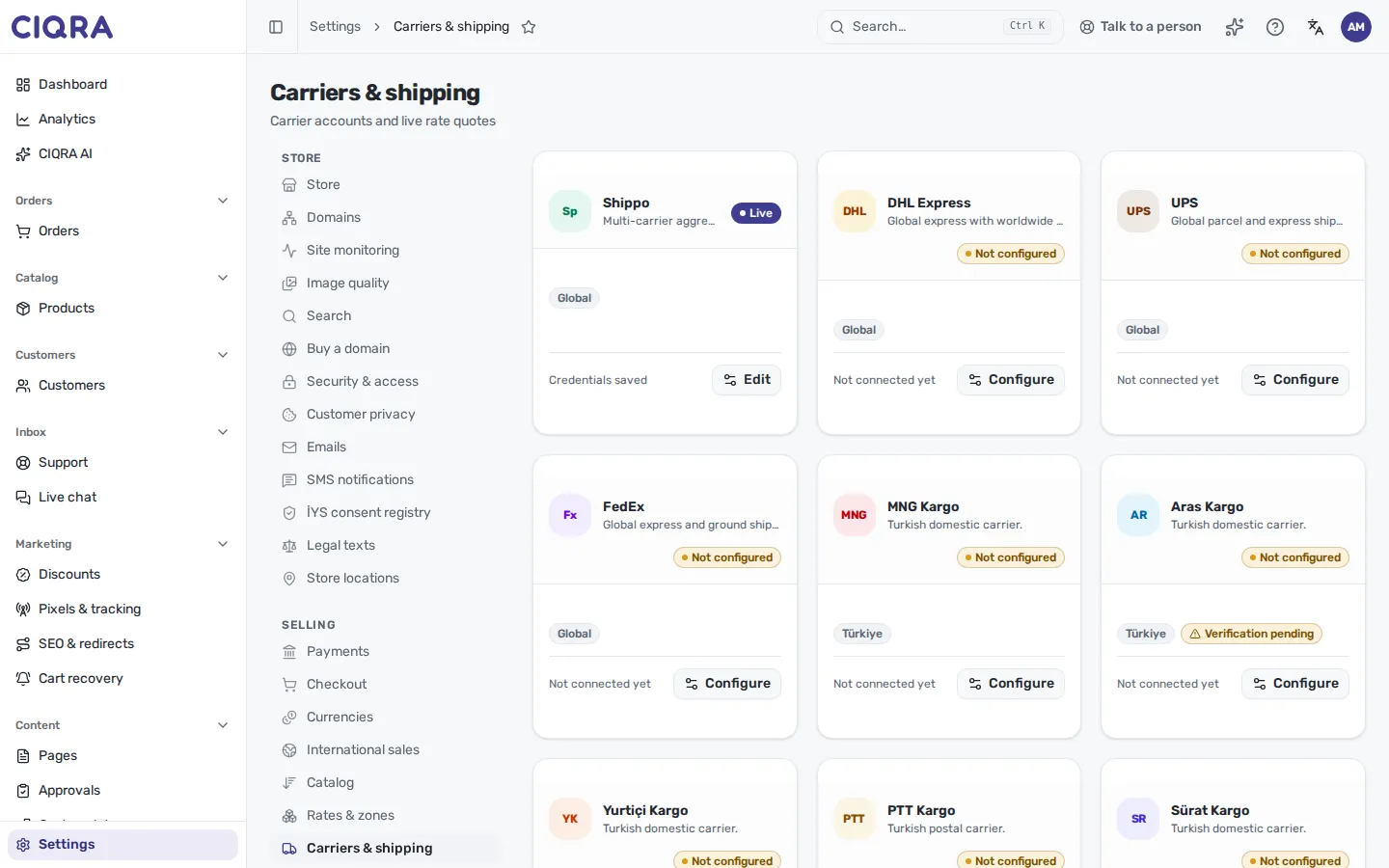
- 1StatusLive means real rates and real labels.
- 2EditReopens the panel. Leave a secret blank to keep the saved one.
With the carrier on you can buy labels from an order; see Buy, attach and void a shipping label. To price a delivery method from this carrier’s live rate, see Shipping rates and methods.
When it refuses
Section titled “When it refuses”- The enable switch is disabled with “Add the required credentials and a ship-from country to enable.” until both are present.
- If the carrier rejects the save, the panel shows the field it objects to; otherwise a message reads “Couldn’t save Shippo. Please try again.”
- A card that shows Last failed with a time is reporting the carrier’s most recent error.
Two things that quote rates, and they are not the same
Section titled “Two things that quote rates, and they are not the same”Rates & zones is what you decide to charge. A carrier connection is what the carrier says it will cost you. A store can have one without the other, and most start that way: a flat zone rate, no carrier connected, labels bought elsewhere.
Connecting a carrier adds two abilities — live rate quotes and buying a label from inside an order — and neither replaces your rate table. What you charge a shopper remains your decision.
The ship-from address is not paperwork
Section titled “The ship-from address is not paperwork”“The warehouse / return address labels ship from. A country is required, and a US or Canadian address also needs its state.”
It is the origin of every quote. A wrong country does not produce a small error; it produces plausible rates for a journey that is not the one your package makes. If quotes look strange before you suspect the carrier, check where the screen thinks you are shipping from.
The status word tells you what is actually happening
Section titled “The status word tells you what is actually happening”| Status | What it means |
|---|---|
| Not configured | No credentials yet. |
| Incomplete | Something is missing — usually the ship-from address. |
| Configured · off | Set up, deliberately not in use. |
| Sandbox | Connected to the carrier’s test environment. Labels are not real. |
| Live | Real rates, real labels, real money. |
🔑 Sandbox is the one to check twice. A store that has been quoting happily in sandbox discovers the difference at the moment it needs a real label — usually the first busy day.
Secrets go in and do not come back out
Section titled “Secrets go in and do not come back out”“Secrets are stored encrypted and never shown again.”
The credential field will be empty when you return to the screen. That is intentional, not a display bug: a secret that can be read back out of a form leaks through anyone who can open the form.
The practical consequence is yours to manage: CIQRA cannot show you the key you pasted. Keep your own copy where you keep your other credentials, and if you need to change it, paste a new one.
Which carriers you can connect
Section titled “Which carriers you can connect”The screen lists Shippo, DHL Express, UPS, FedEx, MNG Kargo, Aras Kargo, Yurtiçi Kargo, PTT Kargo, Sürat Kargo, HepsiJET, Kolay Gelsin, Geliver, Sendcloud and Royal Mail. A card marked Verification pending is a carrier whose live endpoint has been checked against a test endpoint but not yet the production one; the panel advises confirming with operations before relying on it for live shipments.
What this page does not say
Section titled “What this page does not say”- It does not explain the carrier’s own account setup. Getting credentials is a conversation with the carrier, and their documentation is the authority.
- It does not say what happens to a label already bought if you disconnect a carrier, or whether a sandbox connection can be promoted to live in place. Neither has been checked against the current screen.