

Locations and warehouses
Locations are “the warehouses and stores you hold stock in.” Because CIQRA tracks inventory per location, setting these up is what lets you know exactly where your stock sits — and fulfill from the right place.
Your locations at a glance
Section titled “Your locations at a glance”Open Locations from the Catalog group in the sidebar.
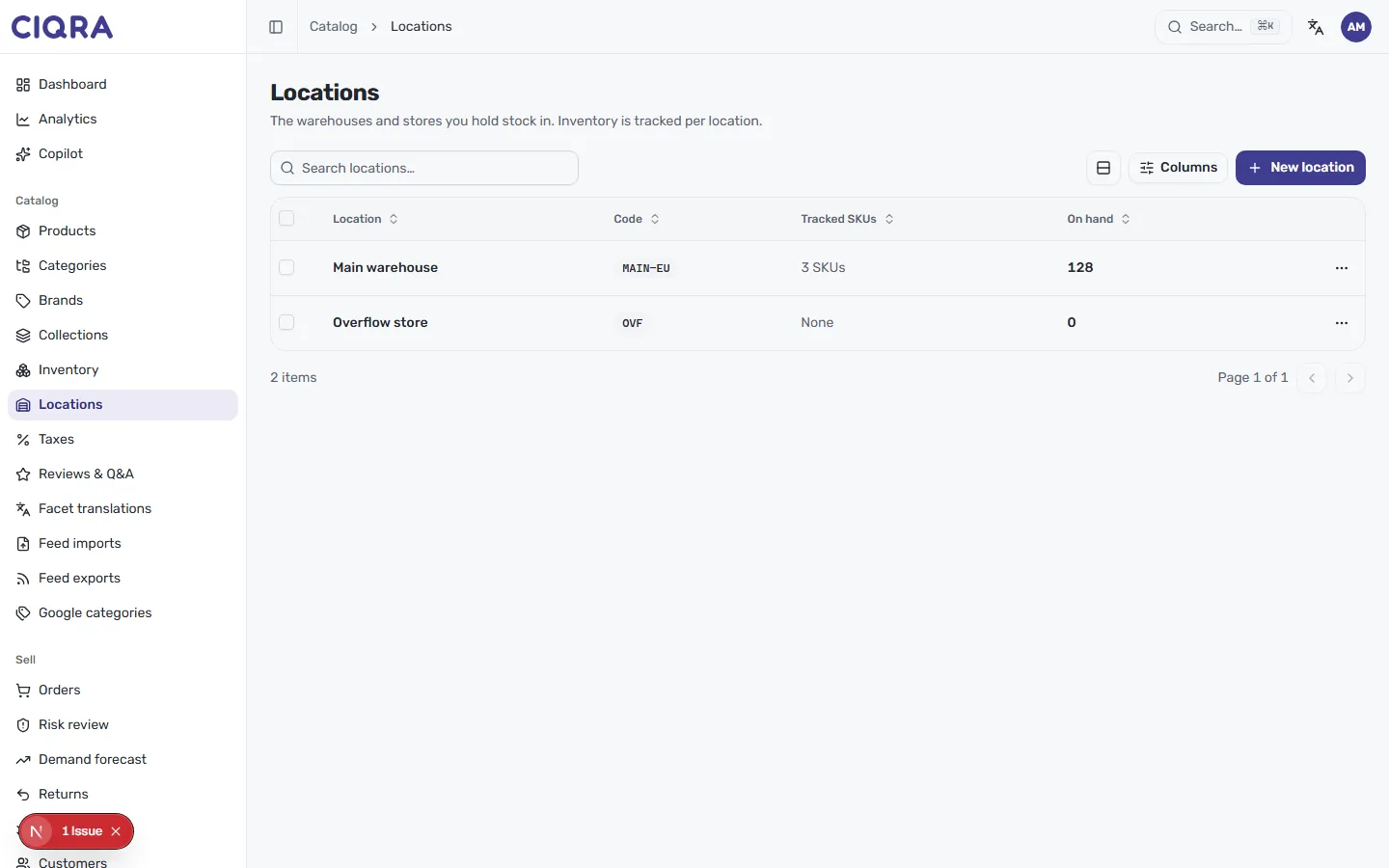
Each location shows its Code (a short badge such as MAIN-EU or OVF), how
many Tracked SKUs it holds (or None), and its total On hand count.
Search by name, adjust visible columns with Columns, and open a location’s
⋯ menu for its actions.
Add a location
Section titled “Add a location”Select New location. As the form explains, you “name the location and give it a short code” — and you can adjust its stock later from Inventory.
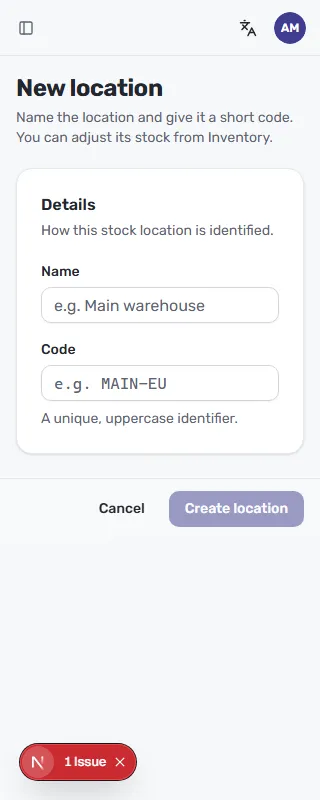
Under Details — “how this stock location is identified” — fill in:
- Name — a clear label, for example Main warehouse.
- Code — “a unique, uppercase identifier” such as
MAIN-EU. This is the badge you’ll see throughout Inventory.
Select Create location to save, or Cancel to discard it.
Edit or remove a location
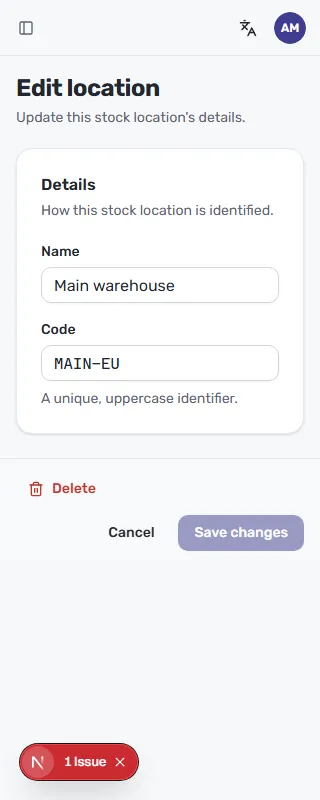
Section titled “Edit or remove a location”Opening an existing location shows the Edit location screen, where you “update this stock location’s details.” You can change its Name and Code, then select Save changes. Delete, at the bottom left, removes the location entirely.
How locations power inventory
Section titled “How locations power inventory”Once you have more than one location, every variant’s stock is counted separately at each — which is exactly what the Matrix view in Track inventory lays out side by side. Add the locations that match how you really operate: a main warehouse, an overflow store, a physical shop, and so on.