

Find and filter customers
The Customers list is your directory of everyone who has registered or ordered in your storefront. It’s the starting point for looking someone up, checking their history, or getting a feel for who’s buying from you.
Open it from the Customers item under the Sell group in the left navigation.
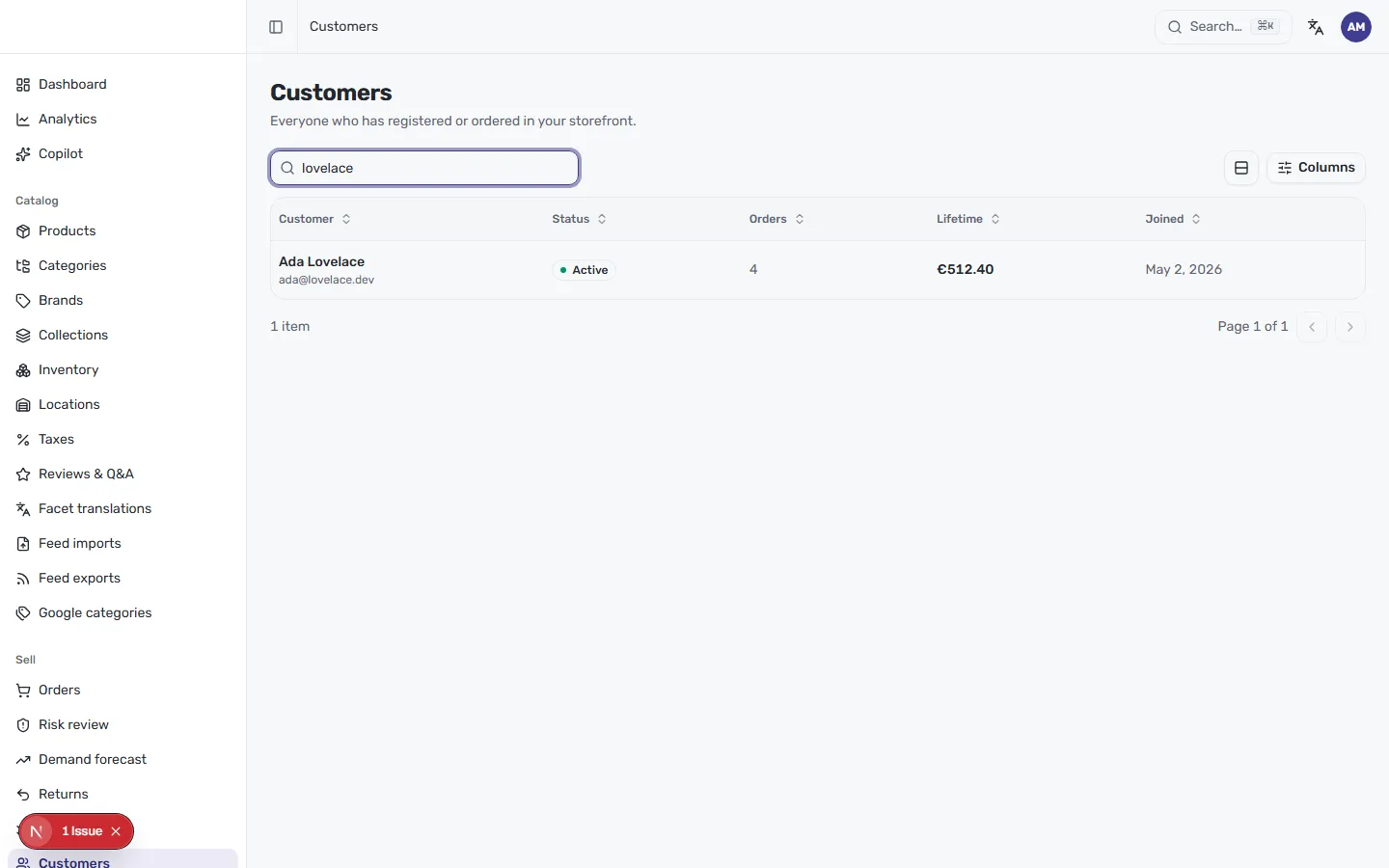
Find a customer
Section titled “Find a customer”The search box sits right above the table. Start typing a name or email and the
list narrows to matching people as you go — in the example above, typing lovelace
brings up Ada Lovelace. It’s the quickest way to jump to someone when you already know
who you’re looking for.
Read the list at a glance
Section titled “Read the list at a glance”Each customer is one row, with the essentials laid out across the table:
- Customer — their name and email address.
- Status — whether the account is Active or not.
- Orders — how many orders they’ve placed.
- Lifetime — the total they’ve spent with you.
- Joined — the date they first registered or ordered.
Below the table, a count (for example, 1 item) tells you how many customers match, and the pagination arrows move you between pages when there are more than fit on one.
Sort and choose columns
Section titled “Sort and choose columns”Every column header has a sort control — click Orders, Lifetime or Joined to reorder the list, so you can surface your most frequent buyers, your highest spenders, or your newest customers.
Use the Columns button on the right to choose which details appear in the table, so you can focus on the information that matters most to you.
To dig into a single person — their order history, addresses, tags and notes — open their row. That opens their full profile, covered in A customer profile.