

Buy, attach and void a shipping label
A shipping label is bought from the order itself, through a carrier you have connected (for example Shippo). CIQRA quotes the carrier’s live prices for the package, you pick a service, and the label is bought at the price you saw, or not at all. This page covers buying a label, recording a label you bought somewhere else, and voiding one. The pictures use a demo store with made-up data.
Before you start
Section titled “Before you start”- A carrier must be connected and turned on. Without one, the dialog says “No carriers are enabled yet.” and links to Configure carriers. See Carriers and labels.
- Package sizes must be known. Live prices are quoted for the package CIQRA describes from your boxes. If it cannot, the service list stays empty and the dialog says why.
- The order must be one you can manage. The label routes require the Orders manage permission. Re-issue label is limited to owners and admins.
- An order that already has a label which has not been delivered, canceled, returned or marked as an exception cannot get a second one (see When it refuses).
Buy a label
Section titled “Buy a label”1. Open the order and find Carrier labels
Section titled “1. Open the order and find Carrier labels”Open the order from Orders. The Carrier labels card lists the labels bought for the order and carries three buttons: Print, Attach existing and Create label. Until you buy one it reads “No labels bought yet. Create one to generate tracking.”
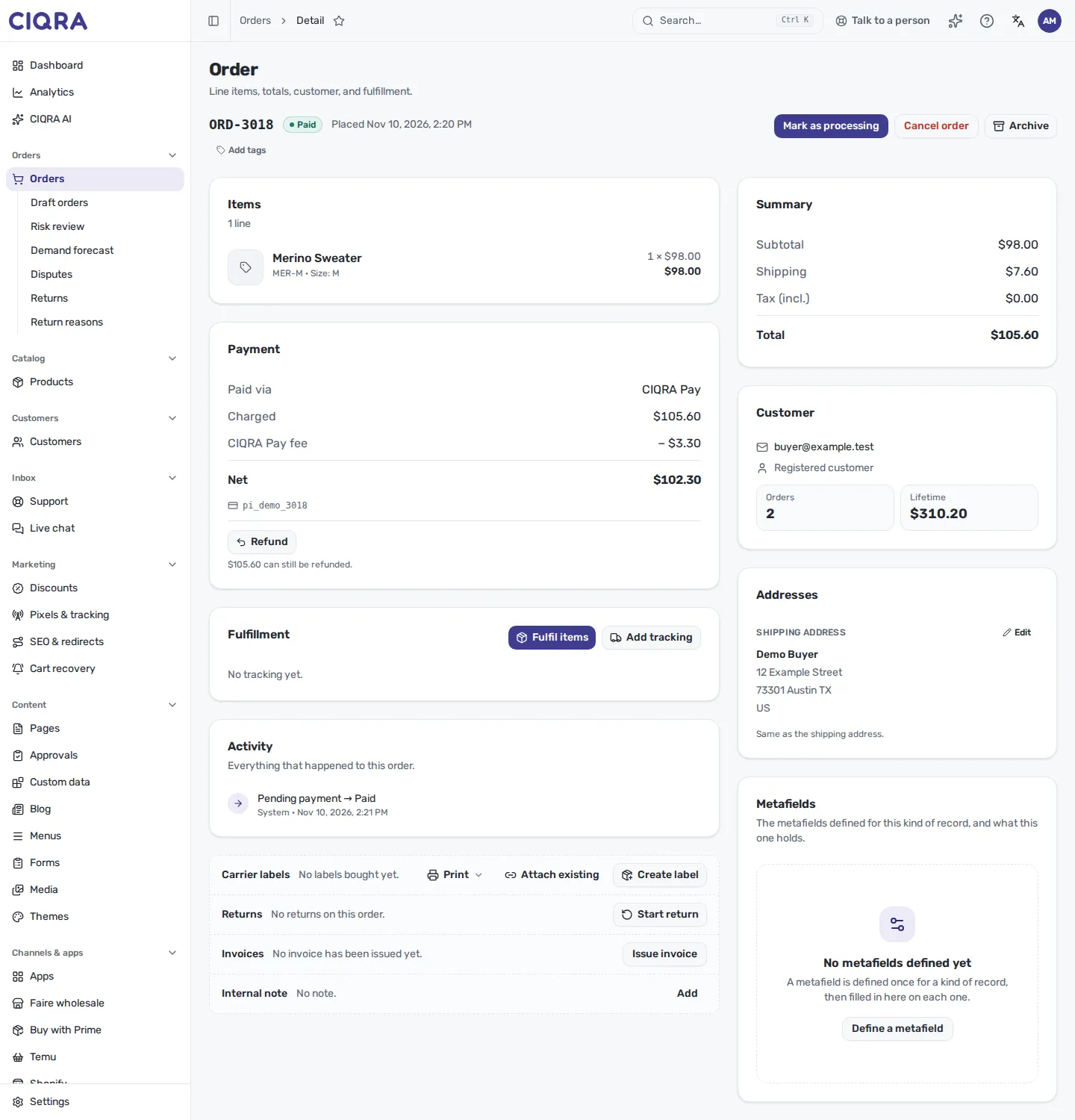
- 1PrintOpens the label, the label with the packing slip, or the packing slip. See Print packing slips and pick lists.
- 2Attach existingRecords a label you already bought at the carrier. It buys nothing.
- 3Create labelOpens the dialog that buys a label.
2. Choose the service
Section titled “2. Choose the service”Select Create label. CIQRA asks the carrier for live prices for this order’s package and shipping address. The dialog opens on the service the shopper chose at checkout; if that service is not in the list, it opens on the cheapest priced one. Each entry shows the service, its price and, when the carrier gives it, the delivery time, for example “UPS Ground — $8.51 · 1–5 days”. Under the list the dialog states the price: “This label will cost $8.51.”
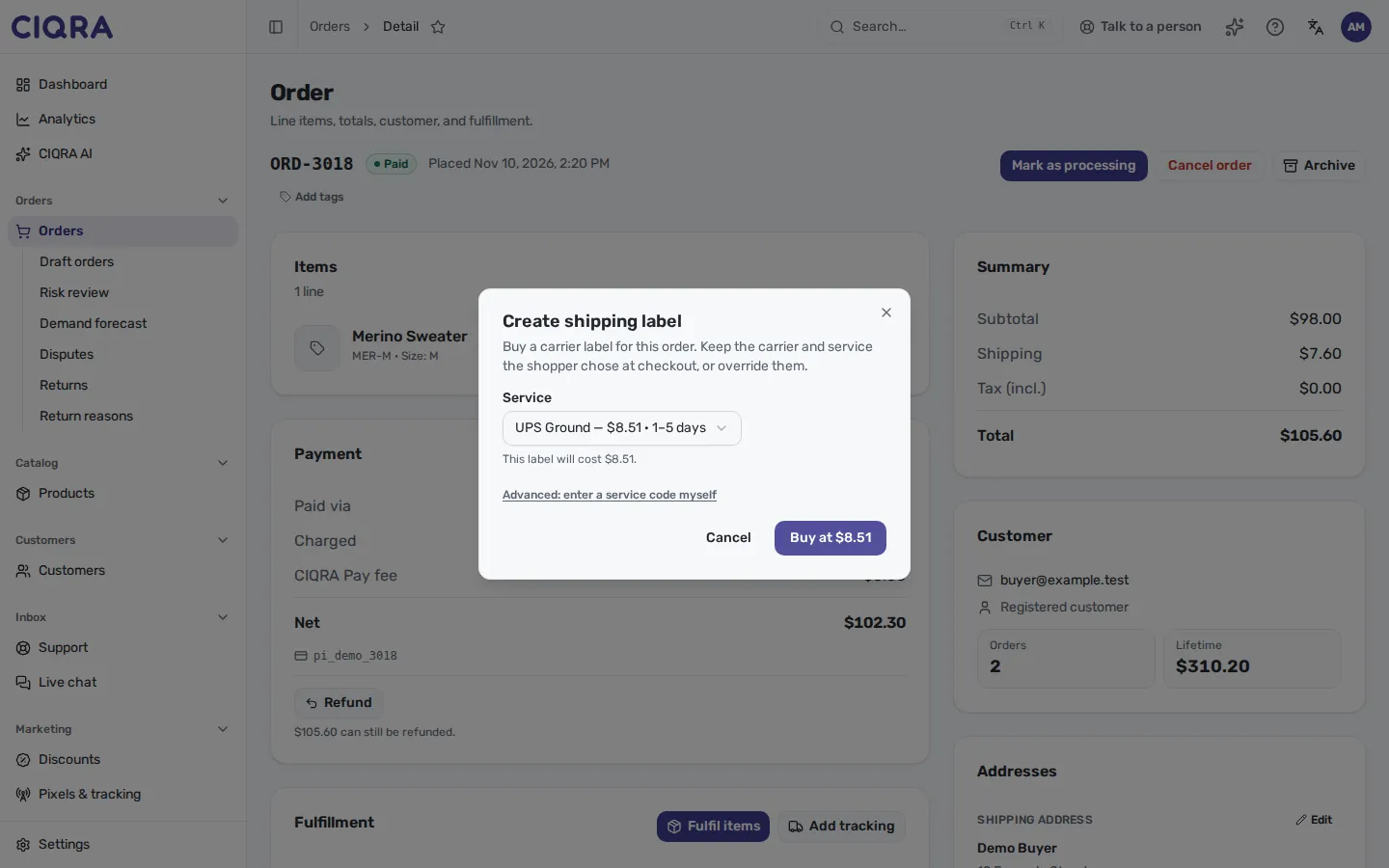
- 1ServiceThe shopper's checkout service is selected first. Open the list to pick another service.
- 2The price you are buyingThe price shown is the price the purchase is made at.
- 3Buy at the priceThe button carries the price. Nothing is bought until you select it.
Advanced: enter a service code myself opens a Carrier list and a Service code box for the case where the carrier cannot quote right now. Leave the code blank to use the service the shopper chose at checkout. CIQRA still shows the price and asks you to confirm it before it buys.
Some carriers publish no price for a service (their label is billed at your carrier contract rate). Those services show the carrier’s name instead of a price, the dialog says “This carrier publishes no price for this service; the label is billed at your carrier contract rate.”, and the button reads Buy at contract rate.
Orders packed into more than one package
Section titled “Orders packed into more than one package”When the order’s packing plan has more than one box, a Package list appears (“Choose a package”, with entries such as “Package 1 of 2”). Choose the package first: the prices are quoted for exactly that box, and each package is bought as its own label. The labels then show a badge such as Package 1/2.
3. When the carrier’s price has changed
Section titled “3. When the carrier’s price has changed”The price lock works like this. The quote is bought by its own id at the price you saw. If the carrier’s price moved, or the quote expired, nothing is bought. The dialog shows what it told you before (struck through), the Price now, and a button with the new price.
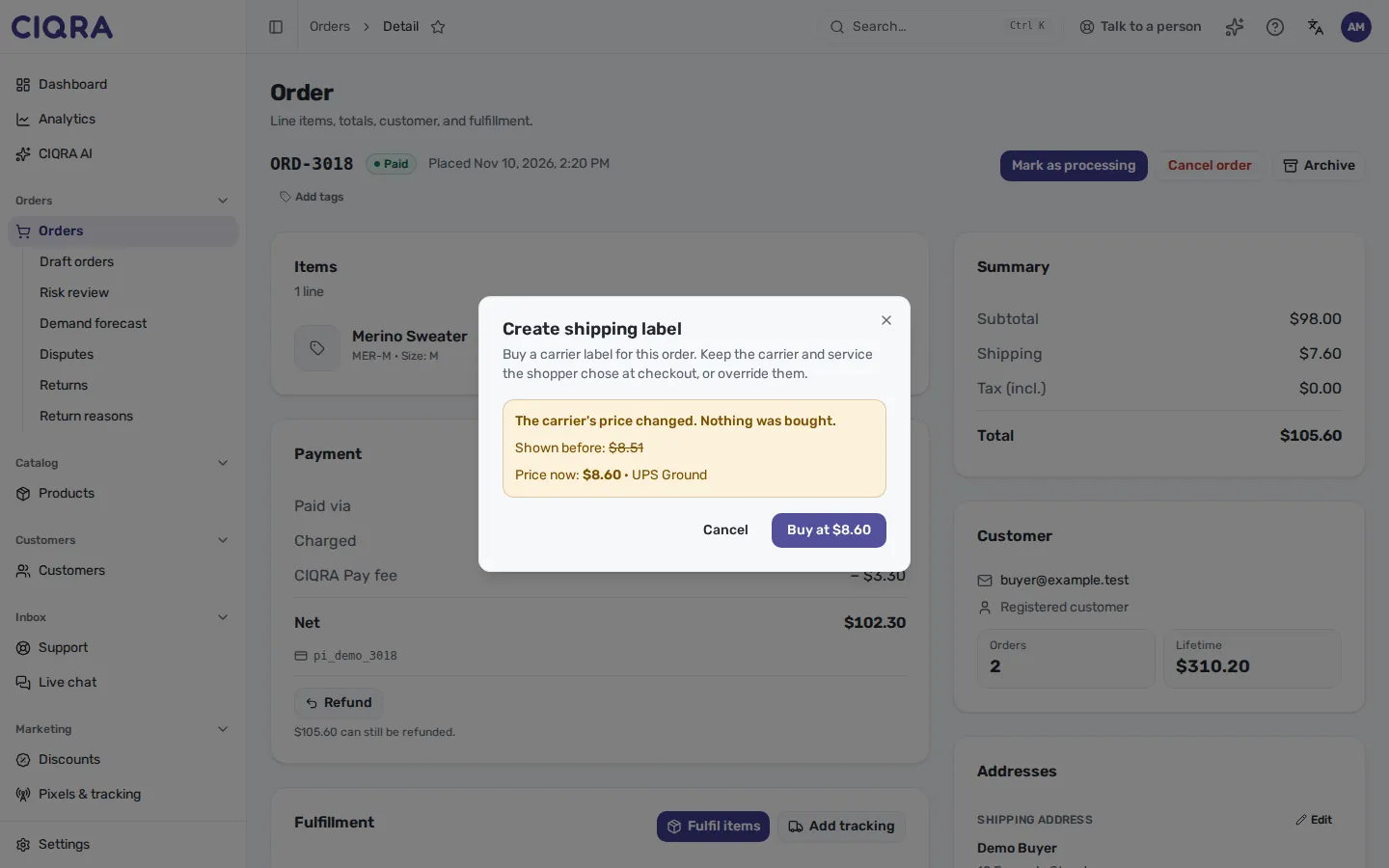
- 1Nothing was boughtThe message is one of: the carrier's price changed, the quoted rate expired, or confirm the price before buying.
- 2Shown before and price nowThe earlier price is struck through, the carrier's price now follows it.
- 3Buy at the new priceSelecting it accepts the new price and buys. Cancel goes back to the service list.
4. The label on the order
Section titled “4. The label on the order”After the purchase a message gives the tracking number (“Label bought — tracking …”) and the label appears in the Carrier labels card. It shows the carrier and service, a progress bar (Label created, In transit, Out for delivery, Delivered), the tracking number with a Track link, the date, the cost, and a Label link that opens the label. The label is served from CIQRA’s own stored copy, not the carrier’s temporary link.
Buying a label writes its tracking onto the order and the carrier’s tracking then moves the order forward. That is why Fulfill items is not offered on an order with a live label; see Fulfill and track shipments. The refresh icon (Refresh tracking) asks the carrier for the latest status.
A second card, Shipping cost check, appears once a label has a cost. It sets three numbers side by side:
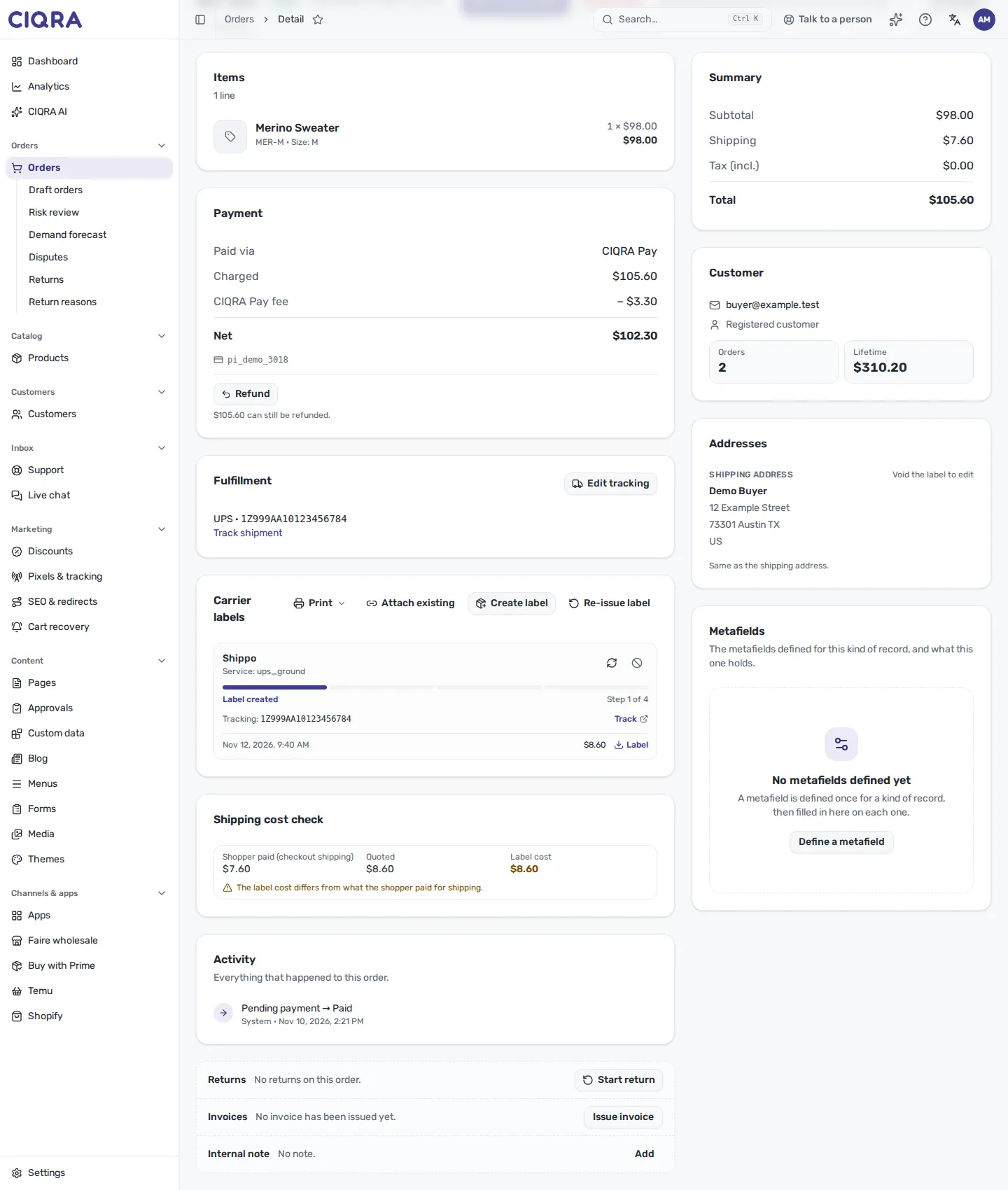
- 1The labelCarrier, service, tracking number, the Track link, the cost and the Label link.
- 2Shopper paidWhat the shopper paid for shipping at checkout.
- 3QuotedThe price you confirmed in the dialog. Dash for labels attached or bought before the price lock.
- 4Label costWhat the carrier charged. A warning appears when it differs from the quote or from what the shopper paid.
In the example the shopper paid $7.60 for shipping and the label cost $8.60, so the card flags “The label cost differs from what the shopper paid for shipping.” The difference is money your store absorbs. It is only judged when both amounts are in the same currency.
Attach a label you already bought
Section titled “Attach a label you already bought”Use Attach existing when a label was issued at the carrier but never appeared on the order, for example because the purchase was interrupted. Do not use Create label then: it would buy a second label. Attaching spends nothing; CIQRA reads the label the carrier already issued.
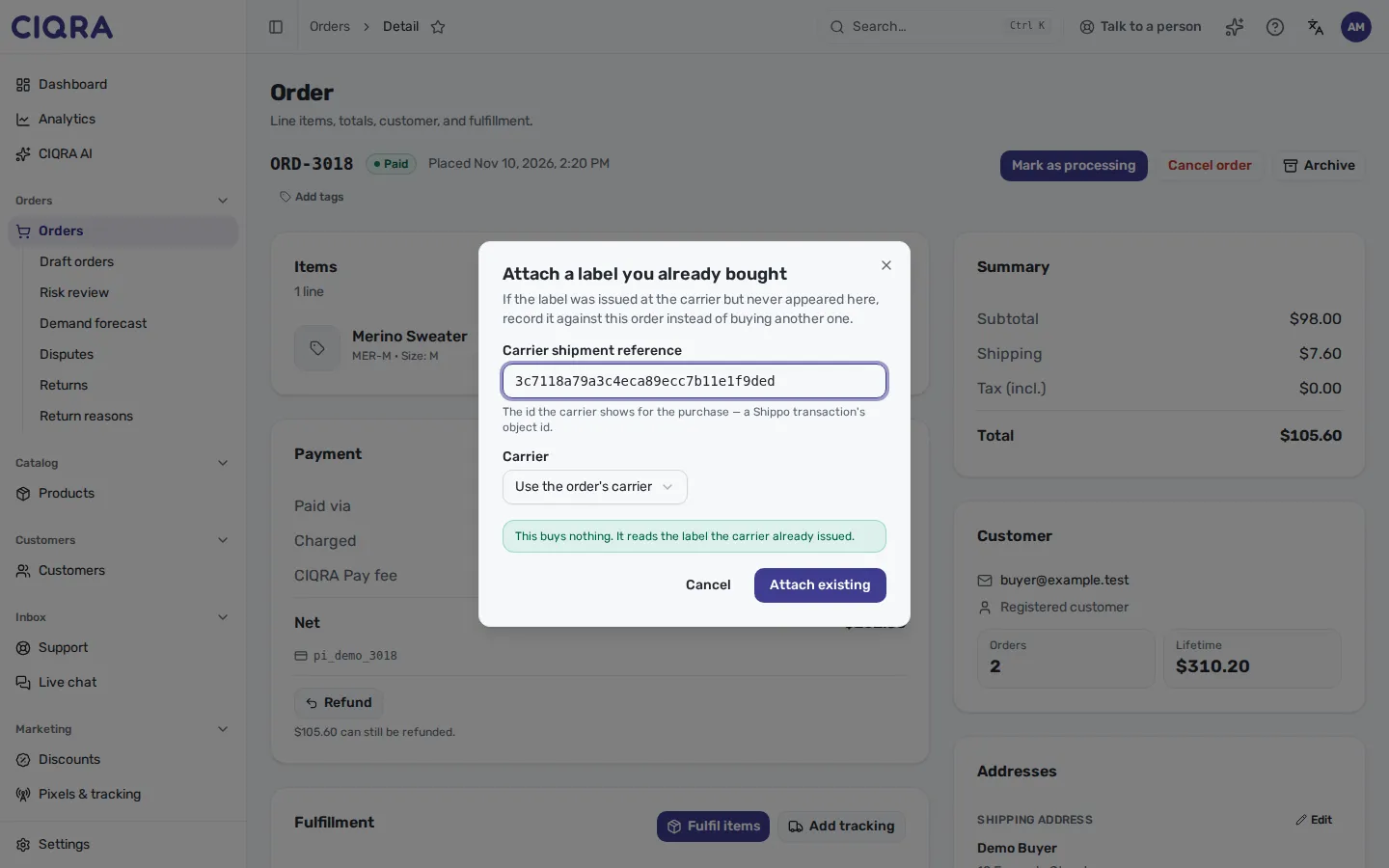
- 1Carrier shipment referenceThe id the carrier shows for the purchase. For Shippo it is the transaction's object id.
- 2CarrierDefaults to the order's carrier. Choose the carrier that issued the label when the order has none recorded.
- 3This buys nothingThe dialog says so on screen.
Paste the reference, select Attach existing, and the label is listed with the message “Label attached — tracking …”. A reference that is already recorded on the same order is accepted again without making a second record.
Void a label
Section titled “Void a label”A label bought by mistake can be voided from its row. Select the Cancel shipment icon (the circle with a bar, beside the refresh icon). CIQRA asks you to confirm: “This asks Shippo to void the label. This can’t be undone.” (the carrier’s name is filled in).
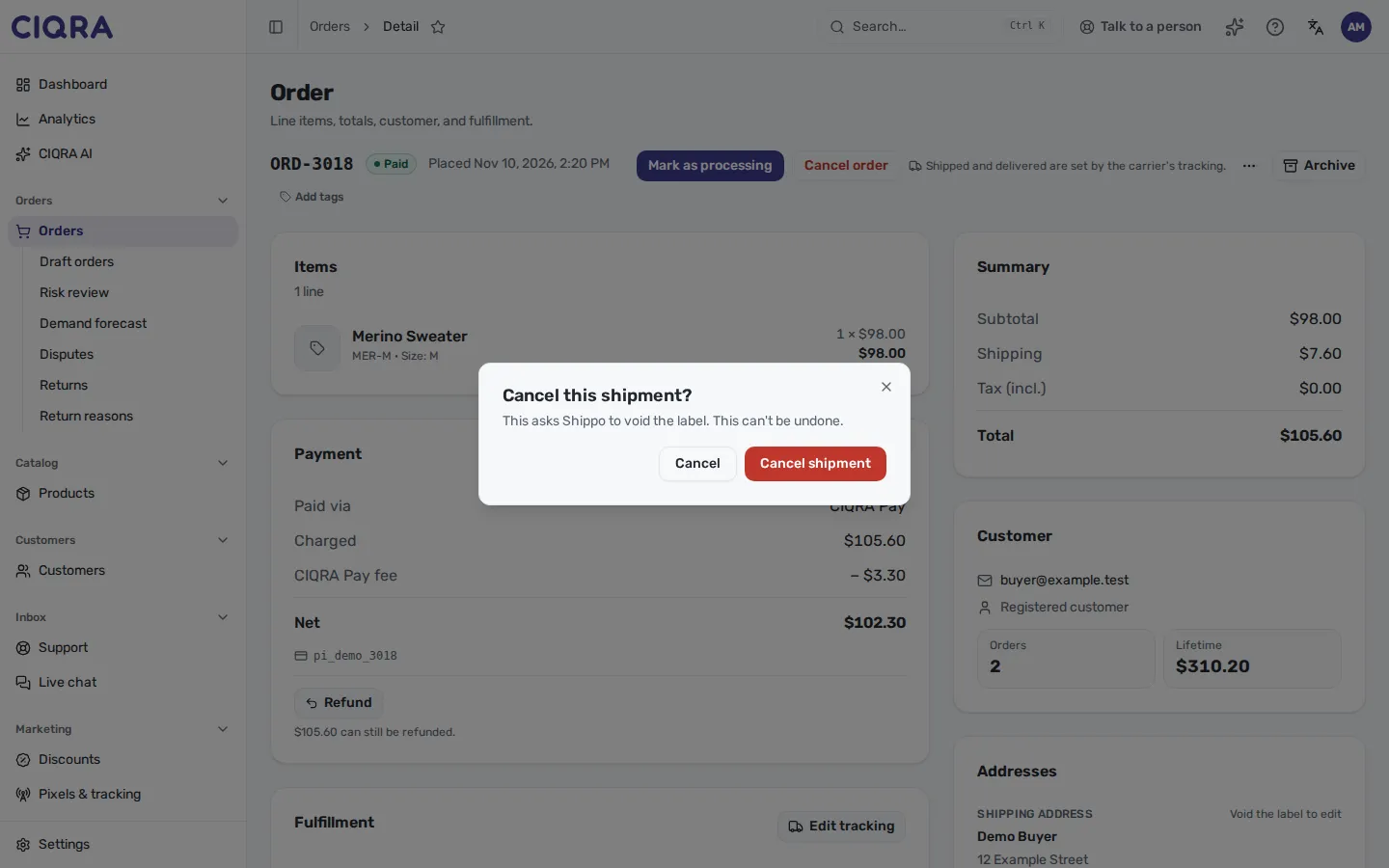
- 1Names the carrierCIQRA asks that carrier to void the label.
- 2Cancel shipmentConfirms. The row's status changes to Canceled and a message says Shipment canceled.
- If the carrier refuses, the dialog stays open and shows the carrier’s message (or “Couldn’t cancel the shipment.”).
- A canceled label no longer blocks a new one, so you can buy a replacement afterwards.
- Whether the carrier refunds the label’s price is the carrier’s own policy. CIQRA does not show or promise a refund.
- A tracking number that was typed in by hand (Manual tracking) has no label at a carrier; canceling it only removes the record.
Re-issue a label that the carrier lost
Section titled “Re-issue a label that the carrier lost”Re-issue label appears, for owners and admins, on an order that has a live label. Use it only when the carrier lost the package. The live label is retired in your store (the carrier is not asked to void it), a new label is bought at the price you confirm, and the Reason you must give is written to the order’s Activity timeline. The dialog names the label it replaces (“Replaces label …”).
When it refuses
Section titled “When it refuses”| You see | What it means | What to do |
|---|---|---|
| “No carrier is connected for this store, so there is nothing to price.” | No enabled carrier. | Connect one in Carriers and labels. |
| “The connected carrier returned no service for this package and destination.” | The carrier does not serve this package or route. | Check the package size and address, or use Advanced with a service code. |
| “Order … already has a … label (…) that has not been delivered. Cancel it before buying another, so the order is not charged twice.” | A live label exists. | Void it first, or use Re-issue label if it was lost. |
| “A … label for order … is already being bought, or its purchase did not finish. Check the carrier’s dashboard: attach the label if it was bought, otherwise cancel that record first.” | An earlier purchase did not finish. | Look in the carrier’s dashboard: Attach existing if it was bought, otherwise cancel the record. |
| “The carrier has no shipment under reference ‘…’. Check the id in the carrier’s own dashboard.” | The reference is wrong. | Copy the id again from the carrier. |
| “That carrier shipment is already recorded against order ….” | The label belongs to another order. | Attach it to the order it was recorded on. |
| “This order has no carrier recorded, so there is nothing to look the shipment up with. Choose the carrier that issued the label.” | Attach needs a carrier. | Pick the carrier in the Carrier list. |
Messages the carrier itself returns (an address it rejects, for example) are shown as the carrier worded them. CIQRA does not rewrite them.
Limits
Section titled “Limits”- The label is bought one per package of the order’s packing plan, not for items you pick. To ship chosen items in separate packages, see Fulfill and track shipments.
- Whether the shopper is emailed when a label is bought is not described here: this page has not checked it. The shipping email is covered in Fulfill and track shipments.
- Return labels (the package coming back) are bought from a return. See Handle returns.