

Edit an order
A customer writes after paying: they want one pair of socks fewer, or a different item, or they typed their street wrong. You can change the items and quantities of the paid order, and correct the shipping address, without canceling and re-creating the order. The examples use a demo store with made-up data: an order with a Merino Sweater and two pairs of Wool Socks.
Edit the items
Section titled “Edit the items”1. Open the order and find Edit items
Section titled “1. Open the order and find Edit items”Open the order from Orders. On the Items card, Edit items is offered when the order can be edited.
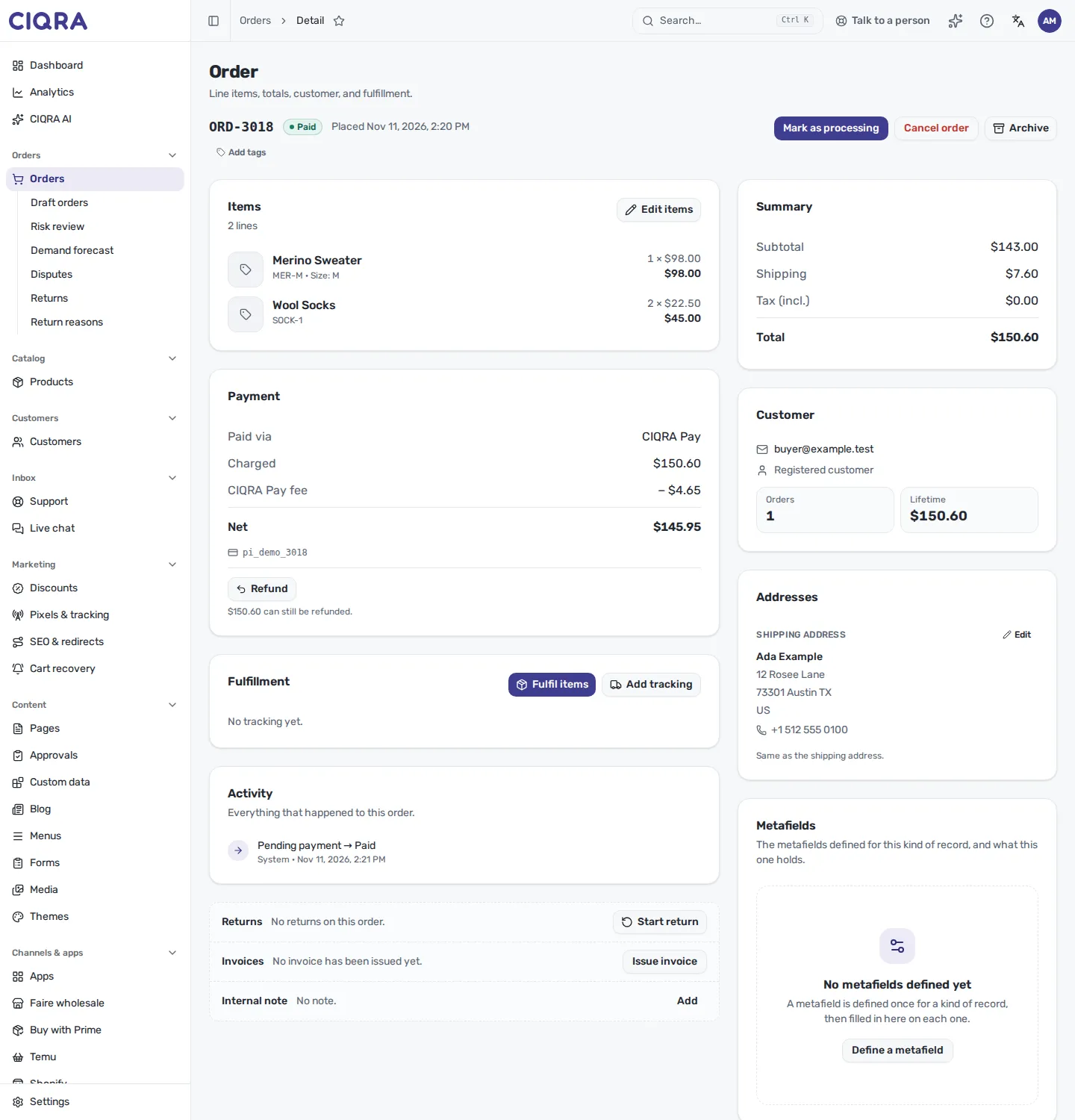
- 1Edit itemsOpens the edit window. It is not shown when the order cannot be edited (see below).
- 2Edit (shipping address)Corrects the shipping address. It has its own rules, covered further down.
An order can be edited while it is Paid, Procurement, Processing, Ready for shipment, Partially canceled or Partially fulfilled. It cannot be edited when it is unpaid, already shipped, placed on a marketplace, paid in installments, or paid in part with a gift card or loyalty points, or when it carries a bank-transfer discount. The edit window explains this refusal in its own words: “This order can’t be edited in its current state. It may be unpaid, already shipped, from a marketplace, or paid in a way that can’t be re-priced.”
2. Change the quantities
Section titled “2. Change the quantities”The window lists every item with its current quantity. Type a new quantity next to an item, select the bin icon to remove it (quantity 0), or select Add item, search your active products and pick a variant to add it to the order. Add a Reason (optional) if you want your team to see why.
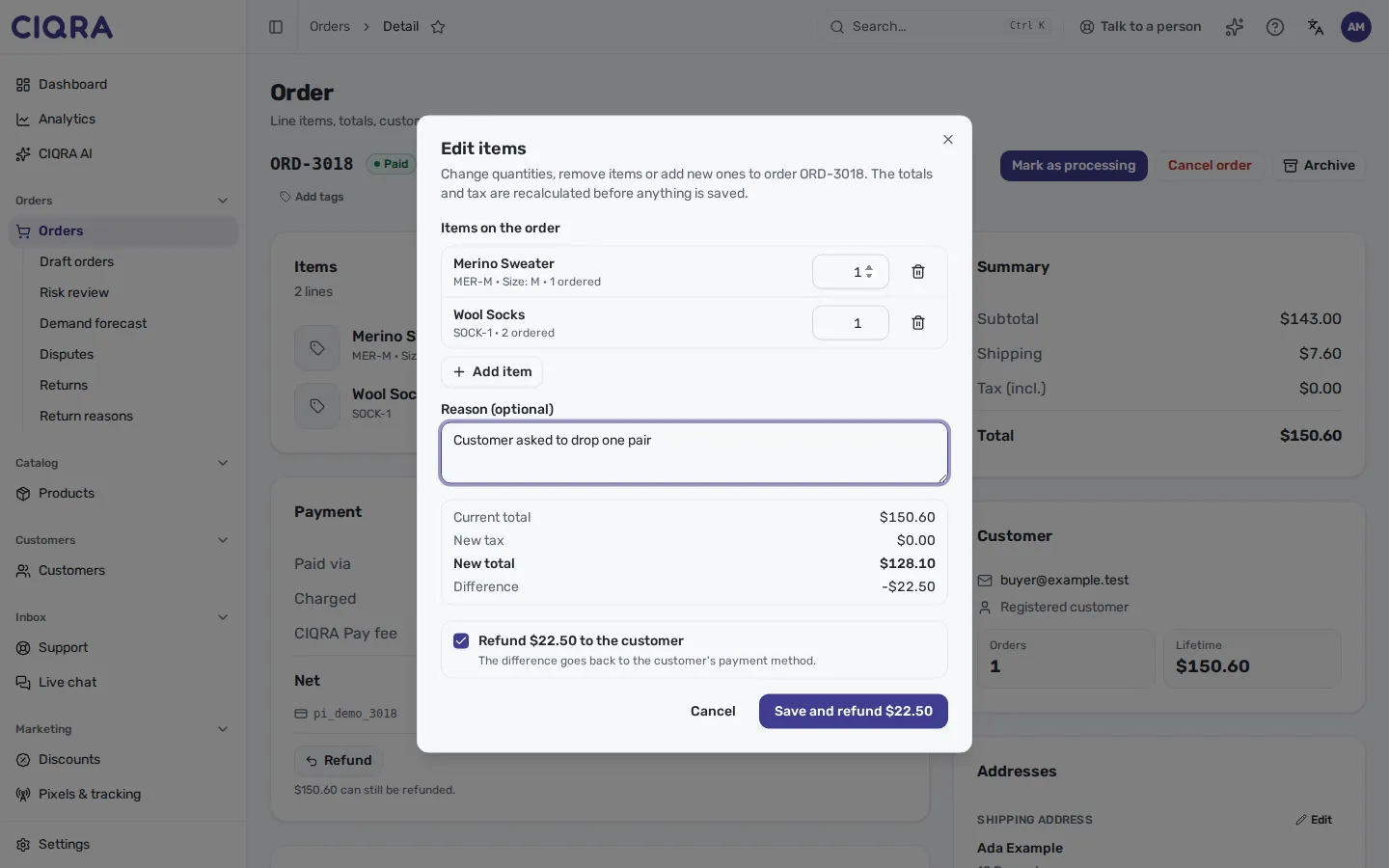
- 1New quantityOne row per item. An item that has already shipped cannot go below the quantity that left, and cannot be removed.
- 2Totals before you saveCurrent total, New tax, New total and Difference come from CIQRA's own calculation. Nothing is written until you save.
- 3Refund the differenceShown for a reduction. Ticked, the difference goes back to the customer's payment method; unticked, no money moves.
The rules the window applies:
- You cannot remove every item. The window says “An edit can’t remove every item. Cancel the order instead.”
- A partly shipped order can be reduced down to what has shipped, never below it.
- Add item offers active products. A variant priced in another currency is grayed out, and the window refuses a digital item or a bundle: “That item can’t be added to this order (another currency, a digital item or bundle, or not active).” It also refuses an item without enough stock: “There isn’t enough stock for the items you added.”
- Shipping is not re-quoted: the customer agreed to the shipping charge and the package still goes. Tax on changed lines is recalculated.
- When the new total is higher, the window says “The customer will owe {amount}. Collect it, then mark it as collected on the order.” CIQRA does not charge the difference itself.
- When the order was paid outside a card processor, there is no refund box. The window says to refund the amount where the money was taken.
3. Save
Section titled “3. Save”Select Save changes, or Save and refund when the refund box is ticked. The order total and lines update, and the order keeps a record of the edit.
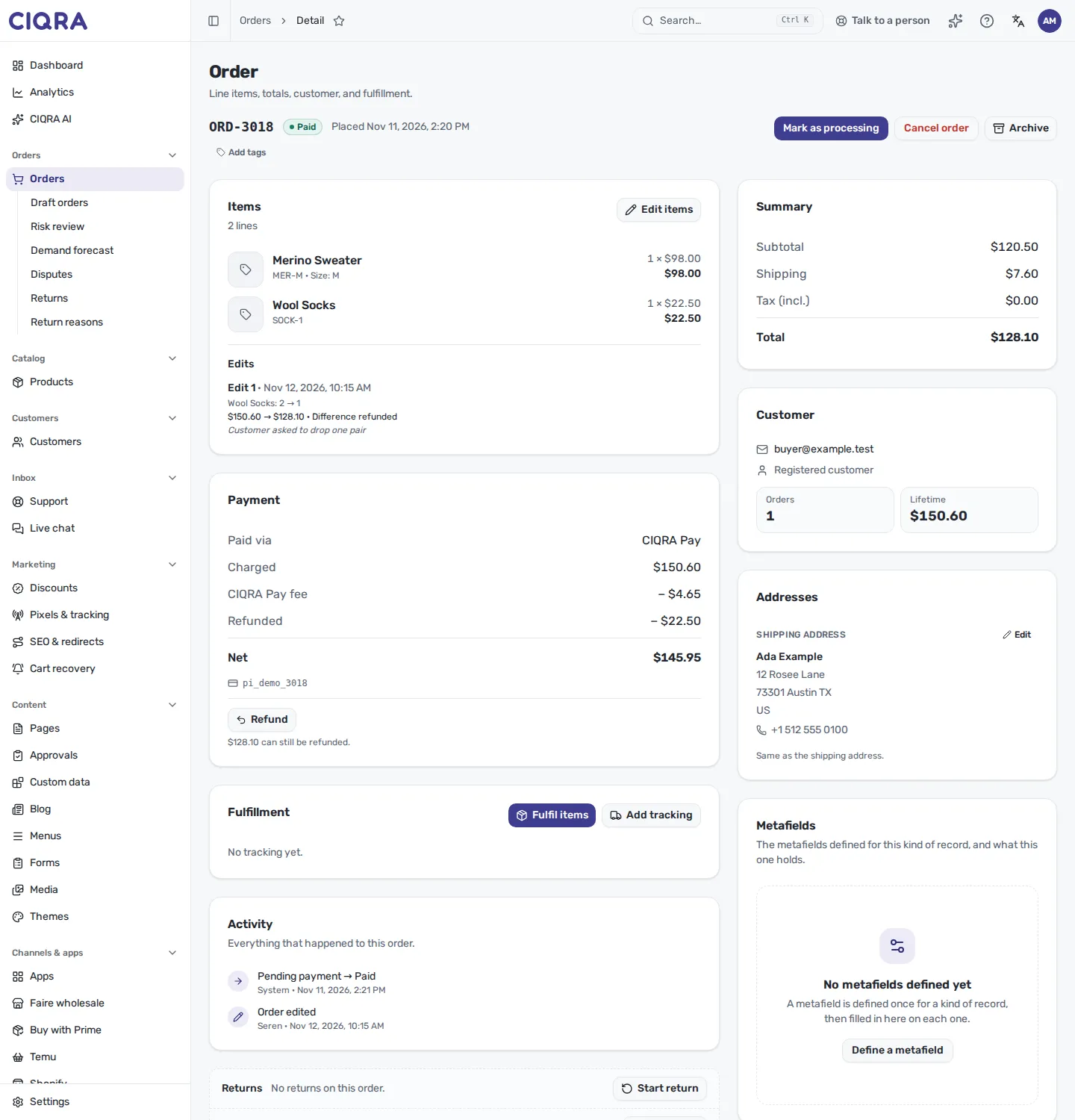
- 1EditsEach edit with its number and date, what changed on each item and the total before and after.
- 2What happened to the moneyOne of: Total unchanged, Difference refunded, Refund not confirmed, Not refunded here, Customer owes the difference, Difference collected.
If the payment provider did not confirm the refund, the edit stays saved and its line reads Refund not confirmed, with two buttons: Retry refund and Don’t refund. When the customer owes a difference, the line reads Customer owes the difference with Mark as collected, and the card shows a Customer owes badge.
Deciding about the money of a paid order needs the payments permission. Without it, saving a reduction is refused with “Deciding about a paid order’s money needs the payments permission.”
Correct the shipping address
Section titled “Correct the shipping address”Before the package leaves, you can fix a typo or a missing apartment number. In the Addresses card, select Edit next to the Shipping address.
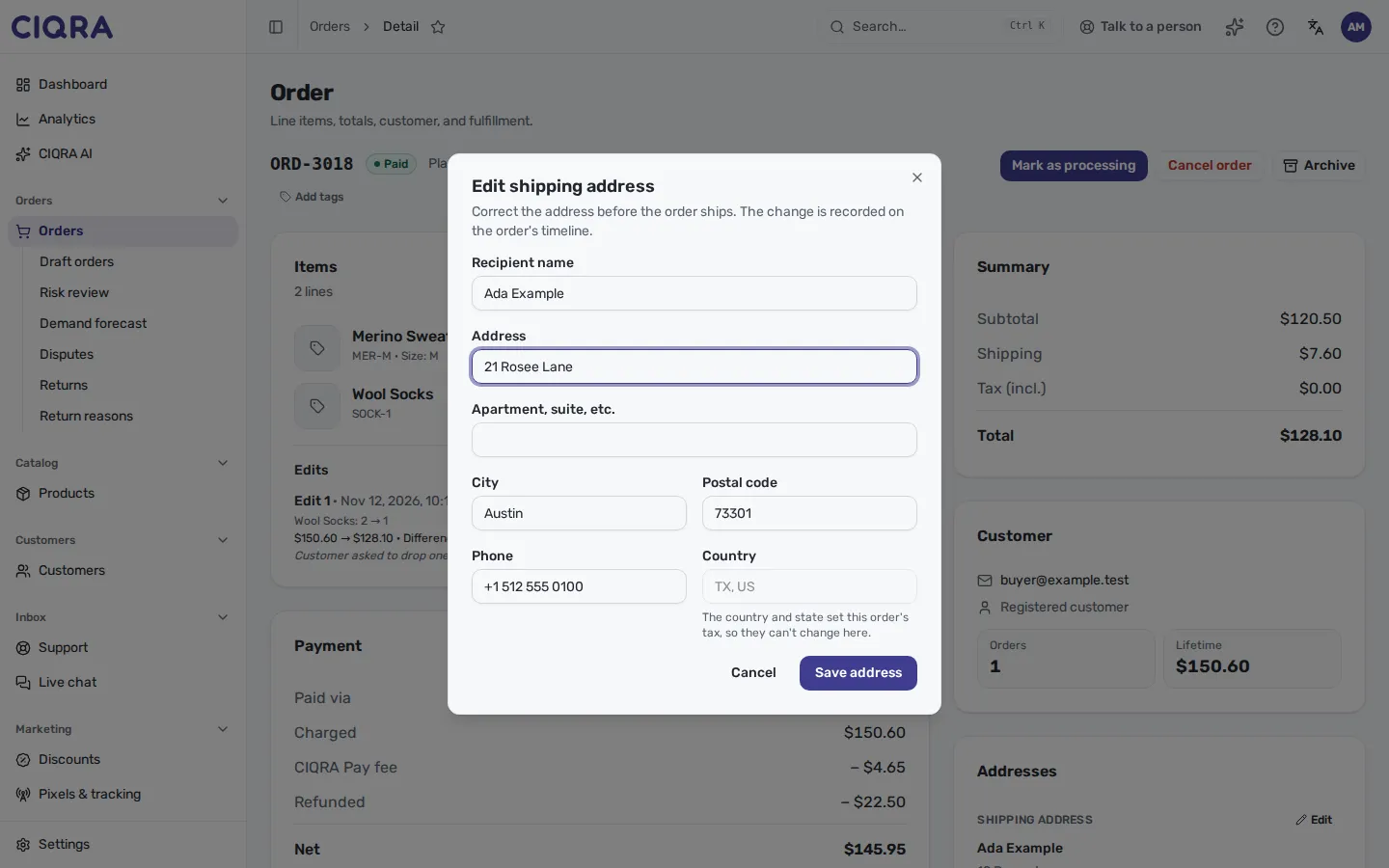
- 1Address fieldsRecipient name, Address and City are required. Apartment, neighborhood, district, postal code and phone are also editable.
- 2Country and state are lockedThey set the order's tax, so they cannot change here.
Select Save address. The change is recorded on the order’s Activity timeline as Shipping address corrected; the timeline names that the address changed, not the address itself.
The address can be corrected while the order is Pending payment, Awaiting approval, Awaiting collection, Payment failed, Paid, Procurement, Processing, Ready for shipment or Partially canceled. It is refused when:
- The order has shipped: “This order has already shipped, so its address can no longer change.”
- A carrier label is live: the button reads “Void the label to edit”. Void the label, correct the address, then buy a new one.
- You change the country or state: “The country and state decide this order’s tax and can’t change. To ship elsewhere, cancel the order and place a new one.”
Limits
Section titled “Limits”- The order page has no control to edit the billing address.
- An edit changes items and quantities, with an optional reason. It does not re-quote shipping.
- An order whose invoice has been issued can only be reduced: “This order’s invoice has been issued, so it can only be reduced. Sell extra items as a new order.”
- Whether the customer is emailed about an edit is not stated in the admin or the help center’s sources, so this page does not promise it.