

Cancel an order, override a status, and export orders
Three jobs that come up once an order exists: stopping an order that should not ship, correcting the status of an order that a carrier’s tracking has left in the wrong place, and getting your orders out of CIQRA as a file. The pictures use a demo store with made-up data.
Cancel an order
Section titled “Cancel an order”Before you start
Section titled “Before you start”- Canceling is offered while an order is Pending payment, Paid or Processing. For a cash on delivery order that is waiting for the cash (Awaiting collection) the same button is called Mark refused. A shipped or delivered order has no cancel button: use a return instead.
- Canceling releases the stock held for the order. The dialog says so, and says it cannot be undone.
- For a paid order, deciding about the payment needs the payments permission. Without it you are told: “Deciding about a paid order’s payment needs the payments permission. Ask an owner or admin to cancel it.”
- Open the order from Orders and select Cancel order in the header.
- Read what the dialog asks. It depends on how the order was paid (see the table below).
- Select the confirm button. A message says the order was canceled, and the refund amount when one was made.
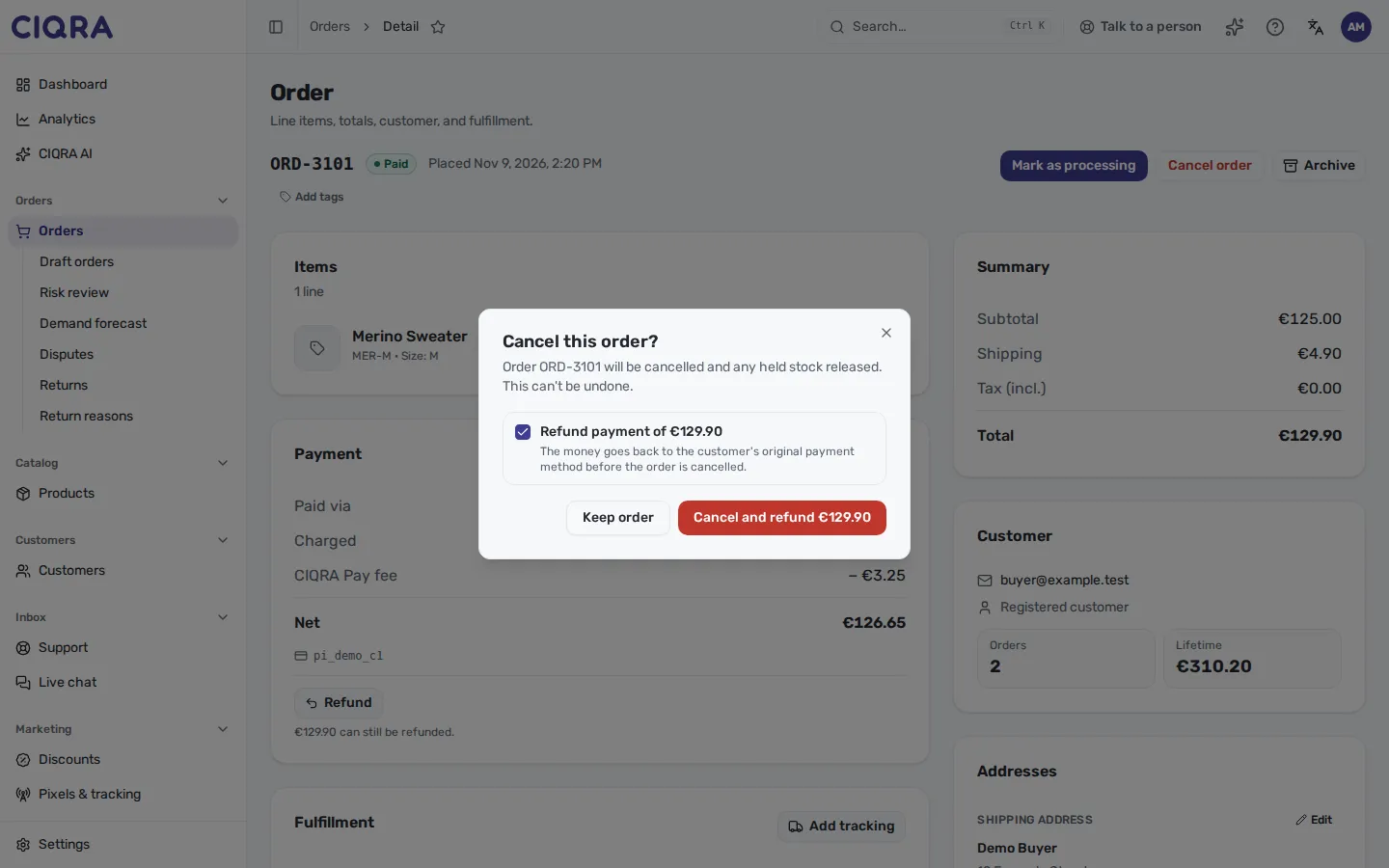
- 1Refund paymentTicked by default for an order paid through the card processor. The money goes back to the customer's original payment method before the order is canceled.
- 2Cancel and refundThe button shows the amount. Untick the box and it reads Cancel order: the customer stays charged.
| How the order was paid | What the dialog shows |
|---|---|
| Not paid yet (Pending payment) | A plain confirmation: Keep order or Cancel order. |
| Paid through the card processor | The Refund payment of box, ticked. Cancel and refund refunds what is still refundable, then cancels. |
| Paid outside the processor (bank transfer, cash on delivery or on account) | A notice: “Refund the customer where the money was taken; canceling here does not move money.” Canceling here only cancels. |
| Already refunded in full | “This order’s payment has already been refunded in full.” |
| A marketplace order (Temu) | A plain confirmation; the marketplace refunds its own buyer. |
Canceling several orders from the list (select them, then Cancel) skips paid orders and tells you how many were skipped: “paid order was skipped — open it to cancel it and decide its refund.” Each refund is a decision made on that order.
When it refuses
Section titled “When it refuses”The messages below are the admin’s own. The order is not canceled in any of these cases.
- “This order has been paid. Choose whether to refund the payment before canceling it.”
- “This order can’t be refunded through the payment processor. Refund the customer where the money was taken, then cancel without a refund.”
- “The payment provider didn’t confirm the refund. The order has not been canceled; check the payment before trying again.”
- “A refund for this order is still being processed. Try again in a moment.”
- “The refund is more than what is left to refund on this order.”
- “The payment provider refused the refund. The order has not been canceled.”
If the provider confirms the refund first, the order can end as Refunded and you are told so.
Override a carrier-tracked status
Section titled “Override a carrier-tracked status”When you buy a label in CIQRA, the carrier’s tracking moves the order to Shipped and Delivered, and the header says: “Shipped and delivered are set by the carrier’s tracking.” The Mark as shipped and Mark as delivered buttons are not offered, because the API would refuse them. If the tracking is wrong or stuck, an owner or admin can override it.
Before you start
Section titled “Before you start”- You must have the Owner or Admin role. Other roles do not see the menu.
- The order has a live carrier label and is not yet delivered. A shipped order can only be moved to Delivered; an earlier one can go to Shipped or Delivered.
- Open the order. Select the More order actions menu (three dots) next to the header buttons, then Override status.
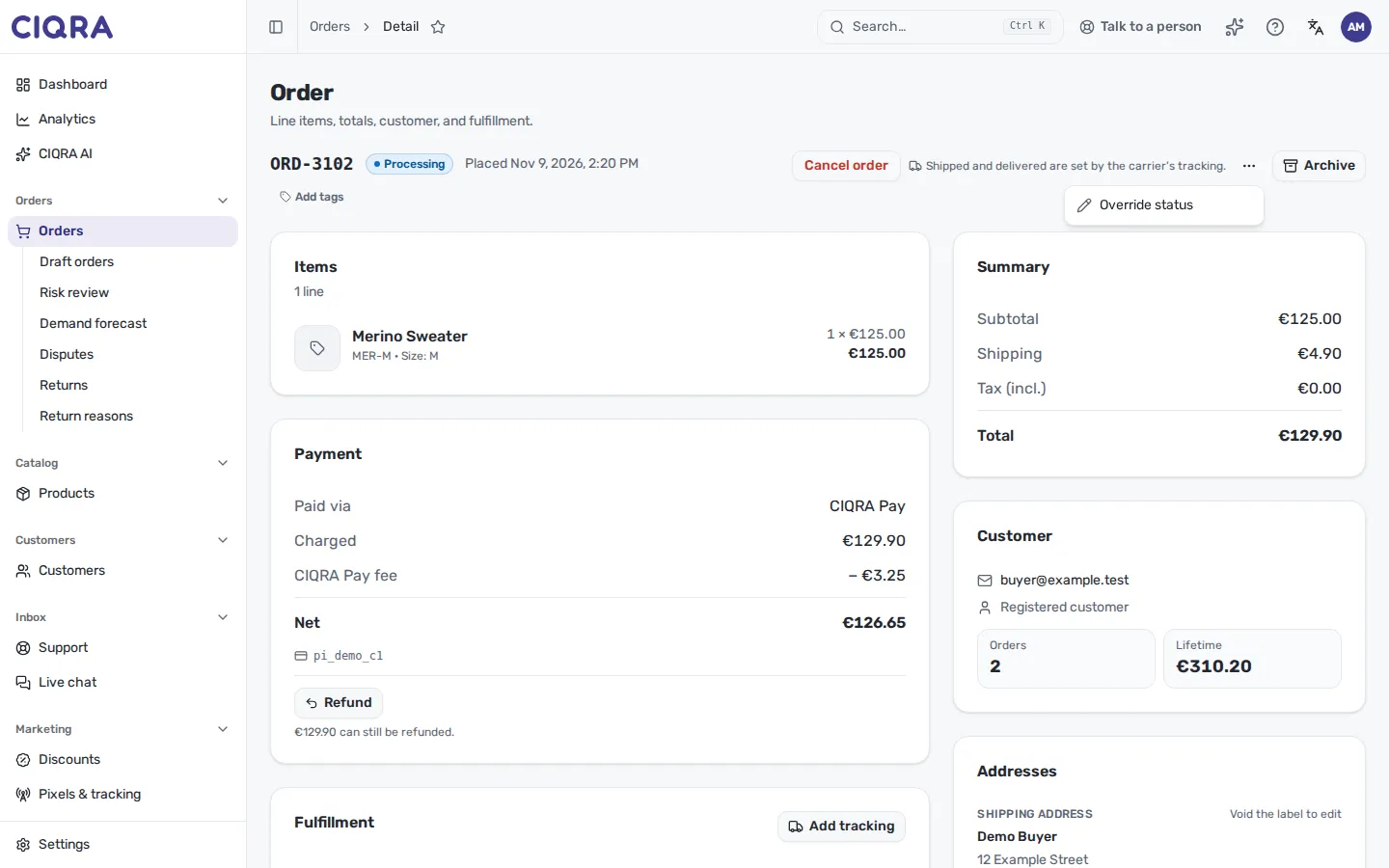
- 1More order actionsThe override lives here, not beside the main buttons: carrier tracking is the normal way these orders move.
- 2Override statusOpens the dialog. Offered only to the Owner and Admin roles.
- In Override the carrier’s status, choose the New status (Shipped or Delivered).
- Write the Reason. It is required: Override status stays disabled until you have typed one. The reason is kept in the order history. The text field holds up to 500 characters.
- Select Override status. A message confirms the new status.
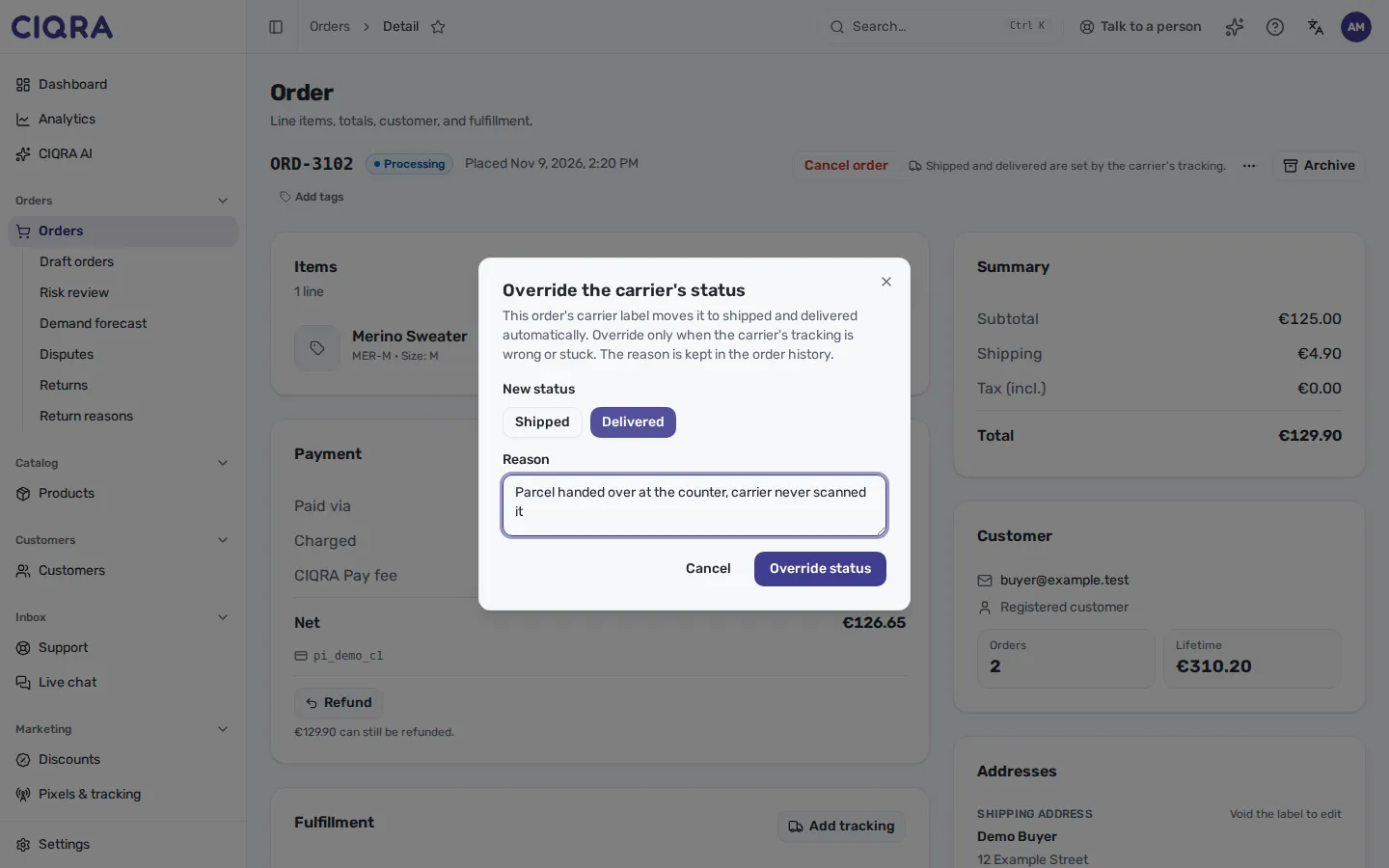
- 1New statusOnly the steps still ahead of the order are offered.
- 2ReasonRequired, and kept in the order history.
Export orders
Section titled “Export orders”Export is on the Orders list, beside Filters. It downloads the orders the current filters match, not only the page on screen. Select rows first and the same menu downloads only the selected orders (up to 200).
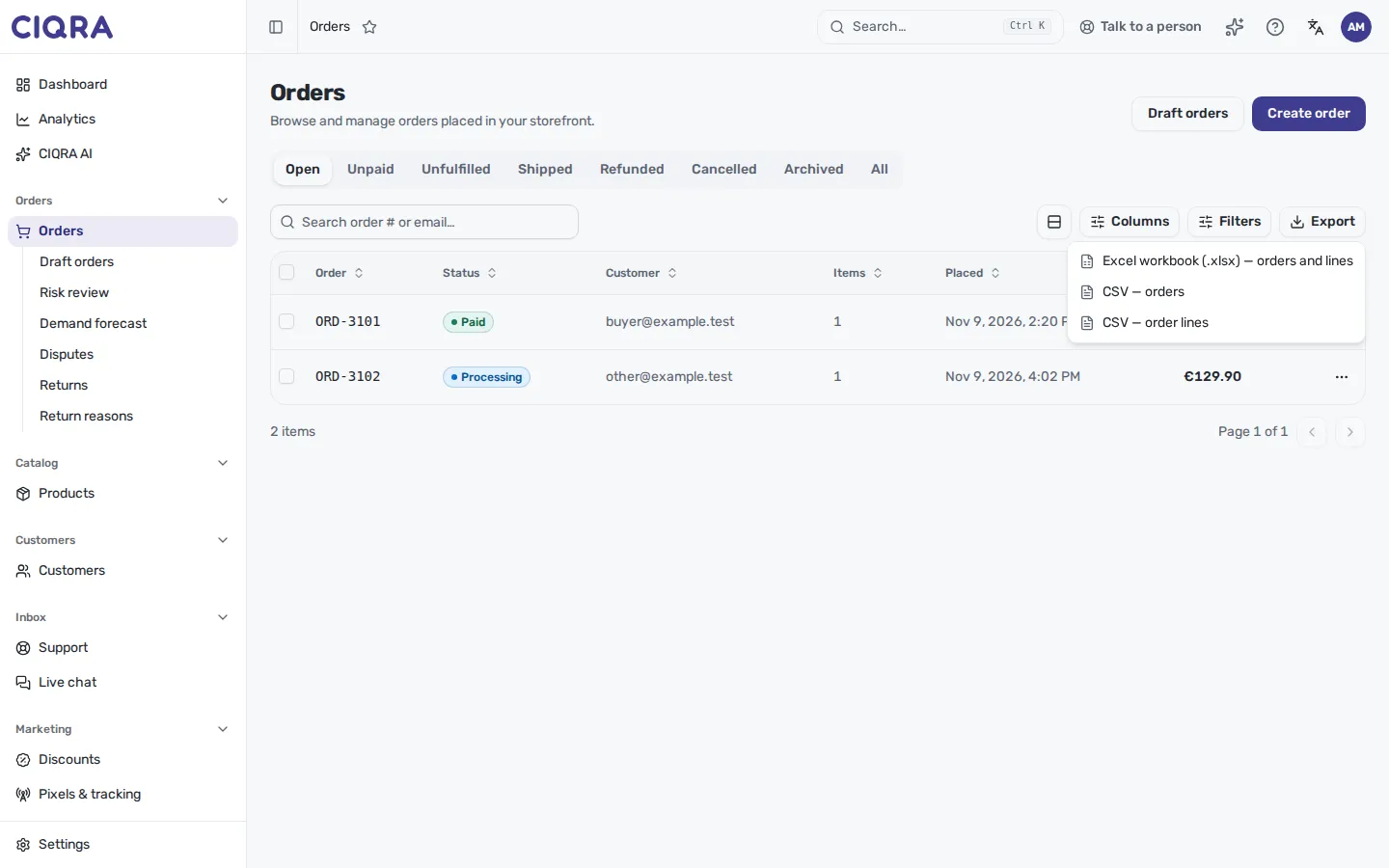
- 1ExportGrayed out while the list is empty.
- 2Three filesThe Excel workbook holds an orders sheet and an order-lines sheet. The two CSV choices give one table each: orders, or order lines.
- Set the status tab and Filters you want. The export honors status, search, tag, dates, totals and the returns filter.
- Optionally tick the orders you want.
- Select Export and choose a file. A message says how many rows were exported.
Column headers and labels are printed in your admin’s language (Turkish or English), and dates use your browser’s time zone.
When it refuses
Section titled “When it refuses”- “Nothing to export — no rows match this filter.”
- “Too many orders for one file. Narrow the dates or status and export in parts.”
- “Other exports are running. Try again in a moment.”
- “Export failed. Nothing was downloaded.”
Good to know
Section titled “Good to know”- Canceling a paid order is the one place where the refund is made by the cancel. To refund part of an order without canceling it, see Refund an order.
- Whether the customer is emailed when you cancel is not described here: it was not checked against the sending code.