

Set up Google Analytics 4
Google Analytics 4 (GA4) is usually the first destination people connect, because it keeps your own analytics reporting complete even when the browser tag is blocked. It’s also the one destination whose editor we walk through field by field here — every other destination follows the same shape, just with its own identifiers.
Open Pixels & tracking from the Marketing group in the left navigation, then select Configure on the Google Analytics 4 card.
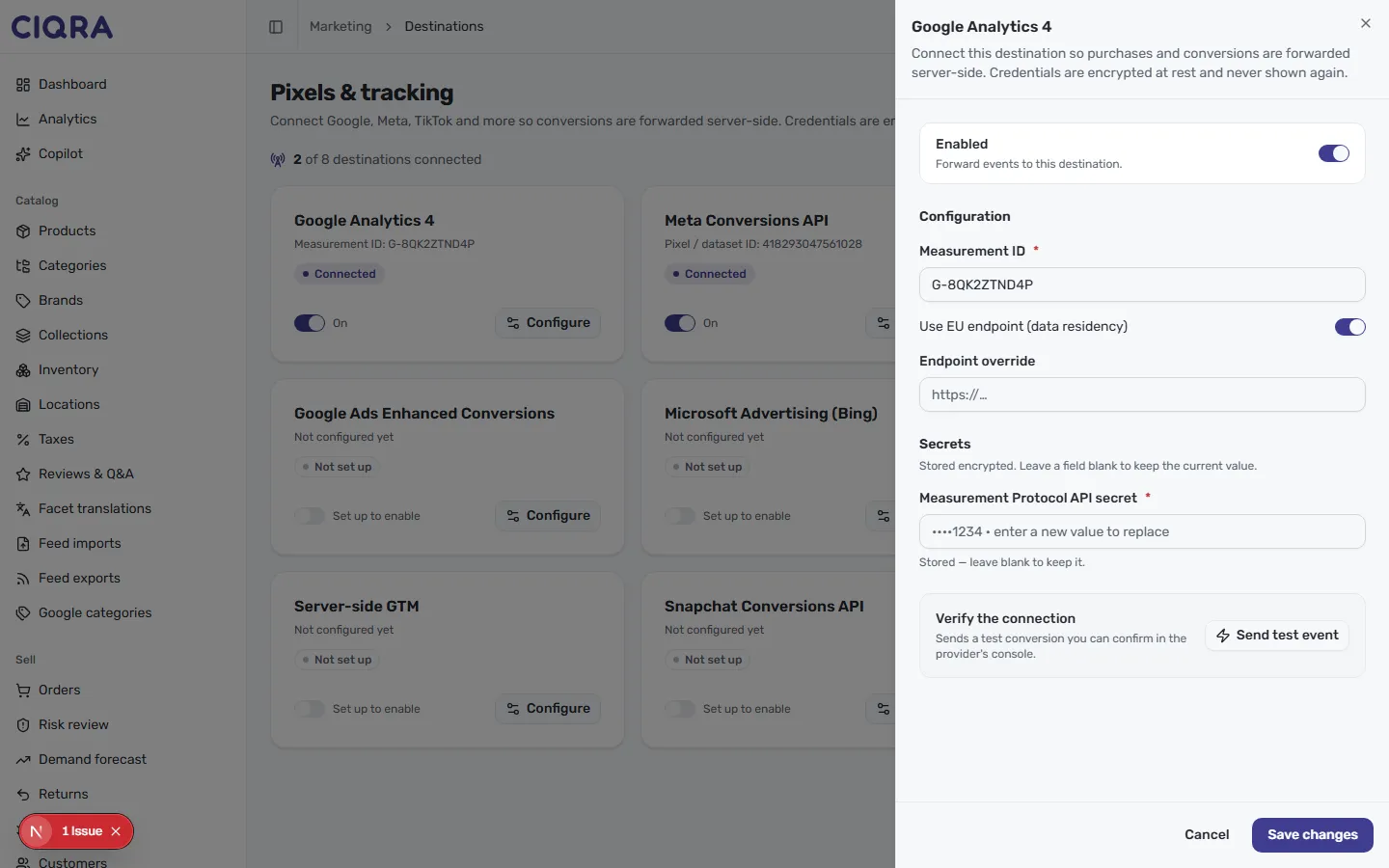
The panel header restates the promise: conversions are forwarded server-side, and credentials are encrypted at rest and never shown again.
Enabled
Section titled “Enabled”The Enabled toggle at the top controls whether CIQRA forwards events to GA4. Its helper line reads Forward events to this destination. Leave it on once the rest of the form is filled in; turn it off to pause forwarding without losing your settings.
Configuration
Section titled “Configuration”- Measurement ID (required) — the identifier for your GA4 web data stream, in the
format
G-XXXXXXX. In Google Analytics this comes from the data stream you want conversions to land in. - Use EU endpoint (data residency) — a toggle that sends your events to Google’s EU collection endpoint instead of the default. Turn it on if you want GA4 traffic routed through the EU endpoint for data-residency reasons.
- Endpoint override — an optional field (it shows a
https://…placeholder) for the rare case where you need to point events at a specific custom endpoint. Most stores leave this blank.
Secrets
Section titled “Secrets”The Secrets section is where you paste the Measurement Protocol API secret (required). This is a credential you generate inside GA4 for the same data stream as your Measurement ID.
The section notes that values are stored encrypted, and once saved the field shows
only a masked hint (for example, ••••1234 · enter a new value to replace) with the
note Stored — leave blank to keep it. Leaving the field empty keeps the secret you
already saved; type a new value only when you want to replace it.
Verify the connection
Section titled “Verify the connection”Use the Verify the connection panel and select Send test event. Its helper text reads Sends a test conversion you can confirm in the provider’s console. CIQRA sends a test conversion server-side that you can then confirm inside your GA4 property — see Verify tracking with test events for what to look for.
Save your changes
Section titled “Save your changes”When the form is complete and your test has landed, select Save changes. The Google Analytics 4 card on the grid updates to Connected, and — with Enabled on — CIQRA starts forwarding real conversions to GA4.