

Print packing slips and pick lists
Packing means two pieces of paper: a pick list that tells you what to take off the shelves, and a packing slip that goes in the box. CIQRA prints both as PDFs. The packing slip is made by CIQRA, so every order gets one whichever carrier ships it, and the pick list adds up the same product across all the orders you choose. The pictures use a demo store with made-up data.
Before you start
Section titled “Before you start”- You need the permission to manage orders; the print routes check it.
- The packing slip carries your store details (name, address, phone, email, website and logo) from your invoice settings. If those are empty, the sheet prints a dash for the name and no address block.
- Nothing is saved: a sheet is rendered when you open it, from the order as it is now.
Print for several orders: packing slips and the pick list
Section titled “Print for several orders: packing slips and the pick list”On the Orders list, tick the orders you are packing. Select all in the header takes the orders on the page. A bar appears with, among other actions, Print packing slips and Print pick list.
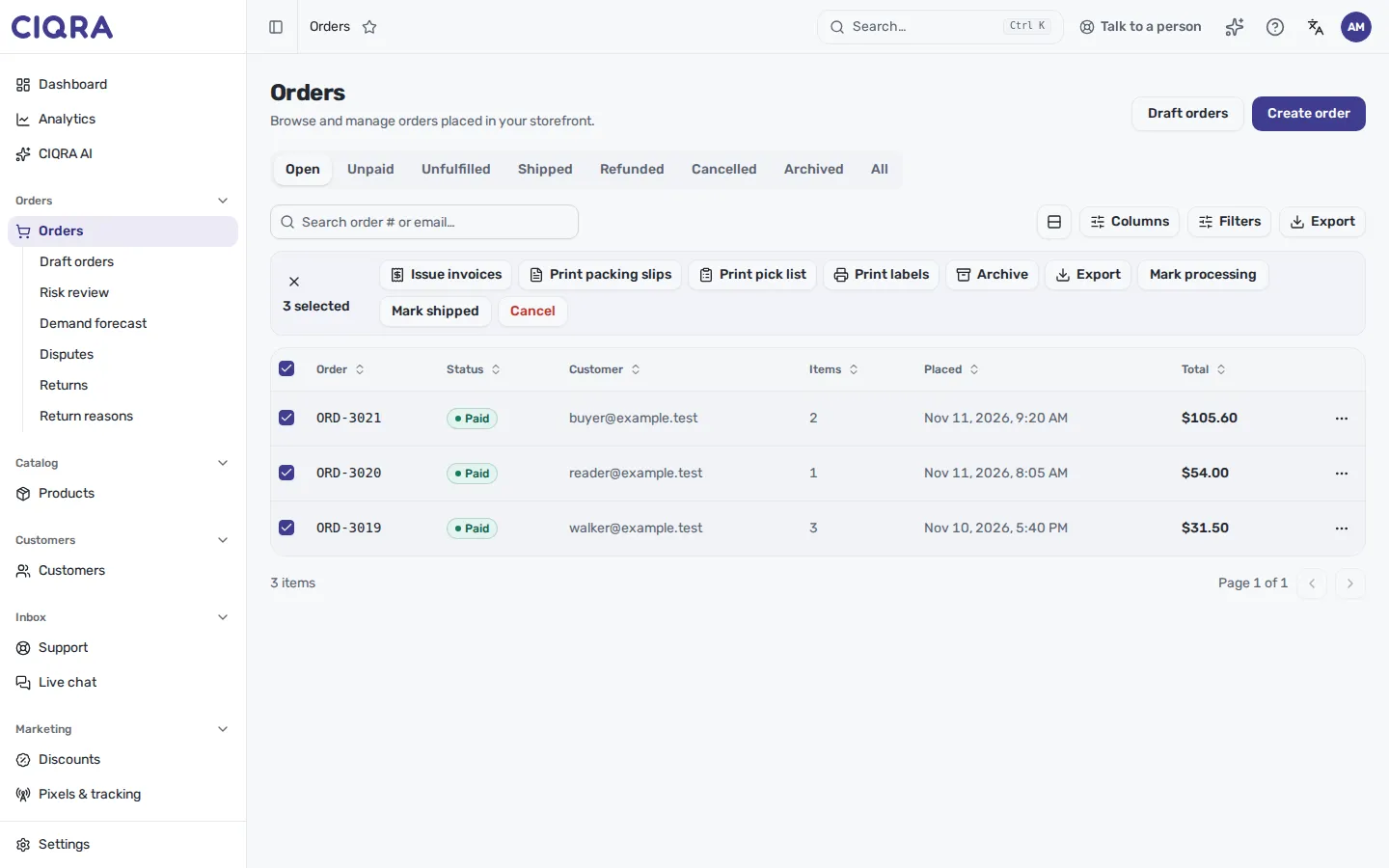
- 1Select the ordersTick single rows, or Select all in the header for the orders on the page.
- 2Print packing slipsOne PDF with one sheet per order, in order.
- 3Print pick listOne PDF that adds up what to take off the shelves for all of them.
Both open in a new browser tab, where you print from the browser’s PDF viewer. You do not get a file in your downloads for each order.
- One batch holds up to 200 orders. Anything beyond is left out.
- An order that no longer exists is skipped, so one canceled order does not cost you the other sheets. If none of the selected orders exist, the API answers “None of those orders exist in this store.”
- Each packing slip is in its own order’s language. A morning with Turkish and English orders prints each sheet in the language the order was placed in. The pick list is printed in the language of the first selected order.
What the pick list contains
Section titled “What the pick list contains”A table of Quantity, Product (name, with the variant under it, and the SKU) and Order Number. The same SKU is added up across the selected orders, and the order numbers that need it are listed beside it. Products with a SKU come first, sorted by SKU; products without one follow, sorted by name. Two lines without a SKU are added together only when name and variant match. The page header gives the number of orders, the number of units and the date of the first order.
What the packing slip contains
Section titled “What the packing slip contains”Per order, from what the order holds: the order number and date, your store details and logo, the shipping address and the billing address (the shipping address is printed in both boxes when they are the same), and a table of the lines: SKU, name, options, quantity, unit price, line total and the product thumbnail when there is one. Below it: the shipping total, the delivery method, the shipping company and tracking number when the order has them, the payment type, and the customer’s note.
The unit price is the price the customer was charged, personalization surcharge included, so the rows add up to the total the sheet prints.
Print for one order
Section titled “Print for one order”Open the order. The Print button sits in the Carrier labels card, next to Attach existing and Create label. It opens a menu with three prints:
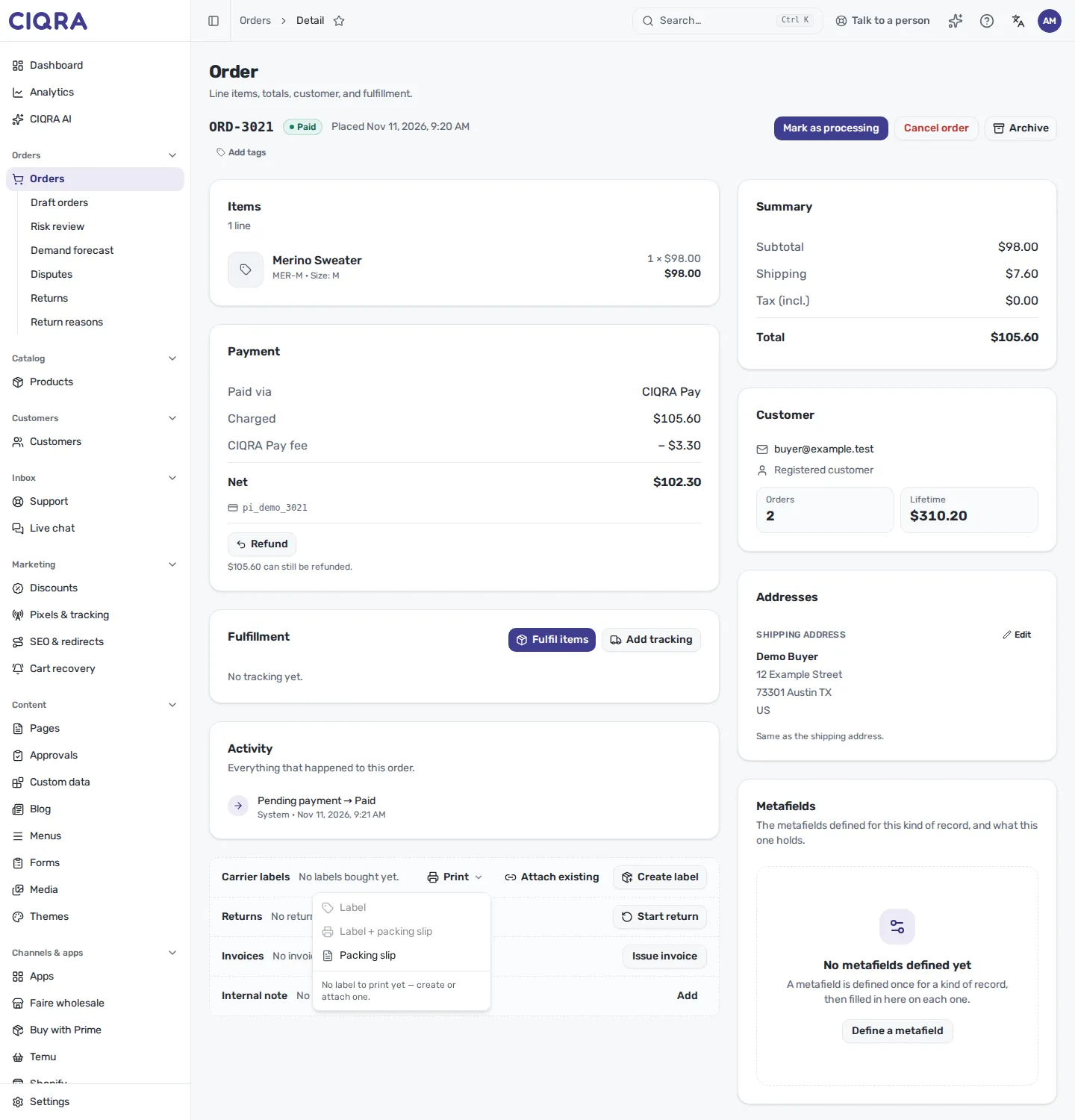
- 1LabelThe carrier label for the order. Grayed out until the order has a label.
- 2Label + packing slipOne file: the label first, then the packing slip. Grayed out until the order has a label.
- 3Packing slipAlways available. The sheet for this order.
- 4No label yetThe note says: No label to print yet, create or attach one.
When the order has a live outbound label, all three are available:
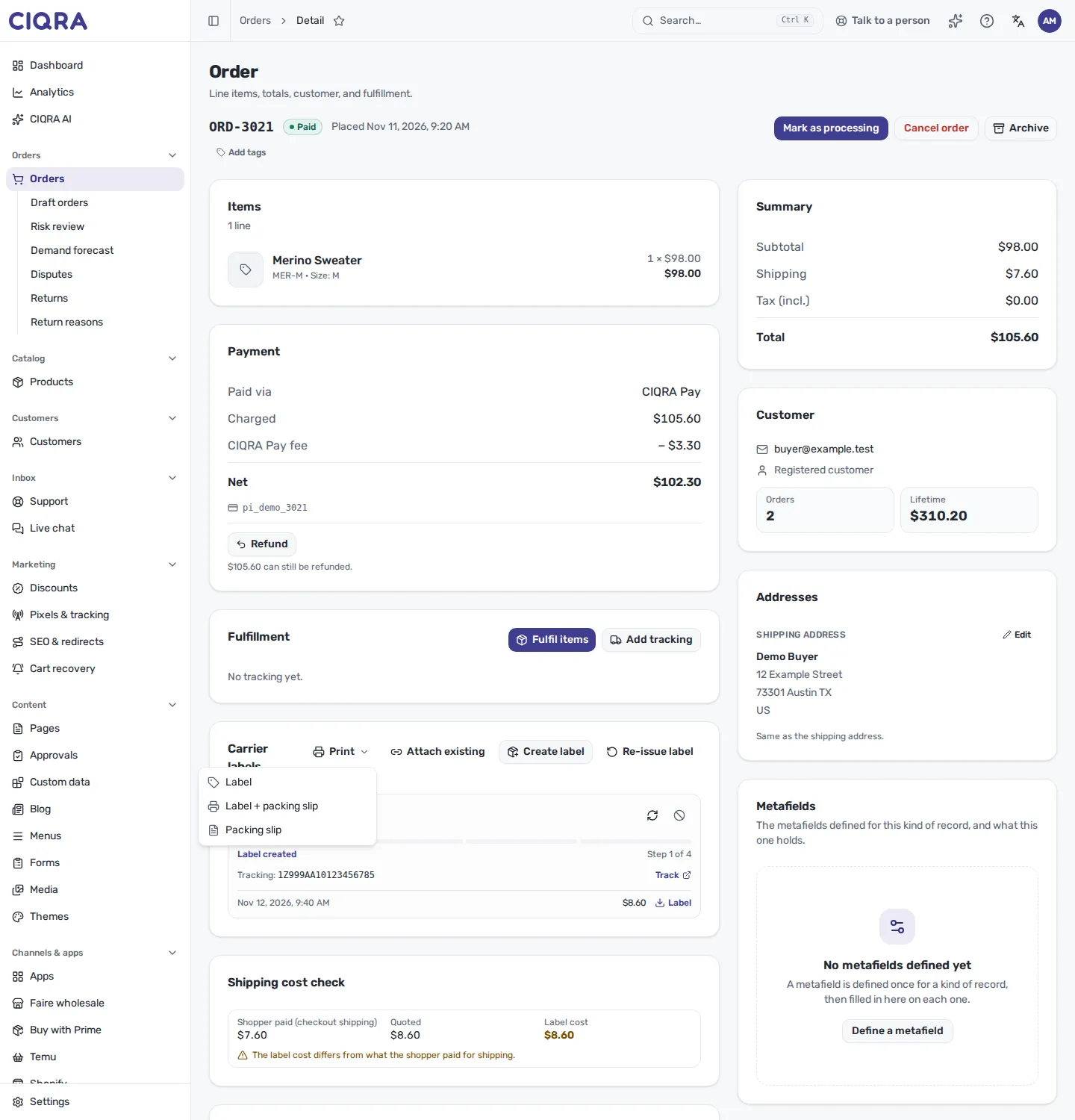
- 1LabelPrints CIQRA's stored copy of the label, named after the order number.
- 2Label + packing slipThe label, then the packing slip, in one PDF.
- 3Packing slipThe sheet alone, for example when a label is printed elsewhere.
- The files are named by the order number (for example
packing-slip-ORD-3021.pdf), so you can find a package by it. - A label counts only if it is an outbound label CIQRA bought, that is not canceled. A return label (the package coming back) or a typed-in tracking number has no label to print.
- To buy or attach a label first, see Buy, attach and void a shipping label.
When it refuses
Section titled “When it refuses”| You see | What it means | What to do |
|---|---|---|
| “Order … has no carrier label to print. Create or attach one, or print the packing slip alone.” | You asked for a label print on an order without one (for example from an old tab). | Create or attach a label, or print Packing slip. |
| “Name the orders to print, as a comma-separated id list.” / “Name the orders to pick, as a comma-separated id list.” | The request listed no order. | Select at least one order. |
| “None of those orders exist in this store.” | Every selected order is gone. | Reload the list. |
Limits
Section titled “Limits”- The packing slip’s layout (columns, boxes) is fixed. This page does not describe a setting that changes it, because none was found in the admin.
- This page has not checked how the PDF looks on paper, because the pictures show the admin and not the printed page.
- Selecting orders across several pages of the list prints the rows you have selected; this page has not checked what happens with Select all matching.