

Take payments - methods, bank transfer, cash on delivery and installments
Every way a shopper can pay you is configured on one page, Settings, Payments. It stacks one card per method: CIQRA Pay (cards), Card payments (your own card processor), a booking-installments card on stores that have it, Card installments, Bank transfer, Cash on delivery and gift cards. This article covers the offline methods, bank transfer and cash on delivery, step by step, and describes card installments. The pictures use a demo store with made-up data and the example IBANs that banks publish for documentation.
Before you start
Section titled “Before you start”- You need the payments.manage permission. The page, and every call behind it, refuse without it.
- Changes apply to new checkouts. An order that is already waiting keeps the window it was placed with.
- Card payments are a separate setup: see How CIQRA Pay works. The CIQRA Pay card at the top of the page shows its state (for example Not connected or Active) and the button that continues the setup.
Bank transfer
Section titled “Bank transfer”Bank transfer is an offline method: the shopper wires the money to your bank, and you confirm the payment by hand on the order once it lands.
1. Turn it on and set the terms
Section titled “1. Turn it on and set the terms”In the Bank transfer card:
- Offer bank transfer at checkout switches the method on. The badge reads On at checkout.
- Discount is an optional incentive taken off the order total for paying by transfer. It accepts 0 to 100 percent.
- Payment window is the number of hours a shopper has to pay. Orders are canceled automatically if they are still unpaid after it. The minimum is 1 hour and the maximum is 90 days.
- Available in limits the method to the countries you add. With none added it is offered everywhere.
- Display order: a lower number shows first among payment methods.
Select Save changes. The button is disabled until something has changed.
If the method is on but there is no bank account yet, the page shows Bank transfer isn’t live yet: it will not appear at checkout until you add at least one account with an IBAN for your currency.
2. Add the bank account
Section titled “2. Add the bank account”Under Bank accounts, select Add account and fill in:
- Bank name and Account holder (both required).
- Branch, Account number and SWIFT / BIC (optional; a SWIFT/BIC has 8 or 11 characters).
- Instructions: text shown to the shopper next to the account, for example “Add your order number as the payment reference.”
- Show at checkout: switch it off to hide the account without deleting it. The account then reads Hidden and its card has a dashed border.
Use Edit to change an account later and Delete to remove it. Deleting asks for confirmation and cannot be undone.
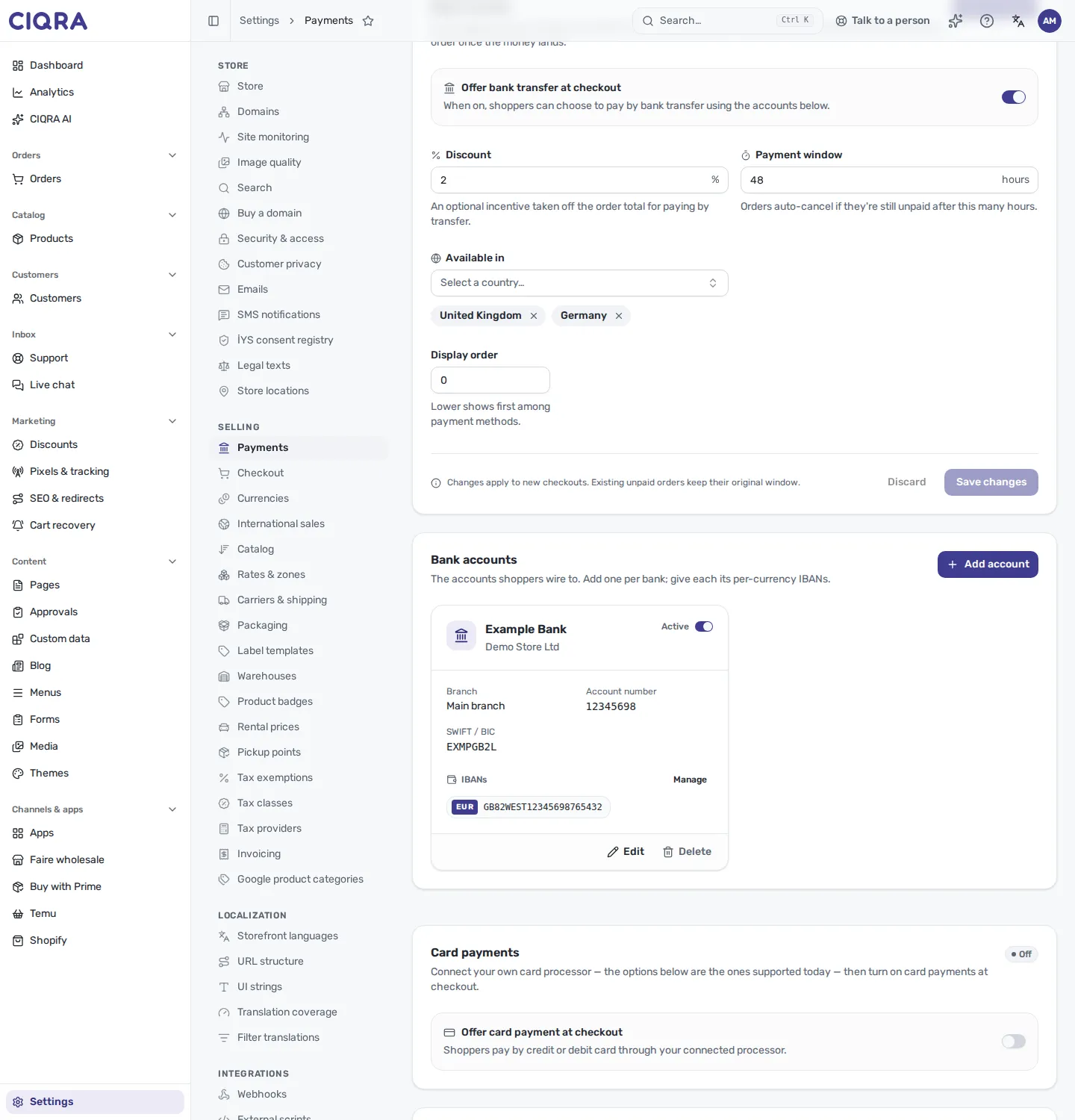
- 1Bank transfer settingsOn or off, the discount, the payment window in hours and the countries it is offered in. Save changes applies them to new checkouts.
- 2Bank account cardThe bank, the holder and the IBANs the shopper can wire to. The switch shows or hides the account at checkout.
- 3ManageOpens the IBAN list of this account.
3. Add one IBAN per currency
Section titled “3. Add one IBAN per currency”On the account card, select Manage. The dialog is titled with the bank’s name and says: “Add one IBAN per currency you accept. Shoppers wire to the IBAN that matches their currency.”
Select Add IBAN, choose the Currency and type the IBAN. An IBAN must be 15 to 34 letters and digits; spaces are ignored. If it does not match, the field says “Enter a valid IBAN (15–34 characters).” CIQRA checks the length and the characters only, not the bank’s own check digits, so read the number back before you save. Select Save IBANs: the dialog saves the whole list at once and a message confirms IBANs updated.
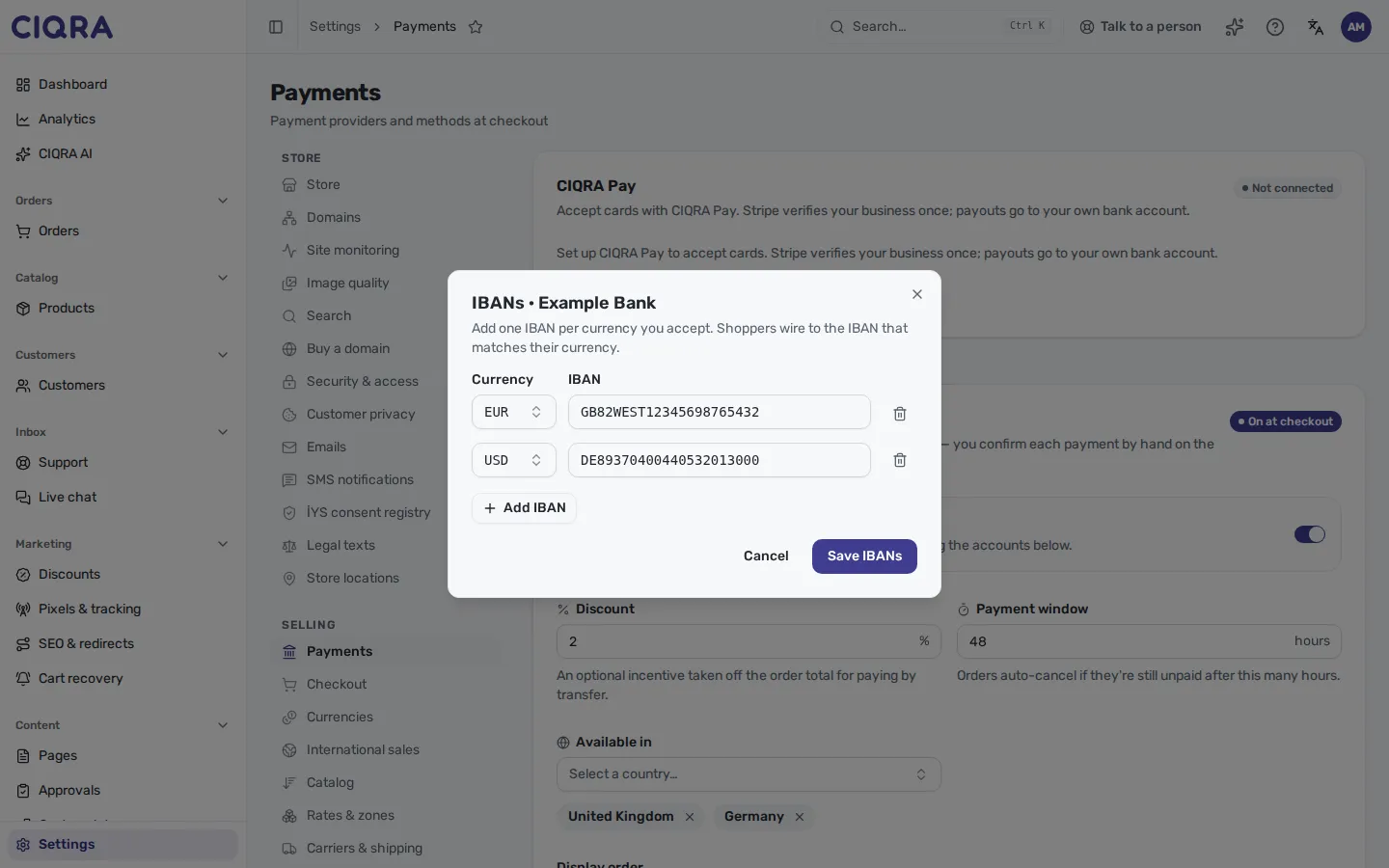
- 1Currency and IBANOne row per currency. The shopper sees the IBAN whose currency matches theirs.
- 2Add IBANAdds another row. The trash button at the end of a row removes it.
- 3Save IBANsReplaces the account's IBAN list with what is on screen.
4. What the customer sees
Section titled “4. What the customer sees”When a shopper places an order by bank transfer, CIQRA sends them a payment-waiting email with the IBAN, the exact amount to transfer and the payment deadline. The order waits in Pending payment.
5. Confirm the payment on the order
Section titled “5. Confirm the payment on the order”Open the order. The Payment card reads Awaiting bank transfer and shows Amount due, the bank, the account holder, the IBAN, the SWIFT / BIC and when the order Auto-cancels. When the money is in your bank, select Mark payment received and confirm with Mark received. The order becomes Paid and the customer gets the confirmation email. The dialog states that this cannot be undone from there.
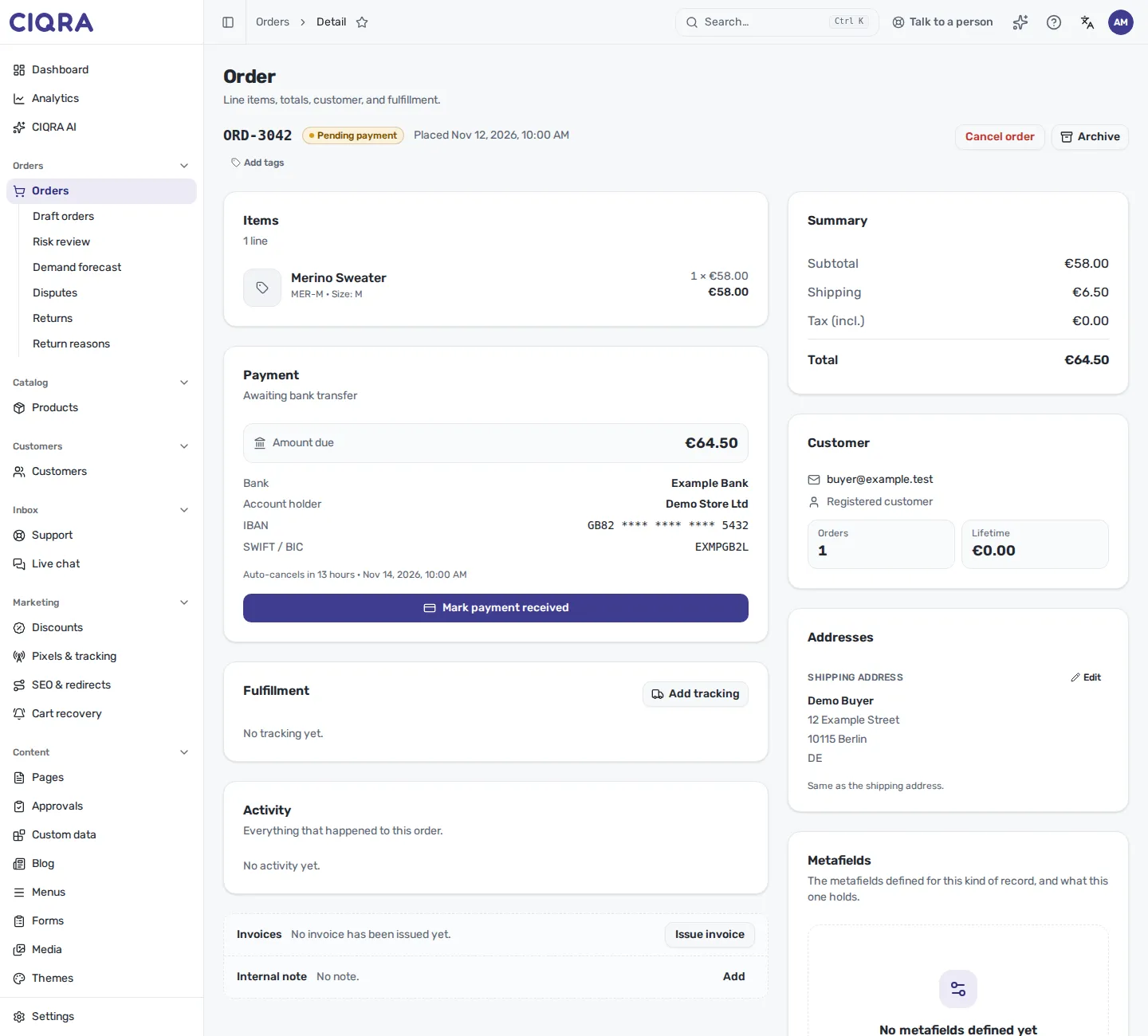
- 1Amount due and accountWhat the customer was asked to wire, and where.
- 2Auto-cancelsThe end of the payment window. After it the order is canceled if it is still unpaid.
- 3Mark payment receivedConfirms the transfer landed. Use it only when the money is in your account.
Cash on delivery
Section titled “Cash on delivery”Cash on delivery is also offline: the courier collects cash when the order arrives, and there is no gateway fee. It is offered for physical orders only.
1. Turn it on
Section titled “1. Turn it on”In the Cash on delivery card, switch on Offer cash on delivery at checkout. Then:
- Available in: add the countries it is offered in. With none added it is offered everywhere.
- Basket caps: select Add currency, choose a currency and enter the Maximum basket, the largest order total you accept on delivery. The cap must be greater than zero and a currency can appear once.
Cash on delivery is offered in a currency only when that currency has a cap. If the method is on and there is no cap, the card warns: “Cash on delivery is on, but no per-currency limit is set — it won’t appear at checkout until you add one below.” Select Save changes.
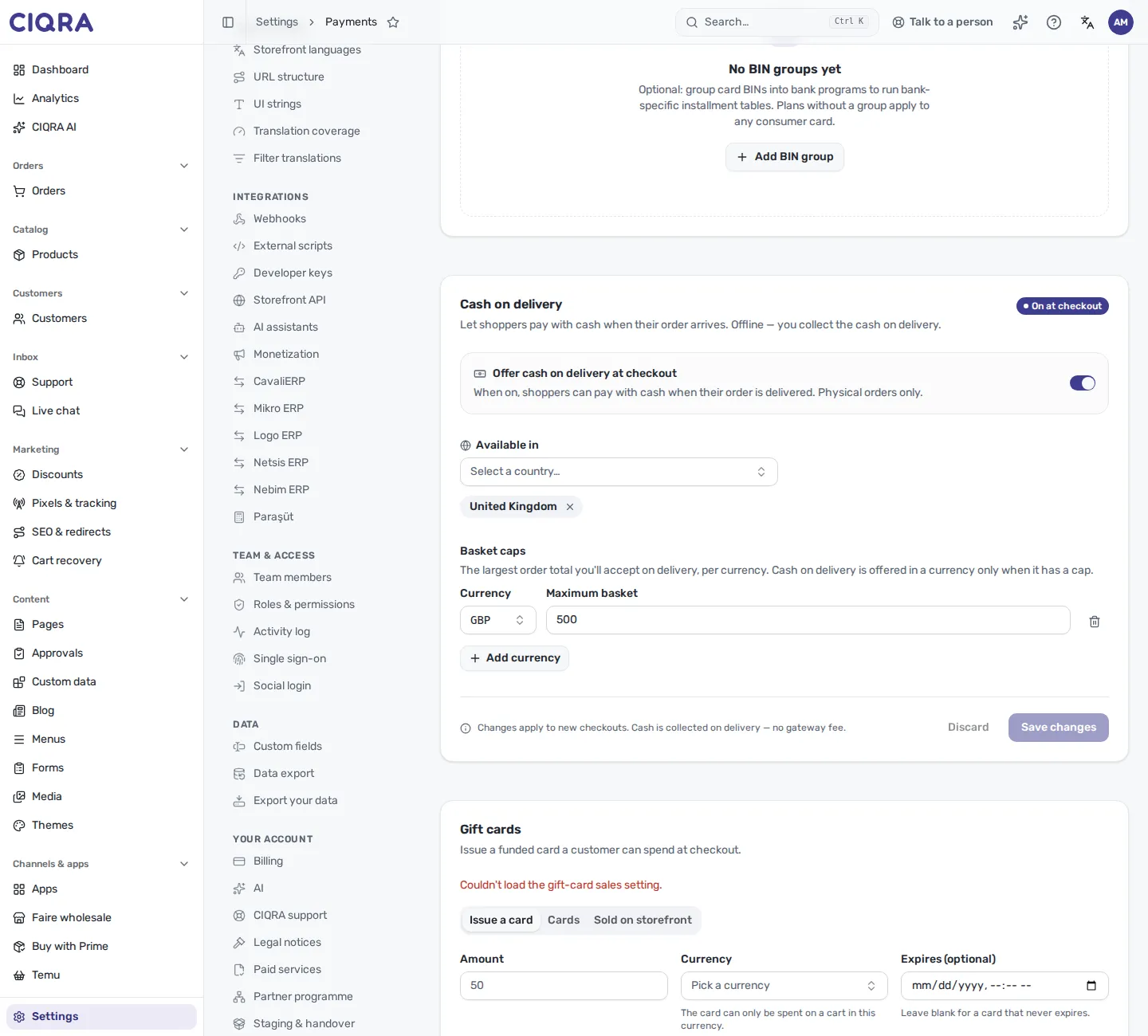
- 1Offer cash on delivery at checkoutThe method switch. The badge reads On at checkout.
- 2Available inThe countries the method is offered in.
- 3Basket capsOne row per currency with the largest order total accepted on delivery.
2. Record the cash
Section titled “2. Record the cash”A cash-on-delivery order waits in Awaiting collection. The Payment card shows Amount to collect. When the courier has handed you the cash, select Mark collected and confirm with Confirm collection. The order becomes Paid, the revenue is recognized and the stock is committed.
If the shopper refuses the package, use Mark refused on the order instead. It cancels the order and releases the held stock.
Card installments
Section titled “Card installments”The Card installments card lets shoppers split a card charge into installments, resolved from the card’s BIN (the leading digits of the card number). It is authoring only: installments appear at checkout once an installment-capable payment provider is connected. Until then the page says Installments aren’t live yet so you can prepare the tables beforehand.
- Method settings: Offer installments at checkout, Allow commercial cards (usually blocked, so turn it on only if your payment provider supports it) and Available in.
- Commission check: CIQRA adds the installment interest to the order total. Before you turn installments on, you confirm that your payment provider’s panel does not also pass its own installment commission to the customer, because the customer would pay twice. Without that confirmation the page says “Confirm your payment provider’s commission setting to turn installments on.”
- Plans: Add plan with the number of installments (1 to 36), the interest (0 means interest-free and you absorb it), an optional card program and a minimum basket for each currency. A plan is offered only in the currencies it lists a minimum for.
- BIN groups: group card BIN prefixes (6 to 8 digits) into a bank program, so a plan can target it.
- Legal installment limits by sector (BDDK): map your categories to a sector so checkout never offers more installments than the strictest sector in the cart allows.
Booking stores have a separate settings screen, described in Card installments for bookings.
Other card processors
Section titled “Other card processors”The Card payments card connects your own processor (for example Stripe, iyzico or PayTR) with Connect or Configure, Test connection, and the switch Offer card payment at checkout. When more than one processor is connected, Who takes card payments asks you to choose; CIQRA does not choose for you, and card payments are paused until you do. Secrets are encrypted and are not shown again after saving.
When something does not appear at checkout
Section titled “When something does not appear at checkout”| What you see | Why |
|---|---|
| Bank transfer isn’t live yet | The method is on but there is no bank account. Add an account with an IBAN for your currency. |
| Cash on delivery missing in a currency | That currency has no basket cap, or the order total is above it. |
| Cash on delivery missing in a country | The country is not in Available in. |
| An account is missing at checkout | Its Show at checkout switch is off (the card reads Hidden). |
Not verified in this article
Section titled “Not verified in this article”How a refund is paid out for an order that was settled by bank transfer or cash on delivery is not described here, because it has not been checked against the code. Card refunds are in Refunds and disputes.