

Quantity breaks, tiers and coupon batches
Three tools reward bigger purchases or hand out codes in bulk. A quantity break rewards more as the number of units grows. Spend tiers reward more as the amount spent grows. A coupon batch makes many unique codes from one discount, for a mailing, an insert in a package or a partner list. The pictures use a demo store with made-up data.
Before you start
Section titled “Before you start”- You need the permission to manage store settings.
- Read Create a discount first: quantity breaks and tiers are options on the same form, and everything there (name, schedule, limits, combining) applies here too.
Quantity breaks: buy more, save more
Section titled “Quantity breaks: buy more, save more”- Open Marketing, then Discounts, and select New discount.
- Under Discount type, select Quantity break.
- Choose Percentage or Fixed amount under Discount.
- Select Add break. Each row has Buy at least (units) and Reward. Add one row per band, for example 3 units for 5, 6 units for 10 and 12 units for 15 (percent).
- Set the rest of the form (Applies to, schedule, limits) and select Create discount.
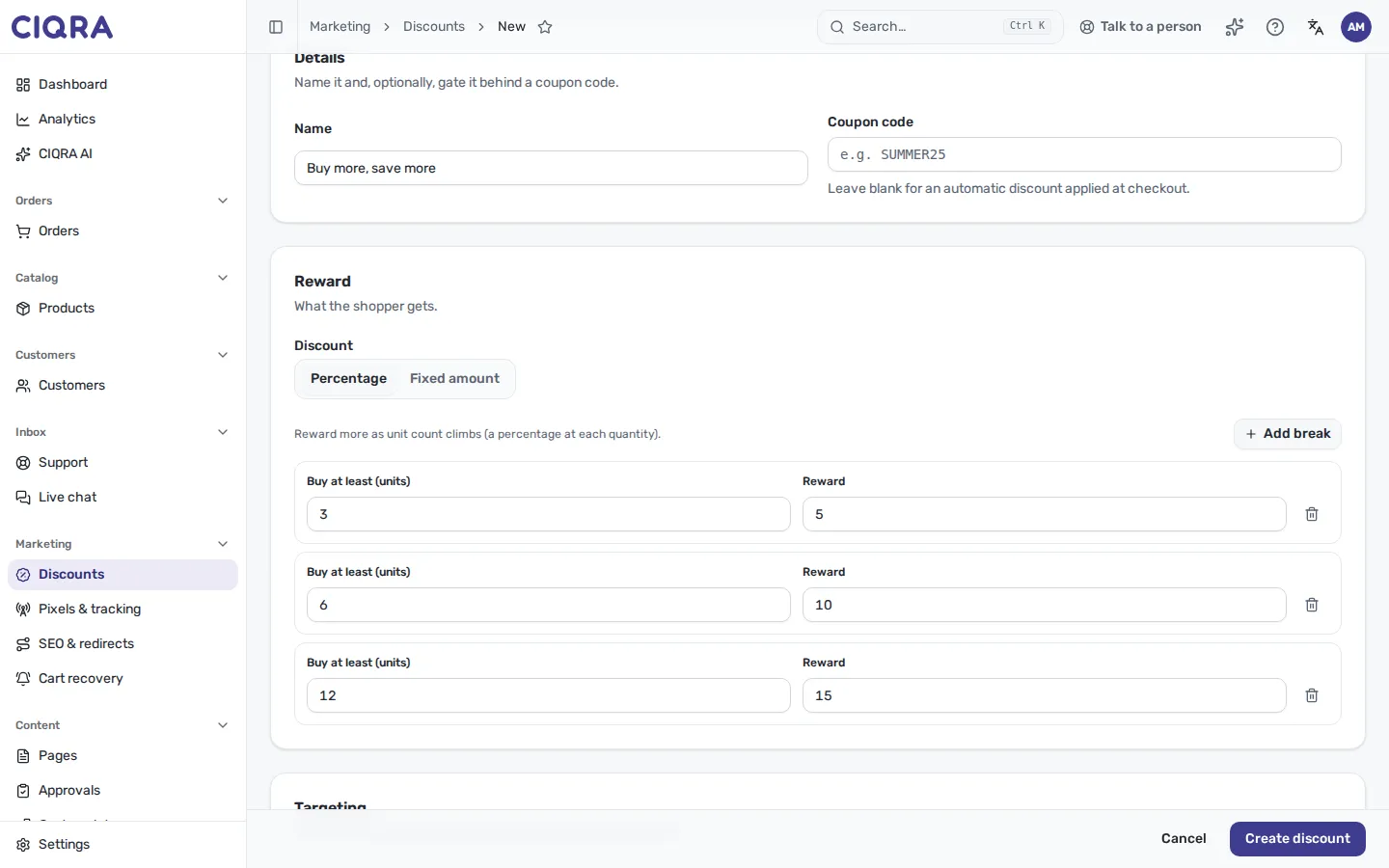
- 1Buy at least (units)The unit count where the band starts. Whole numbers of 1 or more.
- 2RewardThe percentage, or the fixed amount, that applies from that count.
- 3Remove breakDeletes the row.
- 4Add breakAdds a row.
How the bands work:
- The count is the total number of eligible units in scope across the cart, not per product. With Applies to set to Entire cart every unit counts; with products, categories or collections only the targeted ones do.
- The highest band the count reaches wins. Below the lowest band the discount does not apply.
- The reward comes off the eligible net amount. A fixed amount also needs a Currency.
- Exclude products already on sale keeps items that already show a compare-at price out of the discount.
- Two bands cannot share the same quantity.
- Two further switches can appear on a quantity break: Take the percentage off the regular price (percentage only), and, for an entire-cart break that does not combine with other discounts, On a partial return, refund at the regular price. Each explains itself under its label.
Spend tiers: spend more, save more
Section titled “Spend tiers: spend more, save more”Spend tiers belong to the Standard discount type.
- Select New discount, leave Standard discount selected.
- Under Reward, turn on Use spend tiers.
- Select Add tier. Each row has Spend at least and Reward. Add one row per tier, for example 50 for 5, 100 for 10 and 200 for 15 (percent).
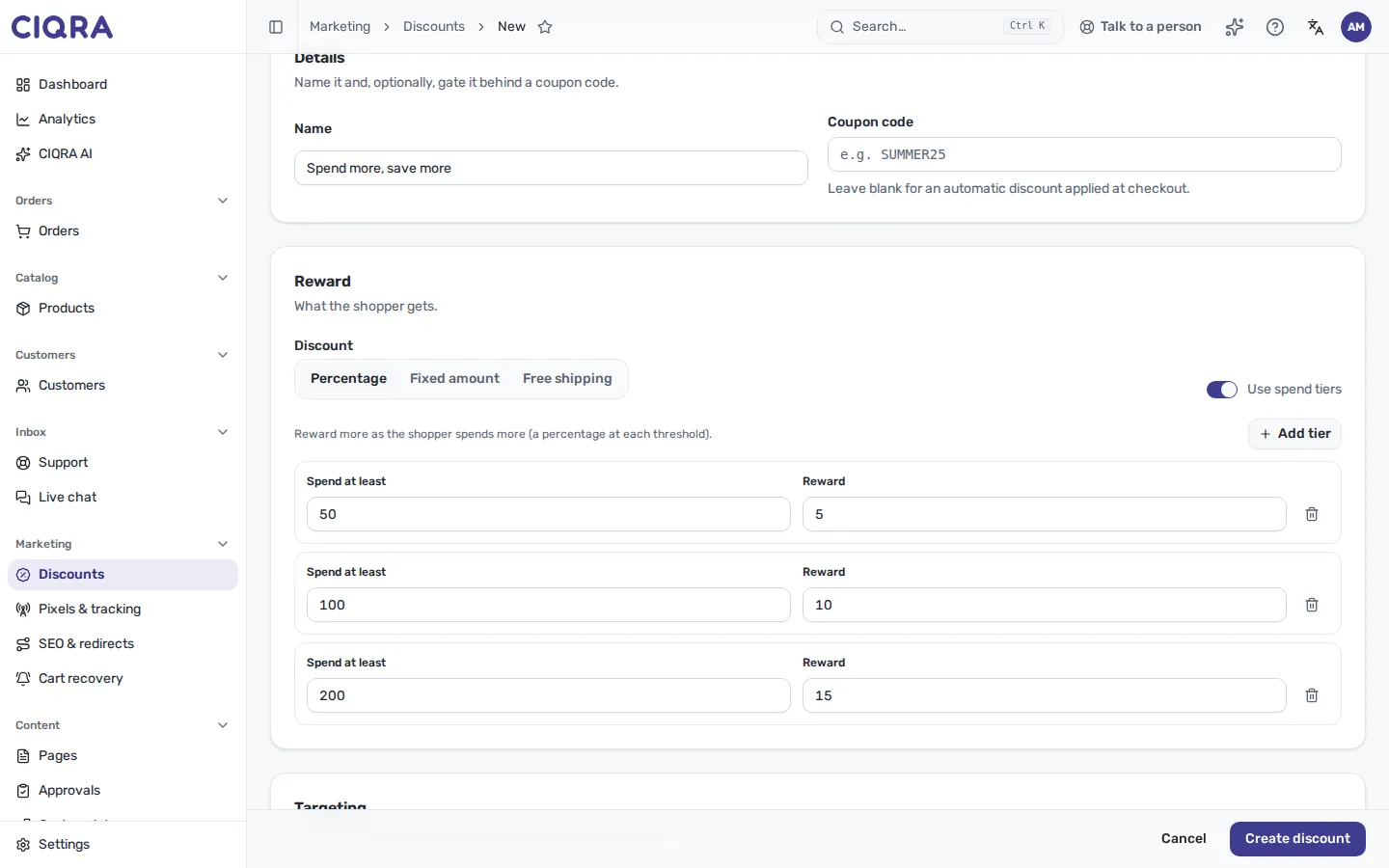
- 1Use spend tiersReplaces the single value with bands. The flat value is hidden while it is on.
- 2Spend at leastThe amount of eligible spend where the tier starts.
- 3RewardThe percentage or fixed amount for that tier.
- The highest tier the eligible spend reaches wins. Below the lowest tier the discount does not apply.
- Thresholds must be unique, and a threshold can be 0 or more. A reward must be greater than zero; a percentage must be between 1 and 100.
- Turning on tiers is only offered for Standard discount. Switching to another type turns it off.
Coupon batches: many unique codes at once
Section titled “Coupon batches: many unique codes at once”A batch makes up to 5000 codes that share one discount. Every code is unique and, by default, can be used once. The batches live in the Bulk coupon batches panel below the discounts table. Batch codes are deliberately not rows in the table, so a few thousand of them do not bury your own promotions.
1. Open the generator
Section titled “1. Open the generator”On Marketing, Discounts, scroll to Bulk coupon batches and select Generate batch.
2. Describe the codes
Section titled “2. Describe the codes”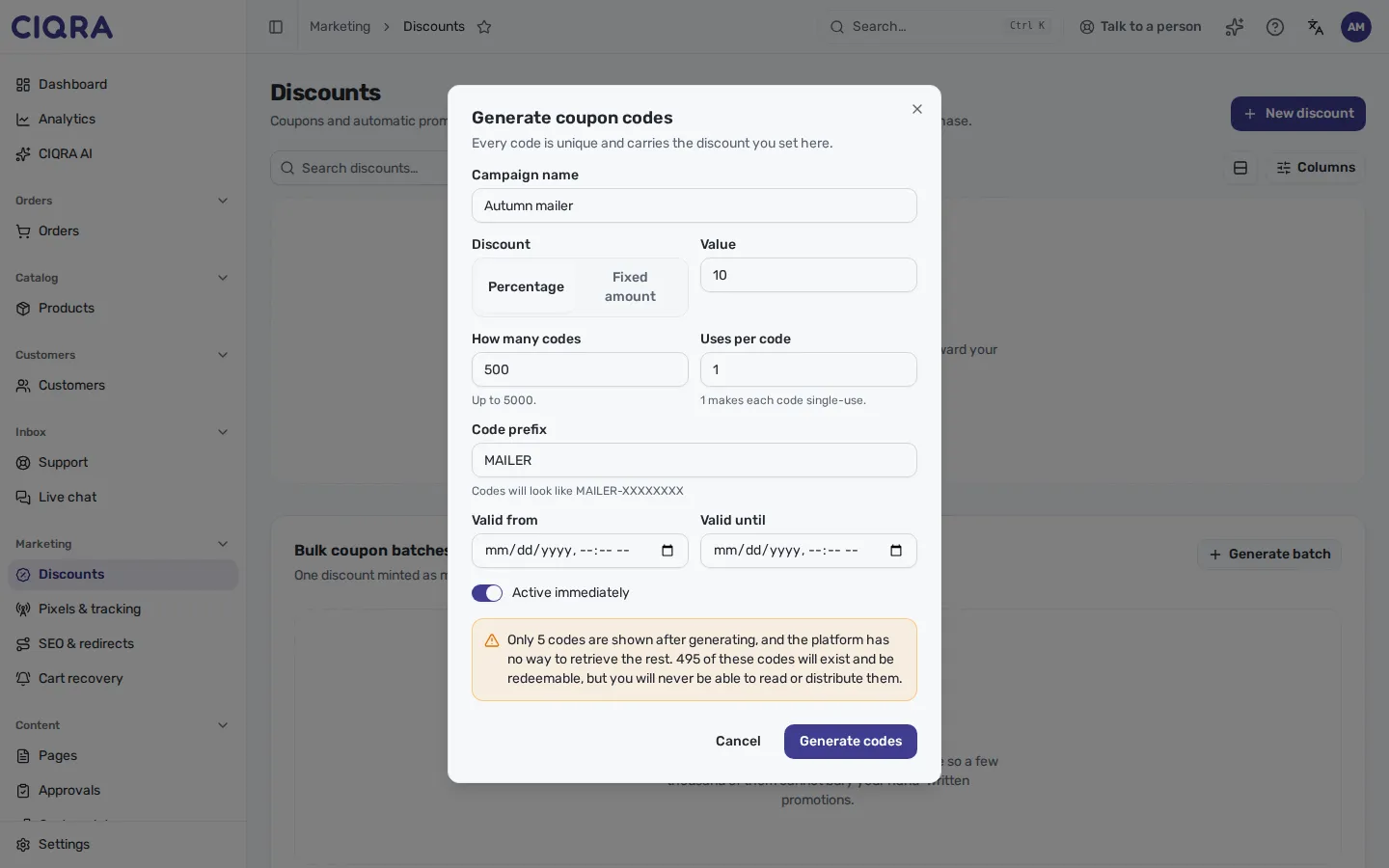
- 1Campaign name and discountA name for you, then Percentage or Fixed amount and the Value.
- 2How many codes1 to 5000.
- 3Uses per code1 makes each code single-use. It is not forced: a higher number lets each code be used that many times.
- 4Code prefixCapitals and digits only, up to 16 characters. The hint shows the shape, for example MAILER-XXXXXXXX.
- 5WarningShown for any batch bigger than five codes.
Optionally set Valid from and Valid until, and leave Active immediately on or off. The codes have eight random characters after the prefix.
3. Generate, then copy the codes now
Section titled “3. Generate, then copy the codes now”Select Generate codes. The dialog title shows how many were made, for example 500 codes generated.
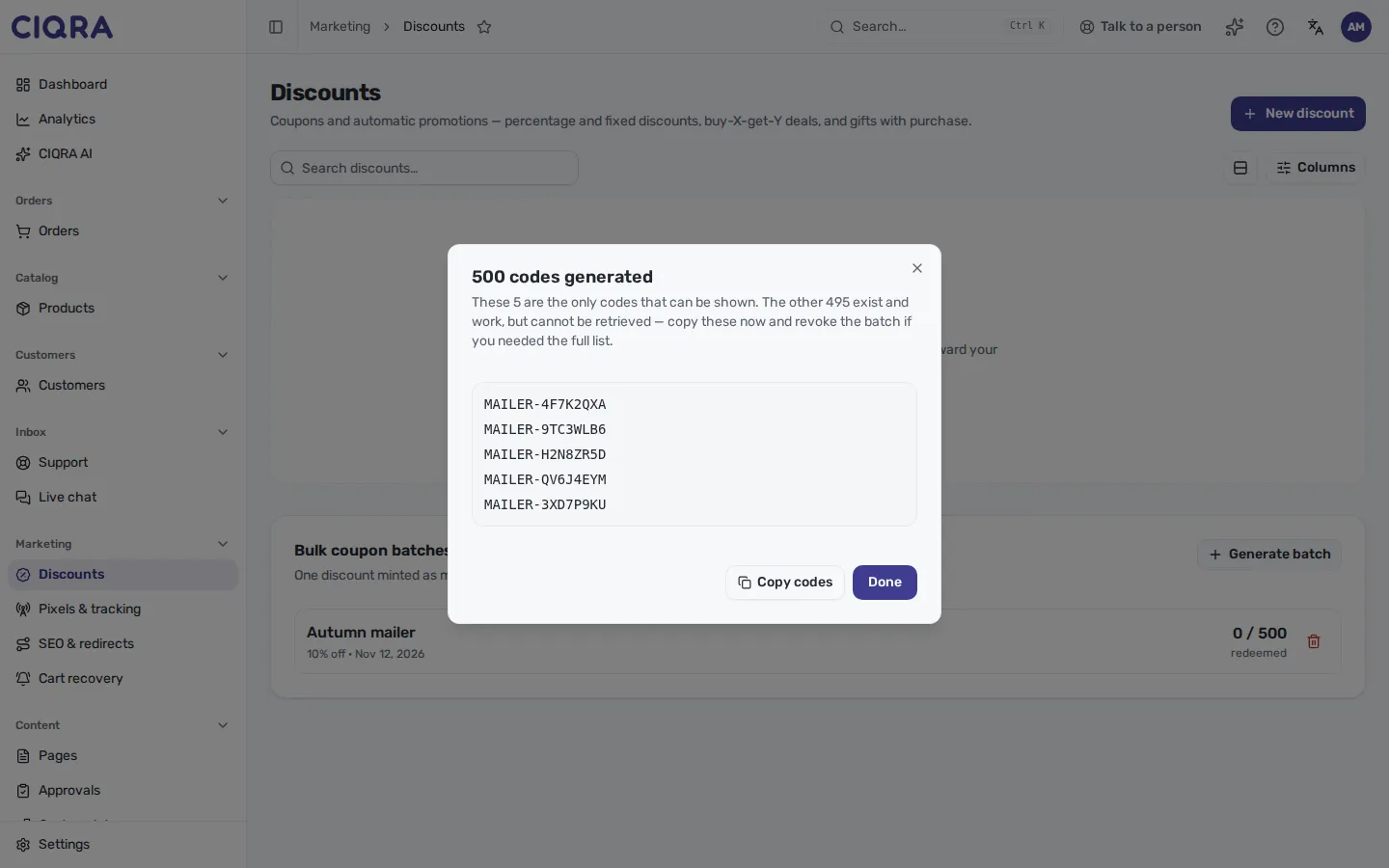
- 1Codes generatedThe number that exist.
- 2The five shownThe only codes CIQRA can show you.
- 3Copy codesCopies the shown codes. Do it before Done.
Select Done. The codes are not shown again.
4. Follow the batch and revoke it
Section titled “4. Follow the batch and revoke it”The batch appears in Bulk coupon batches with its name, reward, date and redeemed count (for example 0 / 500). The red bin button (Revoke the batch) opens Revoke this batch?. Select Revoke codes and every code in the batch stops working immediately, including codes already printed or emailed. You cannot revoke part of a batch.
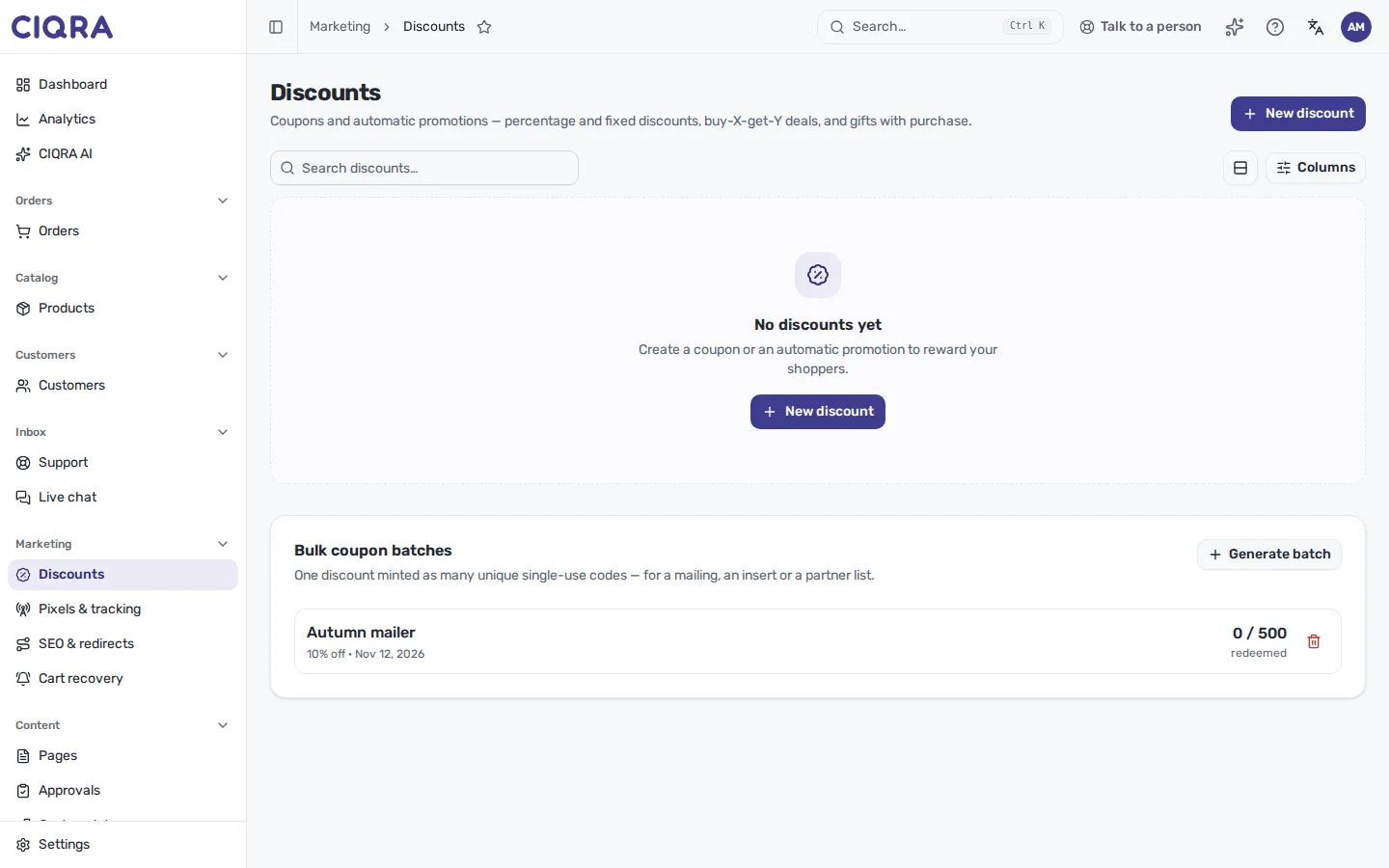
- 1Batch name and rewardThe campaign name, the discount and the day it was made.
- 2RedeemedHow many of the codes have been used.
- 3RevokeStops all codes in the batch at once.
When it refuses
Section titled “When it refuses”- “Generate between 1 and 5000 codes.” The number of codes is outside the range.
- “Each quantity threshold must be unique.” Two breaks have the same quantity.
- “Each threshold must be unique.” Two tiers have the same threshold.
- “Add at least one quantity break.” / “Add at least one tier.” The list is empty.
- “Could not generate enough unique codes — try a different prefix.” Shown by the server when too many generated codes already exist; use another prefix.
Limits and honest absences
Section titled “Limits and honest absences”- There is no list of the individual codes in a batch, no export of them and no way to revoke a single code. This is by design in the current admin.
- Fixed amount in the generator: the dialog has no currency field, and from reading the code a fixed-amount batch is refused with “Enter a 3-letter currency code.” Use Percentage for batches. This was not tried on a live store.
- A batch is always an entire-cart, non-combinable, standard discount with no per-customer limit. The generator does not offer targeting or combining.