

Fulfill and track shipments
Once an order is paid, the next job is getting it to the customer. You can ship the whole order at once, or in parts: pick which items go in each package, give each package its own tracking, and send the rest later. CIQRA keeps a record of every package, so your whole team can see what has left and what is still owed.
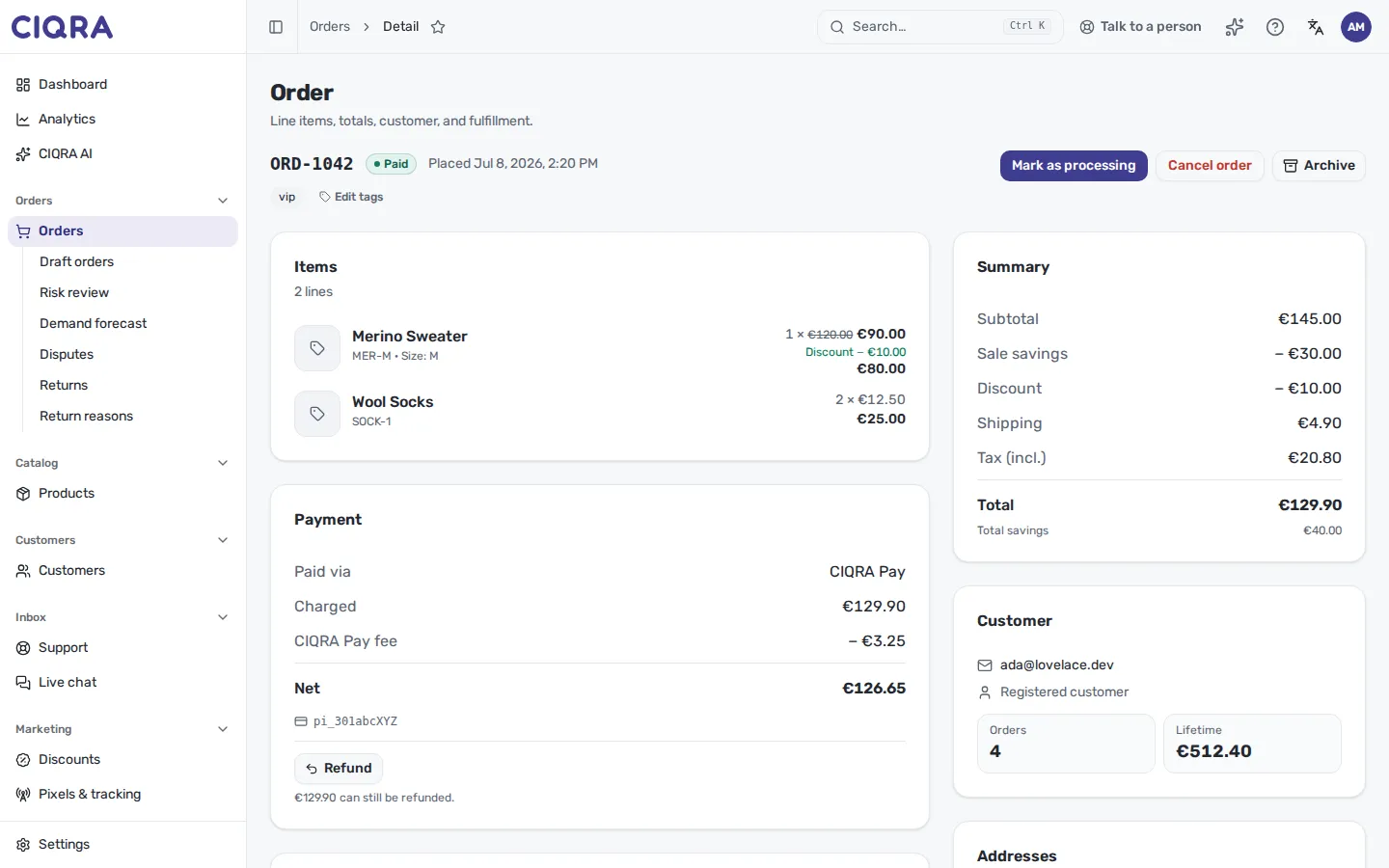
Ship the whole order
Section titled “Ship the whole order”If everything goes in one box, open the paid order, select Fulfill items, leave every quantity as it is, add the tracking and select Fulfill items. The order becomes Shipped and the customer gets the usual “your order has shipped” email.
You can also move a paid order along with Mark as processing, then Mark as shipped. That ships everything at once. To send only some items, use Fulfill items instead.
Ship an order in parts (partial shipping)
Section titled “Ship an order in parts (partial shipping)”The example below is one order with two products, a Merino Sweater and two pairs of Wool Socks. The sweater leaves today and the socks follow later. The pictures use a demo store with made-up data.
1. Open the order and find Fulfill items
Section titled “1. Open the order and find Fulfill items”Open the order from Orders. In the Fulfillment card, Fulfill items is offered while the order is paid and still has items to ship.
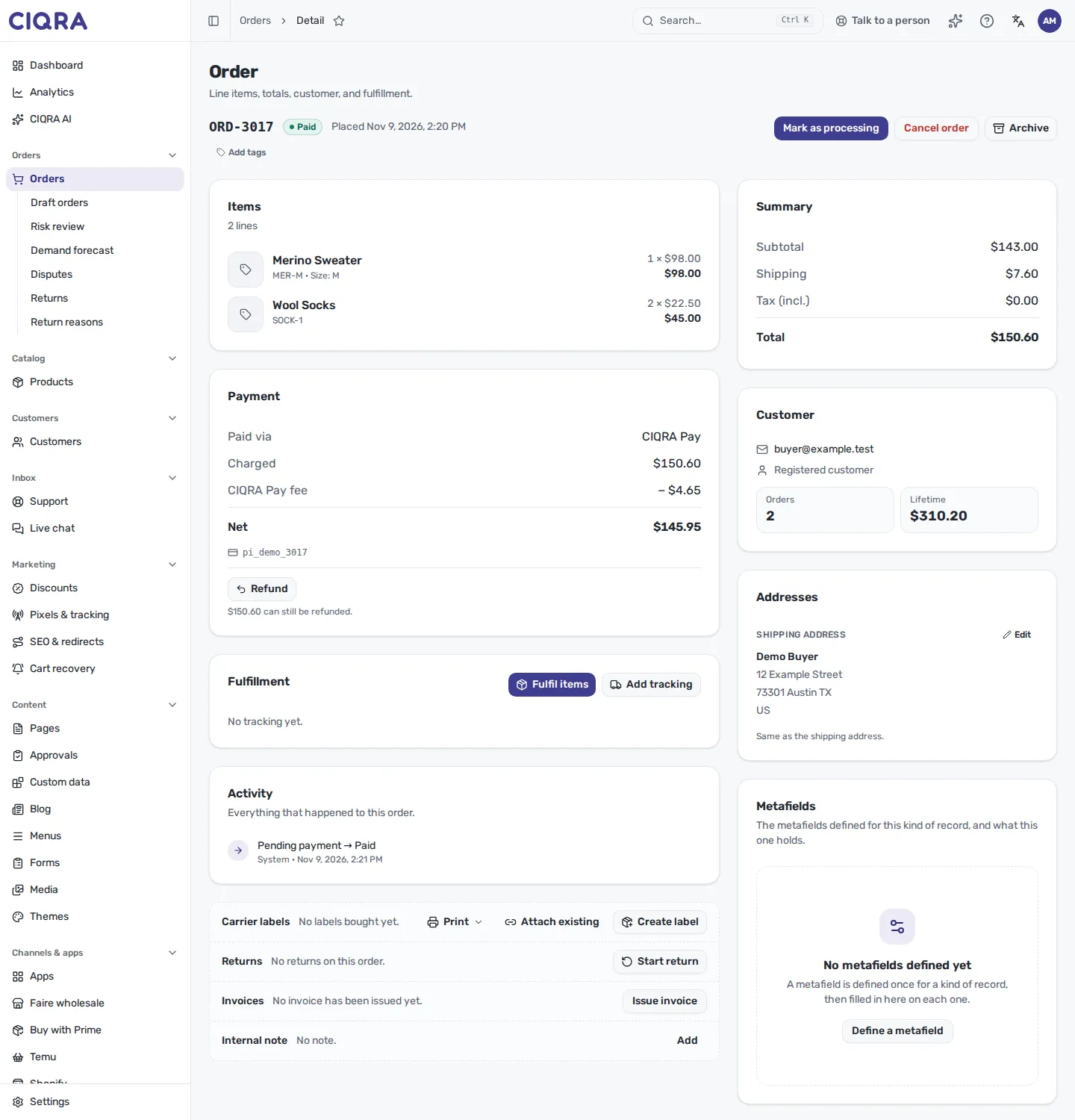
- 1Items on the orderEverything the customer bought. After the first package each line also says how many have been fulfilled.
- 2Fulfill itemsOpens the package dialog. It stays available until every item has shipped.
2. Choose the items in the first package
Section titled “2. Choose the items in the first package”The dialog opens with every unit still to ship. Lower the quantity of anything that is not going in this box. Setting it to 0 leaves it on the order for later. You must put at least one item in the package.
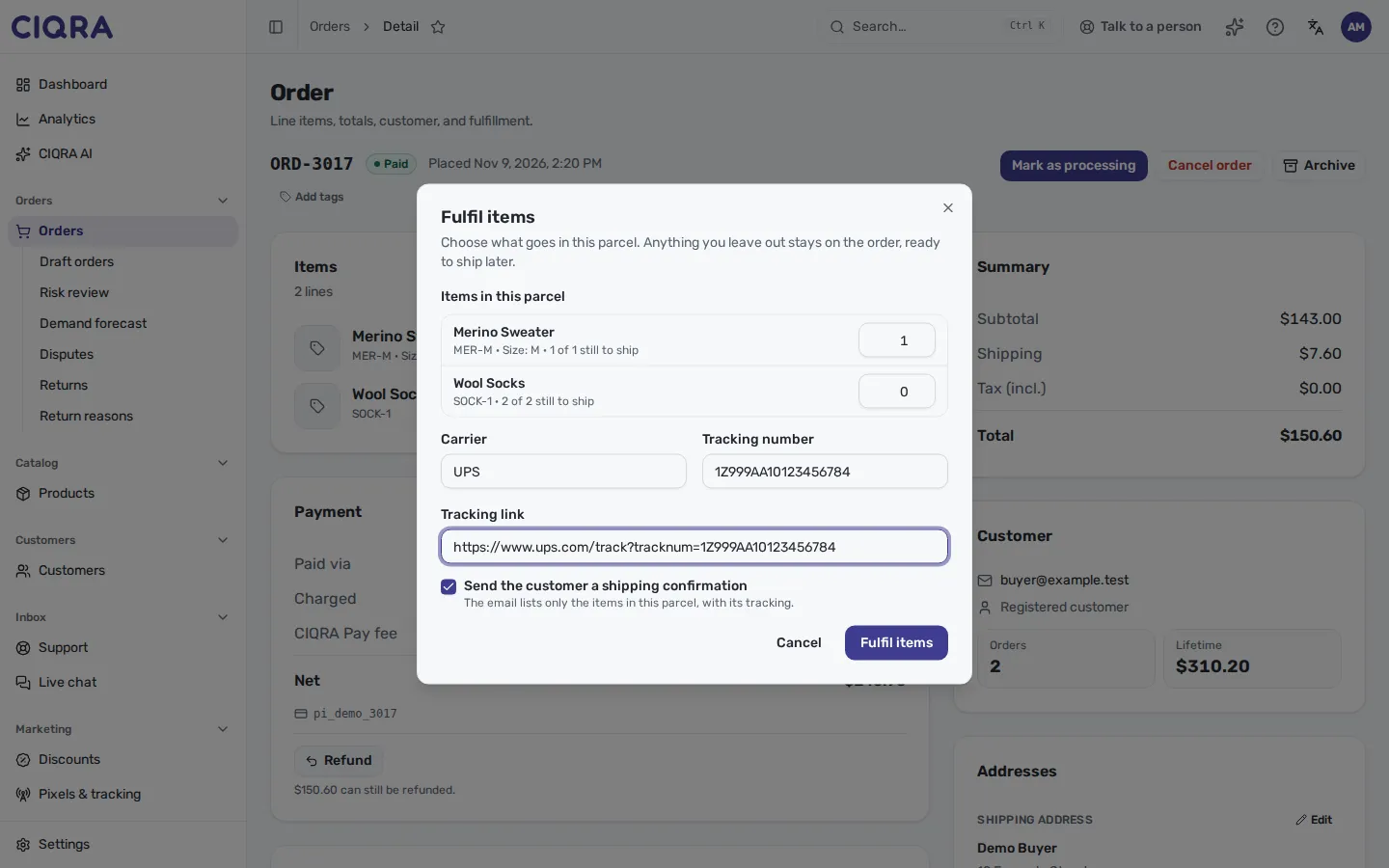
- 1Items in this packageOne row per item still to ship, with how many are left. Type the quantity that goes in this box.
- 2Carrier, tracking number, tracking linkAll optional. The link must start with http:// or https://. The customer's email carries this tracking.
- 3Shipping confirmationTicked by default. The email lists only the items in this package, with its tracking. Untick it to ship without telling the customer.
3. Fulfill the first package
Section titled “3. Fulfill the first package”Select Fulfill items. A message confirms that the rest stays on the order. The order’s status becomes Partially fulfilled, each line shows how many of its items have shipped, and the Fulfillment card lists Package 1 with its contents and tracking.
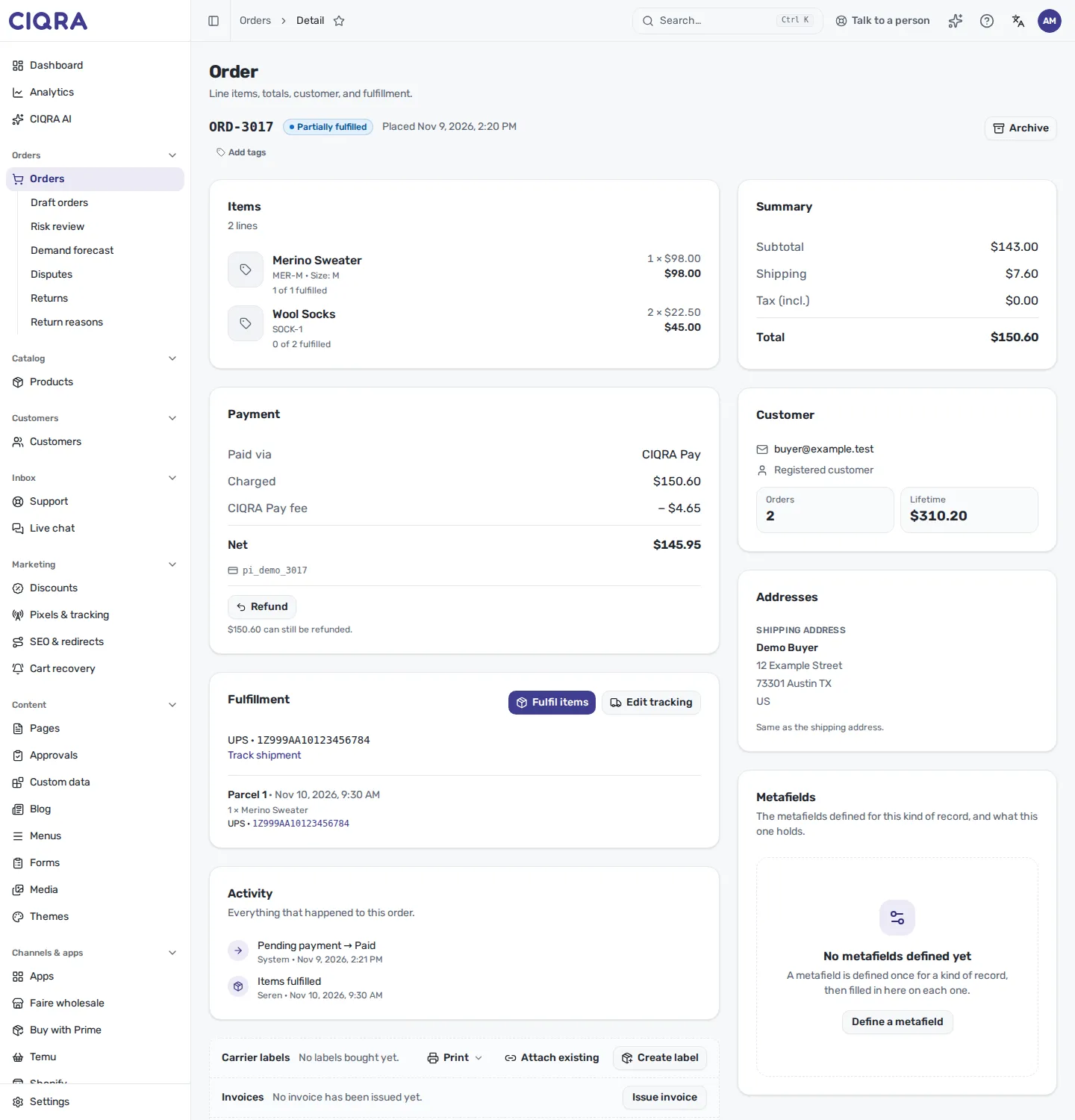
- 1Partially fulfilledPart of the order has left; the rest is still to pack. The order stays in your Unfulfilled queue.
- 2Progress per lineHow many units of each item have shipped.
- 3Package 1What went in the package, when, and its tracking number (a link when you gave one).
4. Ship the rest later
Section titled “4. Ship the rest later”When the other items are ready, open the same order and select Fulfill items again. The dialog lists only what is still owed (here the two pairs of socks). Add that package’s own carrier and tracking number and fulfill it. Anyone on your team can send a later package.
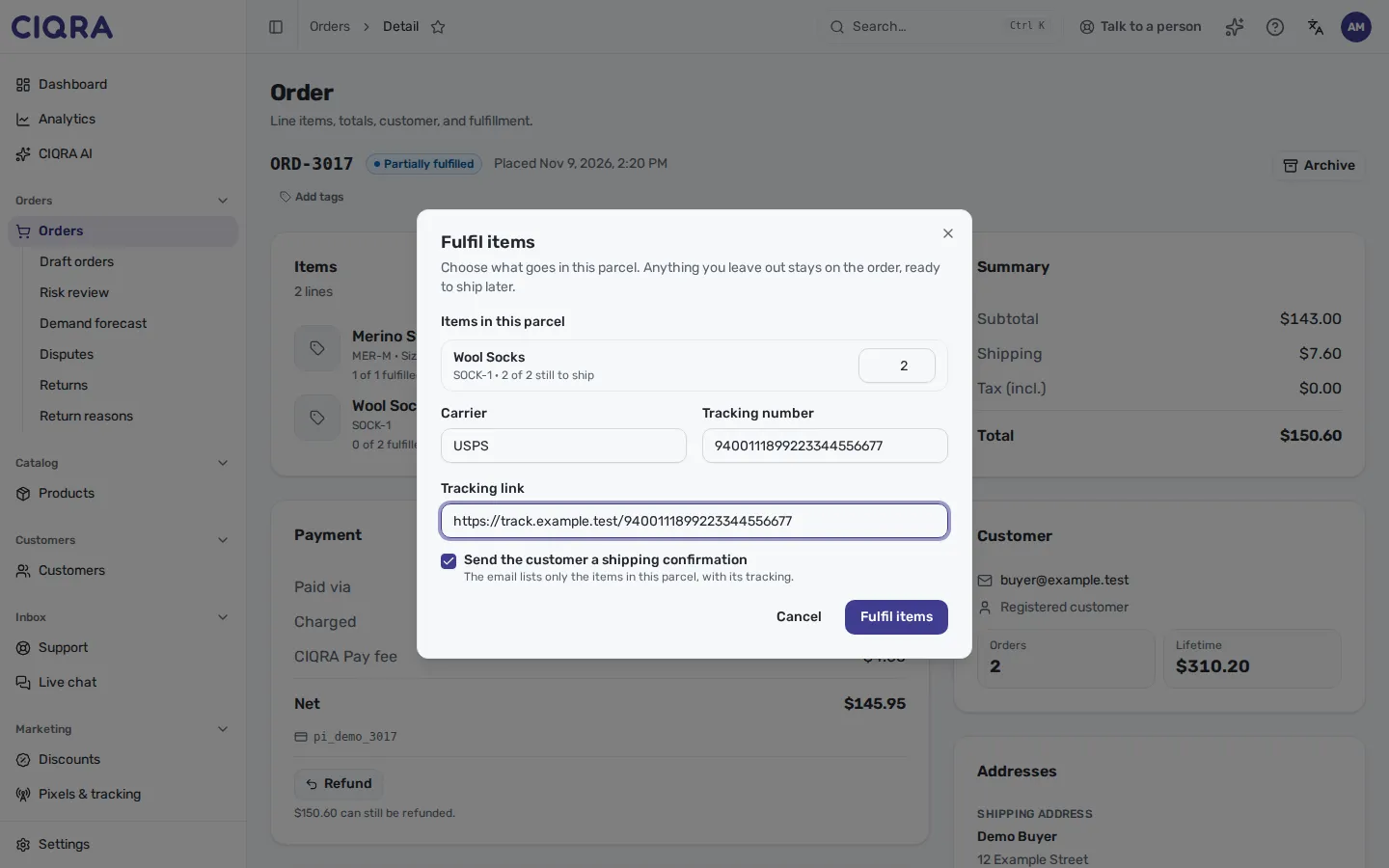
- 1Only what is leftItems already shipped no longer appear.
- 2This package's own trackingEach package carries its own carrier and number; the order page and the customer's tracking page follow the latest one you entered.
5. The last package completes the order
Section titled “5. The last package completes the order”When the last items ship, the order moves to Shipped and Fulfill items disappears. Both packages stay listed.
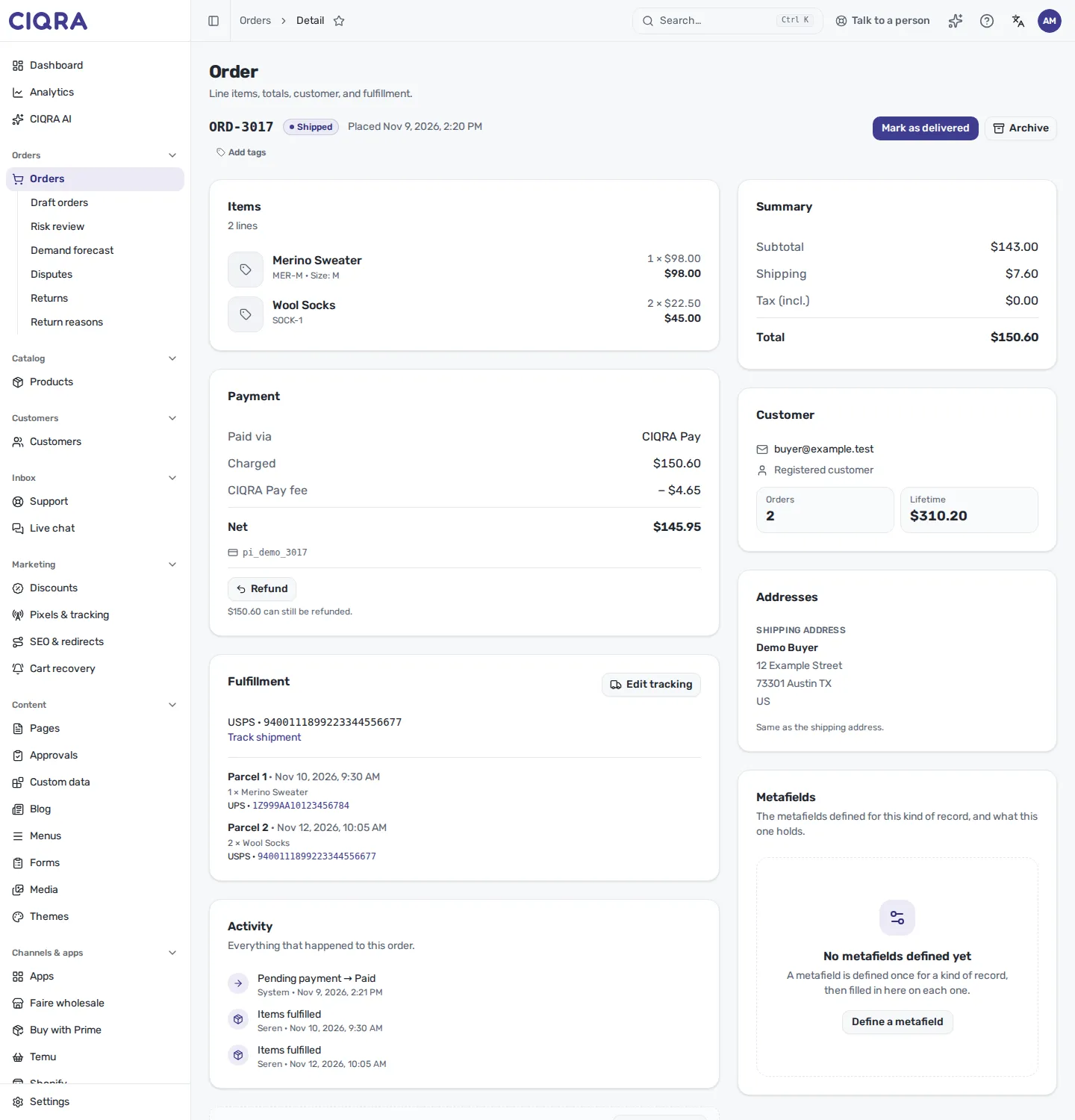
- 1ShippedEvery item has left. From here the order follows the usual path to Delivered.
- 2Package listEvery package with its items, date and tracking.
What the customer receives
Section titled “What the customer receives”- One package, whole order: the usual “your order has shipped” email.
- Several packages: one shipping email per package, listing only the items in that package and carrying that package’s tracking. The last package gets its own email too; the customer is not sent a second “your order has shipped” for the whole order.
- Confirmation box unticked: nothing is sent for that package.
The email is your store’s own “order in cargo” template, so it looks like the rest of your store’s emails.
Orders with a carrier label
Section titled “Orders with a carrier label”When you buy a label through a connected carrier (for example Shippo) the carrier’s tracking moves the order to Shipped and Delivered, and CIQRA no longer offers Fulfill items for that order. If you try, you are told: “This order has a live carrier label, so the carrier’s tracking ships it. Void the label to fulfill items by hand.”
Labels bought in CIQRA are bought one per box of the order’s packing plan, not per items you pick. So to ship chosen items in separate packages:
- Buy the shipping label for each package in your carrier’s own account (for Shippo, its dashboard), not with Create label on the order.
- Use Fulfill items for each package and type in the carrier and the tracking number that label gave you.
If a label was already created on the order, void it first (Cancel shipment in the carrier labels card), then use Fulfill items. See Carriers and labels.
Good to know
Section titled “Good to know”- You cannot ship more than is still owed. If a colleague shipped some of the items while your dialog was open, CIQRA tells you to reopen it and shows what is left.
- Only orders that are paid can ship: Paid, Processing, Ready for shipment, Partially canceled and Partially fulfilled. An unpaid, canceled or already shipped order refuses.
- Add tracking on the Fulfillment card edits the tracking shown for the whole order and does not ship anything.
Watch the activity timeline
Section titled “Watch the activity timeline”The Activity card is the order’s running history. Each package adds an Items fulfilled entry with who did it and when, next to status changes and your team’s notes.