

Draft orders
Some customers do not use your checkout: they phone, visit the shop or send a message. A draft order is an order you build for them in the admin. You add products, choose the customer and delivery, and then either complete it yourself or send the customer a link to pay online. A completed draft becomes the same order a storefront purchase would have created, with the same stock reservation, tax, discounts and statuses. The pictures use a demo store with made-up data.
You find drafts in the sidebar under Orders, then Draft orders. You need the permission to manage orders.
1. Start a draft
Section titled “1. Start a draft”Draft orders lists every open draft with its customer, number of products, subtotal and last change. Select Create order to start an empty one; it opens straight away. An empty list reads “No open draft orders”.
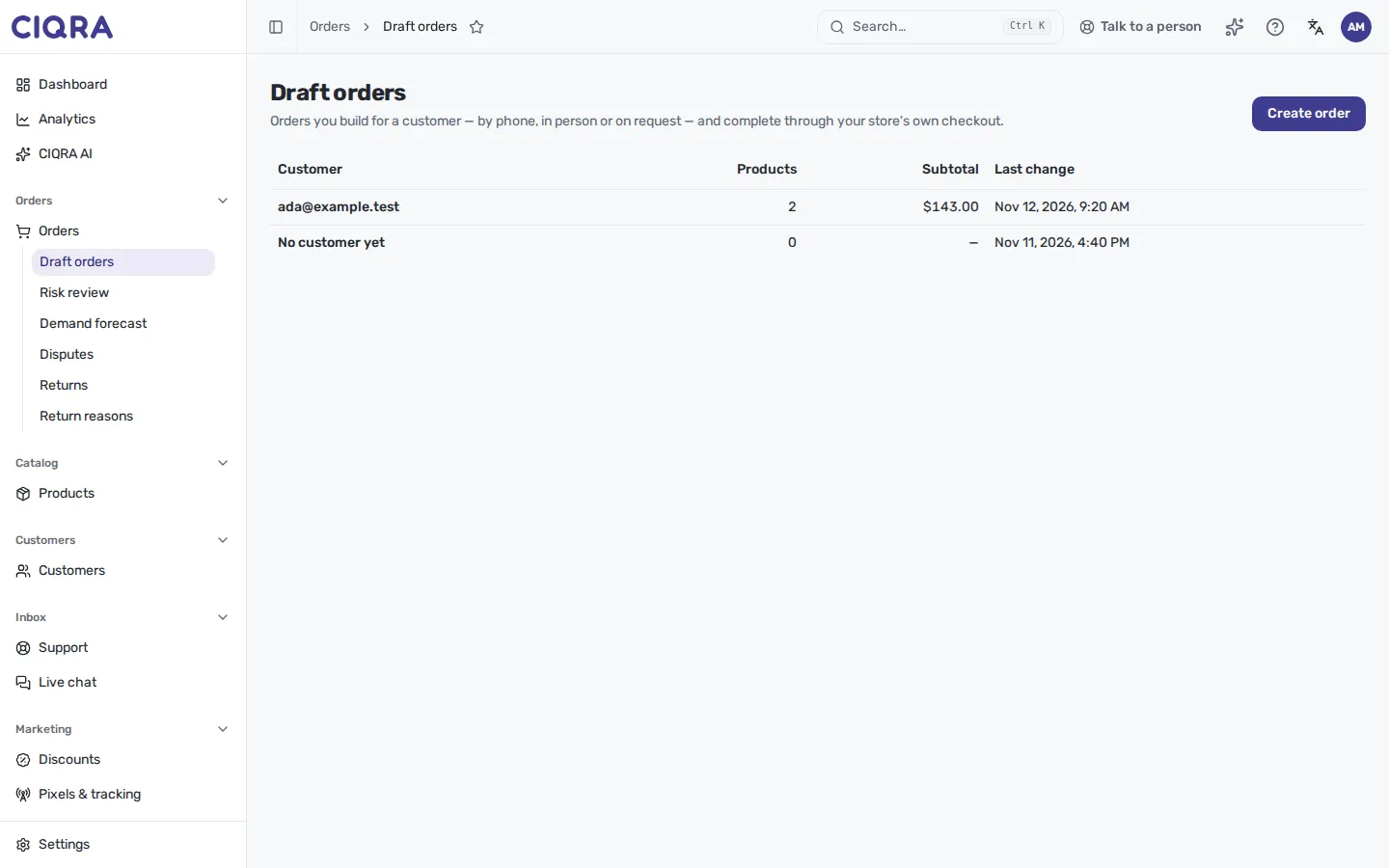
- 1Create orderStarts an empty draft and opens it.
- 2A draftSelect the customer's email to continue it. A draft with no customer yet reads "No customer yet".
2. Build the draft
Section titled “2. Build the draft”The draft page has one card per job. Each card saves on its own.
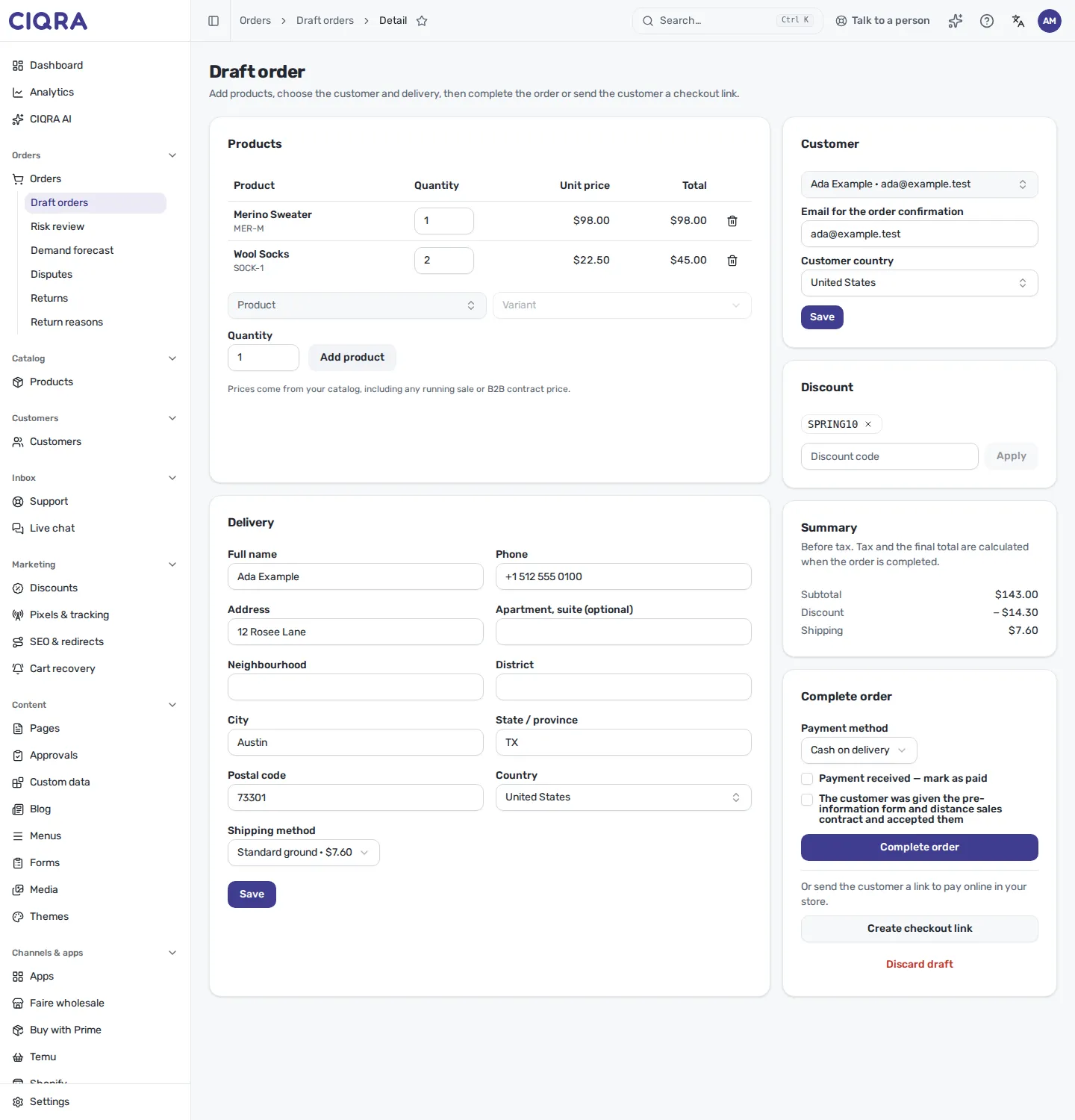
- 1ProductsSearch a product, choose a variant, set the quantity and select Add product. Prices come from your catalog, including a running sale or the customer's B2B contract price.
- 2CustomerChoose a customer, or Guest (no customer account). Enter the email for the order confirmation and the customer's country, then Save.
- 3DeliveryAvailable once the email and country are saved. Fill in the address, choose a shipping method from the rates for that country, then Save.
- 4Discount and SummaryApply a store discount code. The Summary shows subtotal, discount and shipping before tax.
- Quantities go from 1 to 99. Select the remove icon (Remove line) to take a line out.
- Prices change. If a price moved after you added a product, the card says “Prices have changed since these products were added” and offers Use current prices.
- Not every product can go in a draft. A bundle whose components must be chosen, a product that needs personalization from the customer, and a gift wrap are refused. The message says to send the customer the checkout link instead.
- Discount codes are your store’s promotion codes. They are checked by the same engine as at the storefront, so a code that does not apply is rejected.
- Tax and the final total are not shown yet. The Summary says “Before tax. Tax and the final total are calculated when the order is completed.” Shipping is re-quoted when you complete, so the charge matches what is shipped.
3. Complete the order yourself
Section titled “3. Complete the order yourself”At the bottom of the right column, Complete order is available once the draft has at least one product and a saved delivery address. Until then it reads “Add at least one product and save the delivery address to complete the order.”
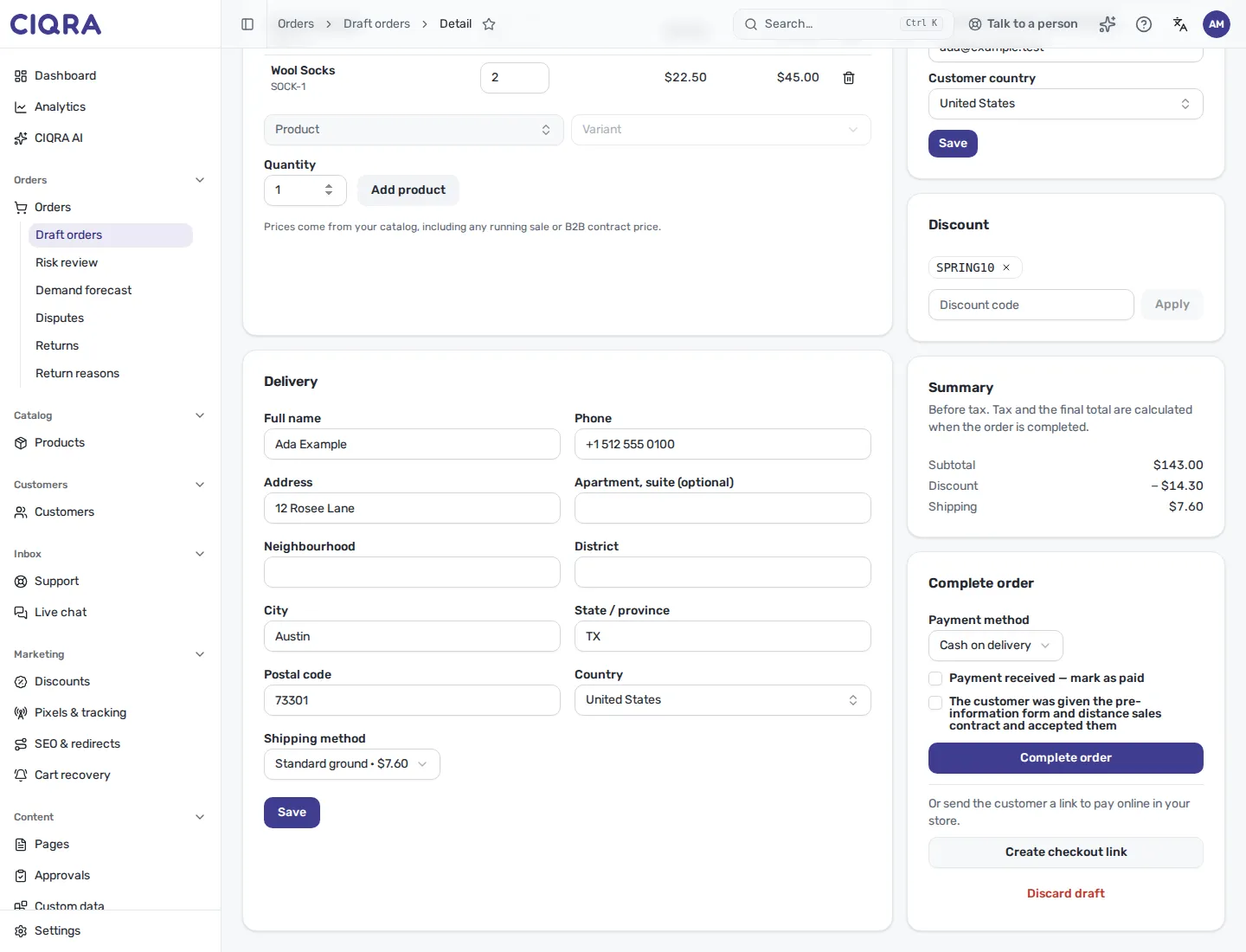
- 1Payment methodBank transfer or Cash on delivery. Card payment cannot be taken at the desk; use the checkout link for that.
- 2Payment receivedTick it when the money is already in. The order then becomes Paid.
- 3Pre-informationYou confirm the customer was given the pre-information form and distance sales contract and accepted them.
- Bank transfer asks for the Bank account the customer pays into. If you do not tick Payment received, the customer is sent the payment-waiting email with the bank details and amount, the same one a storefront bank-transfer order sends.
- Cash on delivery places the order; the payment is collected on delivery.
- The legal confirmation. When your store publishes its pre-information form and distance sales contract, completing a draft needs your confirmation that the customer received and accepted them. Without it the page says “Confirm that the customer was given the pre-information form and distance-sales contract and accepted them, or send them the checkout link to accept on the storefront.” The confirmation is stored on the order, and the order’s timeline records that it was placed from the admin.
Select Complete order. A message reads “Order {number} created.” and the order opens.
4. Or send a checkout link
Section titled “4. Or send a checkout link”To let the customer pay online, select Create checkout link. The page shows the link with a Copy link button. CIQRA does not email it: copy it and send it to the customer yourself.
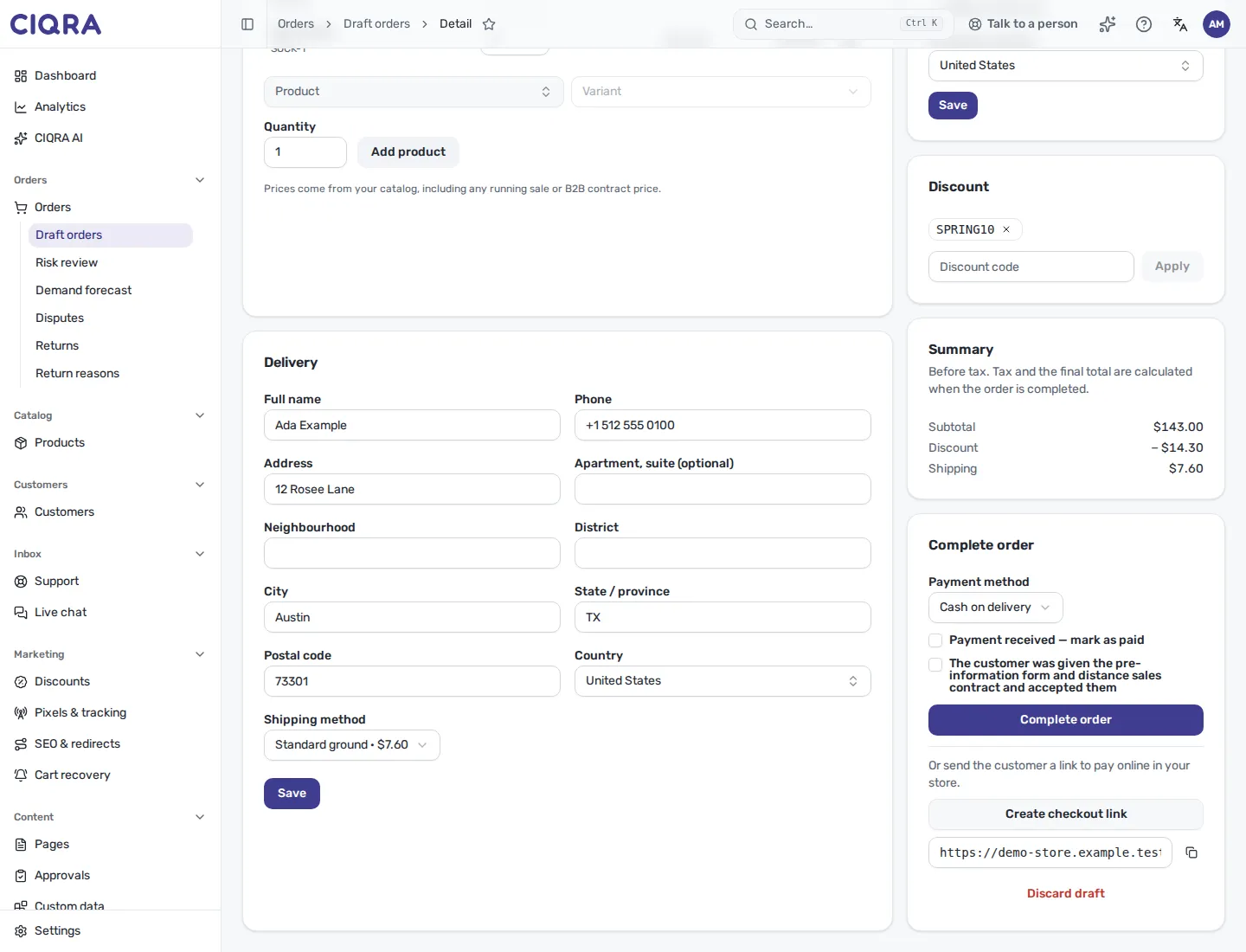
- 1Checkout linkA link to your store's own checkout for this draft, with its products already in the cart.
- 2Copy linkCopies the link so you can paste it into your message to the customer.
- The link works once and expires; by default after 72 hours.
- Creating a new link makes the previous one stop working.
- You need at least one product first: “Add at least one product before sending a checkout link.”
- If the store has no public address, the link cannot be made: “This store has no public address to send a checkout link from.”
- The customer pays on your storefront. The order appears in Orders when the customer places it.
Discard a draft
Section titled “Discard a draft”Discard draft removes the draft. The page says “The draft is removed. Nothing was reserved or charged for it.” A draft that is not completed holds no stock.
Limits
Section titled “Limits”- Only bank transfer and cash on delivery can be completed in the admin. A card method redirects the customer’s browser, which the admin cannot do; use the checkout link.
- A draft is always a physical order: it ships or is collected.
- Changing a completed order afterwards is done on the order, see Edit an order.