

Exchanges, restocking returned items, and return labels
This page covers what happens around a return that Handle returns does not: swapping an item instead of refunding it, putting returned items back in stock, and prepaid return labels. The pictures use a demo store with made-up data.
Exchanges
Section titled “Exchanges”An exchange gives the customer another variant (another size or color) of the same product instead of a refund. The customer sends the item back, and when you complete the exchange CIQRA swaps the order line and moves the stock.
Before you start: offer exchanges
Section titled “Before you start: offer exchanges”Open Settings, then Catalog. The Return and exchange policy card decides what you offer.
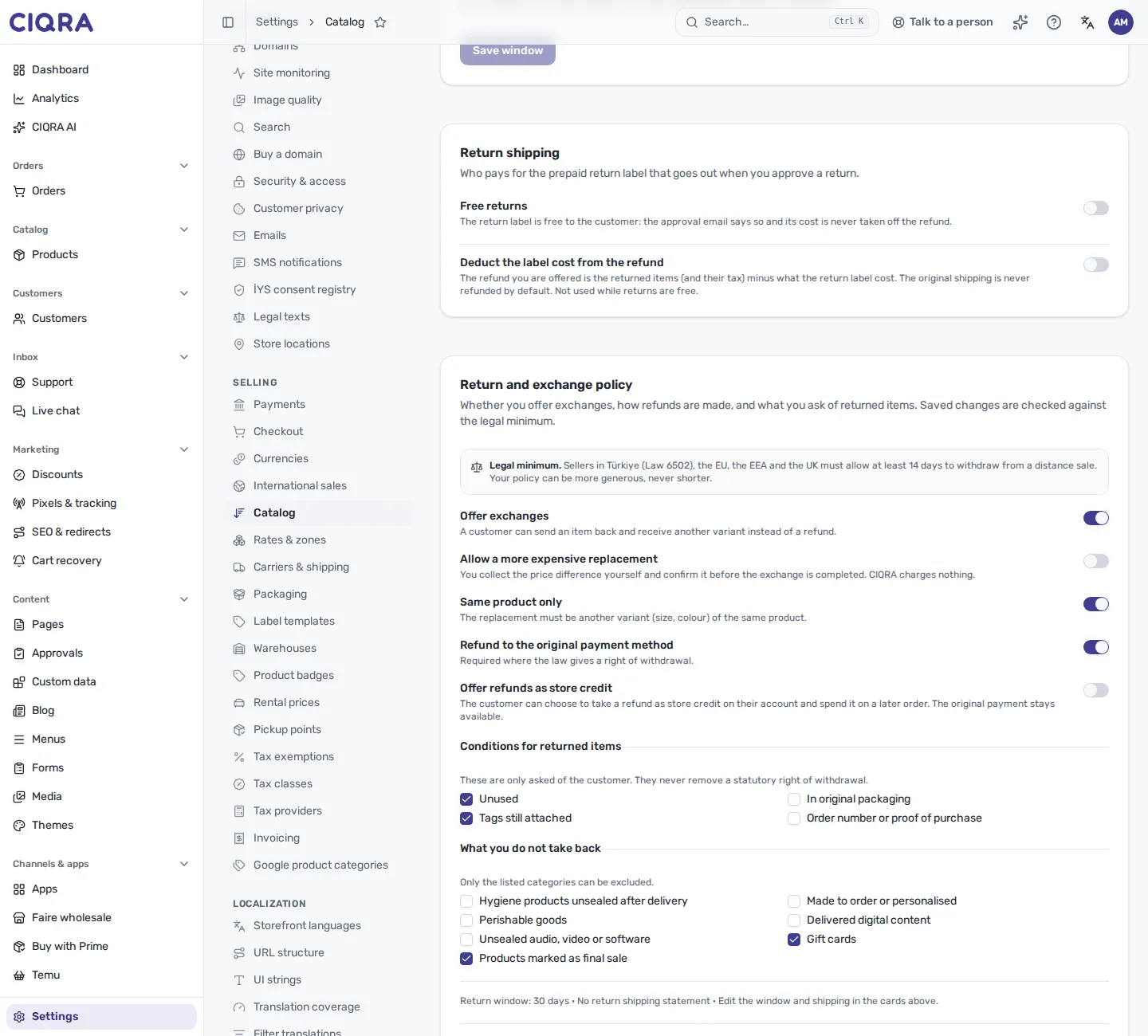
- 1Offer exchangesOff means exchanges are not offered. Opening one is refused with the message Exchanges are switched off.
- 2Replacement rulesAllow a more expensive replacement (you collect the difference yourself) and Same product only (another variant of the same product).
- 3Save policySaved changes are checked against the legal minimum before they are accepted.
- Allow a more expensive replacement needs Offer exchanges on. CIQRA collects nothing for the difference: you collect it yourself and confirm it when you complete the exchange.
- Refund to the original payment method is required where the law gives a right of withdrawal.
- Conditions for returned items (for example Unused or Tags still attached) are only asked of the customer. They never remove a statutory right of withdrawal. What you do not take back lists the categories you can exclude.
- The policy is saved against a legal floor: sellers in Türkiye, the EU, the EEA and the UK must allow at least 14 days to withdraw from a distance sale. A save below it is refused with “Not saved: this is below the legal minimum.”
- Below the card, Policy text generates a policy page text from what is saved, in English or Turkish. Other languages get the English text.
- If the platform has switched exchanges off, the card says so: “Exchanges are switched off for the whole platform right now, whatever you choose here.”
Open an exchange for a customer
Section titled “Open an exchange for a customer”Use this when a customer asked you to swap an item. It is offered on orders that are Delivered or Completed.
- Open the order. In the Returns card select Request exchange. The Returns card is drawn once the order has at least one return. On an order with none, the page shows a “Not on this order yet” block with only Start return; from reading the code, Request exchange is not offered there.
- Choose the Item (already chosen when the order has one line) and the Replacement. Each replacement shows its price difference (same price, more, less) and the stock left.
- Write the Reason. It is required.
- Select Open request. A message says “Exchange request opened.” The customer then sends the item back.
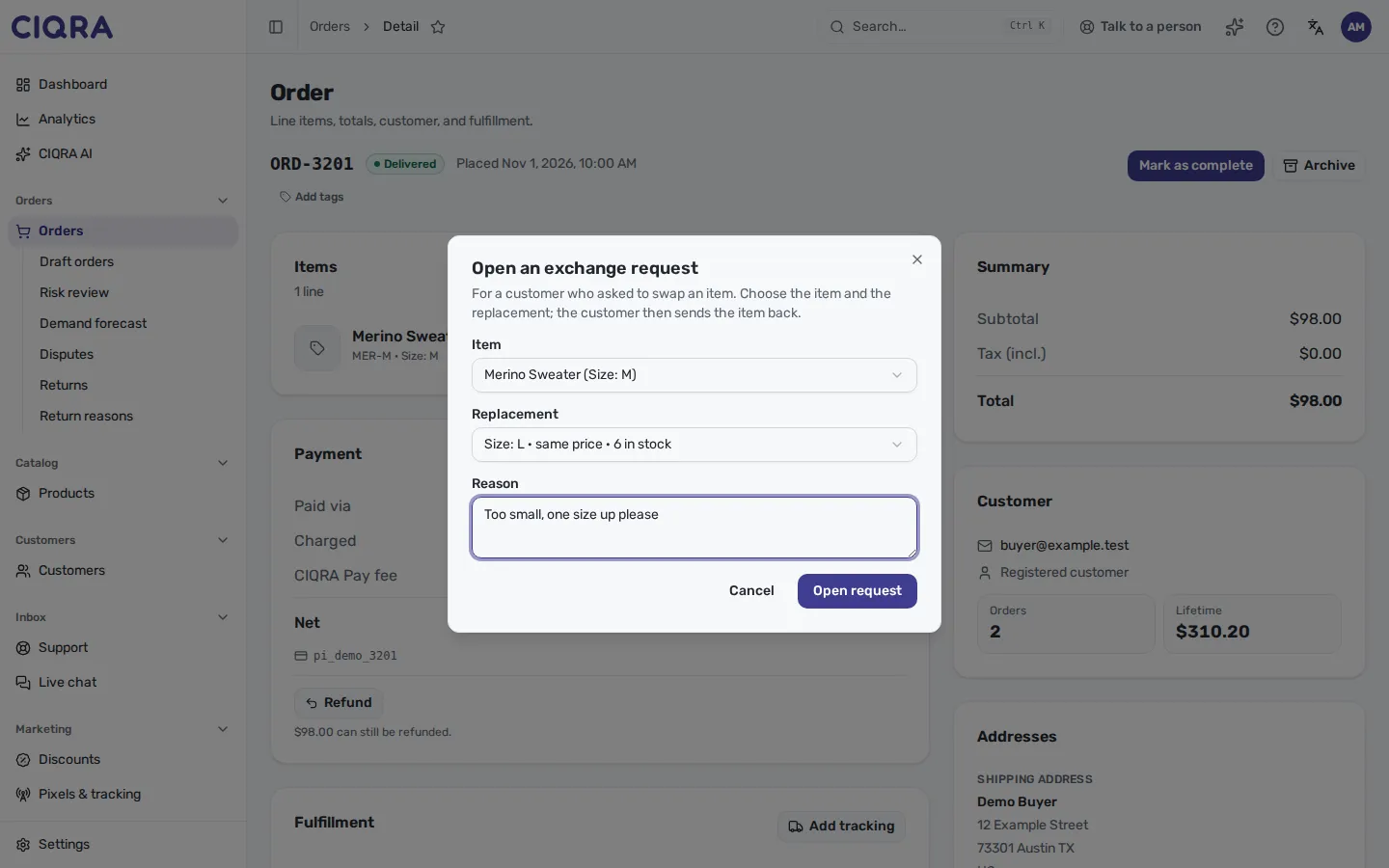
- 1Item and replacementReplacements that would be refused are grayed out. Picking one shows the reason below the field.
- 2ReasonRequired. Open request stays disabled until the item, a replacement and a reason are set.
When the request is refused you see one of these:
- “Exchanges are switched off.”
- “This order or item cannot be exchanged now.”
- “Marketplace orders cannot be exchanged here.”
- “This item is final sale or its destination is final sale.”
- “The return window for this item has passed.”
- “This item already has a return or exchange open.”
- “Choose a different variant of the same product.”
- “The replacement cannot cost more than the item.”
- “The replacement is out of stock.”
Complete the exchange
Section titled “Complete the exchange”Open the exchange from Returns and work it like any return until the package is back (see Handle returns), then select Mark received. A plain Refund is not offered for an exchange: the customer gets a replacement, not the goods’ value. Until the package is received the page says “Complete the exchange once the returned package is received.”
- In the Exchange card, check the Replacement and the settlement sentence under it.
- Select Complete exchange.
- Read the confirmation: the item goes back to stock, the replacement leaves stock, and the order line changes to the replacement. It cannot be undone.
- If the replacement costs more, tick I collected the price difference from the customer. The confirm button stays disabled until you do.
- Select Complete exchange. A message says “Exchange completed.”
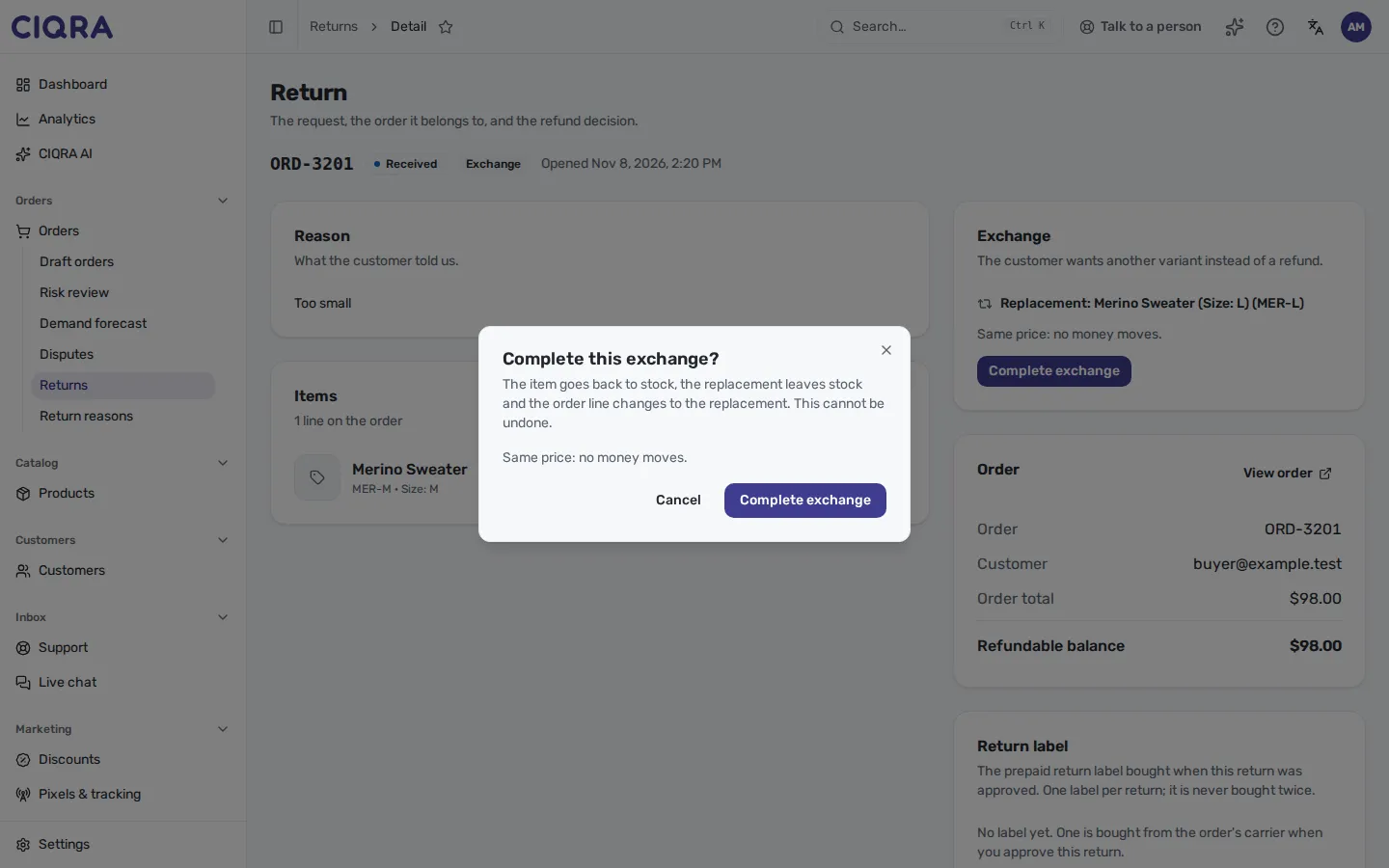
- 1What will changeStock moves and the order line becomes the replacement.
- 2Price differenceSame price: no money moves. Cheaper: the difference is refunded to the original payment. Dearer: you collect it and confirm.
If the replacement was applied but the refund of a price difference failed, the card says “The replacement was applied. The refund of the price difference is still outstanding: complete the exchange again to retry it.” Other refusals: “Mark the package received before completing the exchange.”, “Confirm that you collected the price difference.”, “The replacement could not be applied (check its stock).”
Restock returned items
Section titled “Restock returned items”Receiving a return does not put anything back on sale by itself. Restock is its own decision, because only the person holding the package can tell whether the item is sellable.
Before you start
Section titled “Before you start”- Restock appears on a return that is Received or Refunded. It does not appear on an exchange (completing an exchange moves its own stock) or while a marketplace decision is pending.
- It moves stock, never money.
- Open the return from Returns and select Restock.
- Read the dialog: the units go back on sale in the warehouse they were sold from, or in your default warehouse.
- Select Restock items. A message gives the number of units put back in stock.
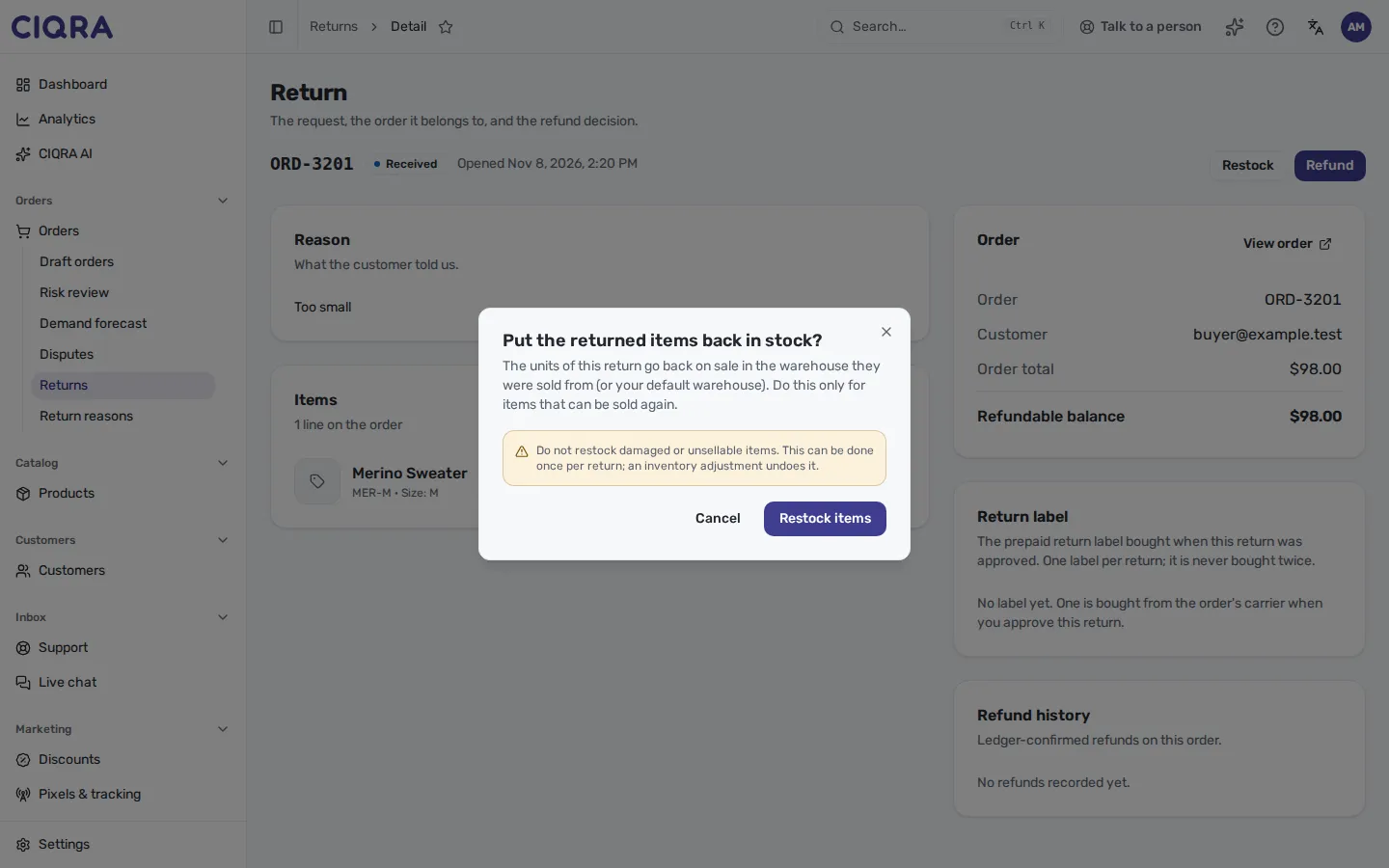
- 1Where the stock goesThe warehouse the items were sold from, or the default warehouse.
- 2WarningDo not restock damaged or unsellable items.
It can be done once per return. A second attempt, by you or a colleague, answers “This return was already restocked; nothing changed.” An inventory adjustment undoes a restock.
Return labels
Section titled “Return labels”When you Approve a return, CIQRA buys a prepaid return label from the order’s carrier and emails it to the customer (Approve without a label sends none). Two tools save you the clicks.
Approve returns automatically
Section titled “Approve returns automatically”In Settings, Catalog, the Automatic return approval card approves a return the moment it is requested, buys the label and emails it. It is off by default.
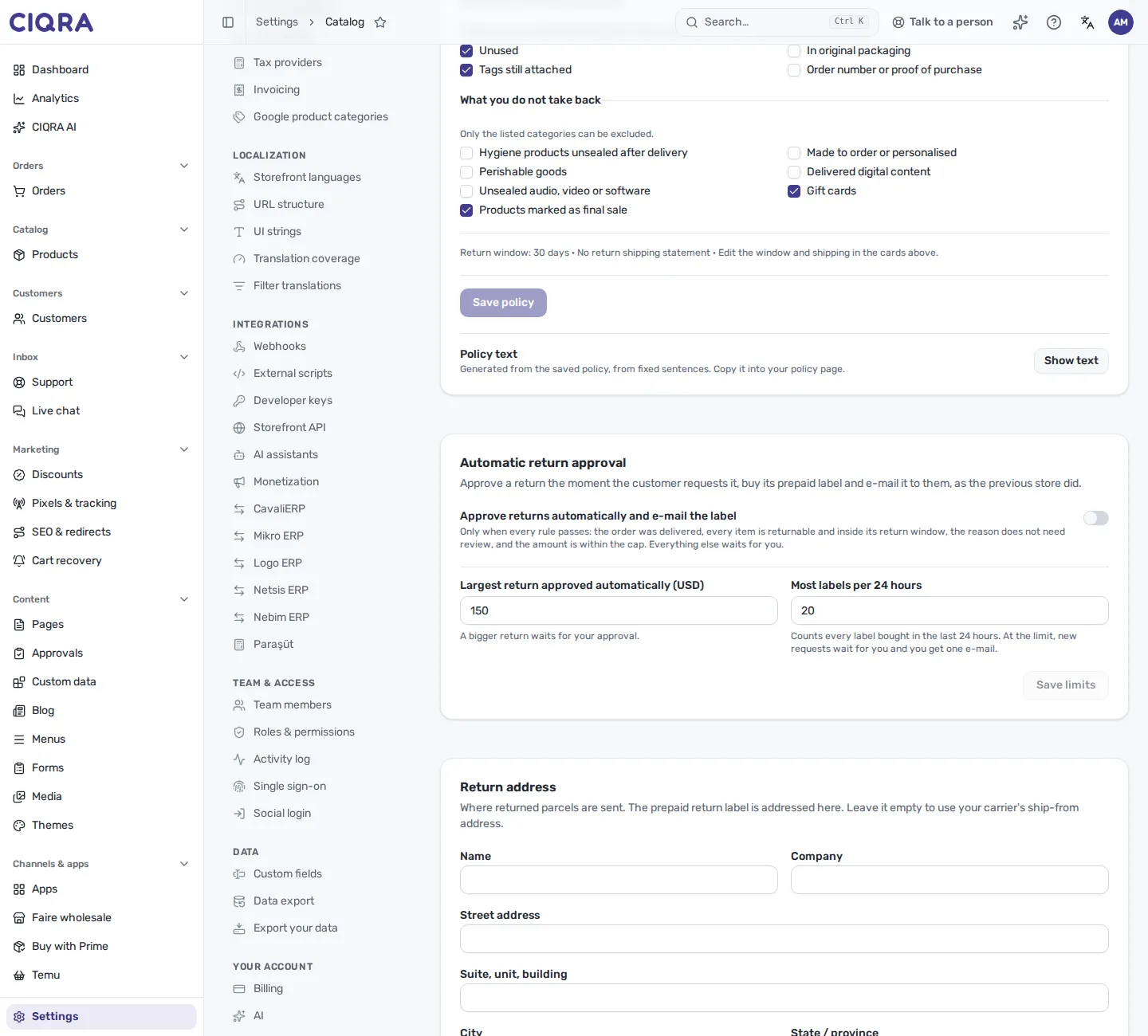
- 1Approve returns automatically and e-mail the labelTurning it on asks for a confirmation that lists the rules.
- 2Largest return approved automaticallyA bigger return waits for you.
- 3Most labels per 24 hoursAt the limit new requests wait for you, and you get one email.
A return is approved automatically only when every rule passes: the order was delivered, every item is returnable and inside its return window, the reason does not need review, and the amount is within the cap. Everything else waits for you. Turning it on does not approve returns that are already waiting. If a label cannot be bought, the return keeps waiting, you get an email, and the customer is not told to ship anything. Edit the two limits and select Save limits.
Send labels to waiting returns
Section titled “Send labels to waiting returns”On Returns, Send labels to waiting returns is for the returns that were already waiting. Nothing is bought until you confirm.
- Select Show waiting returns. Each return shows a verdict, such as Ready to send, Above the value cap or The reason needs review. Only ready ones can be ticked.
- Tick the returns. The card shows how many labels are left in the last 24 hours and the most you can send in one batch.
- Select Send labels: N. The confirmation shows the estimated cost, taken from the average of your last bought labels, or says there is no label cost history yet.
- Select Buy and send labels: N. A message says how many were sent and how many were not.
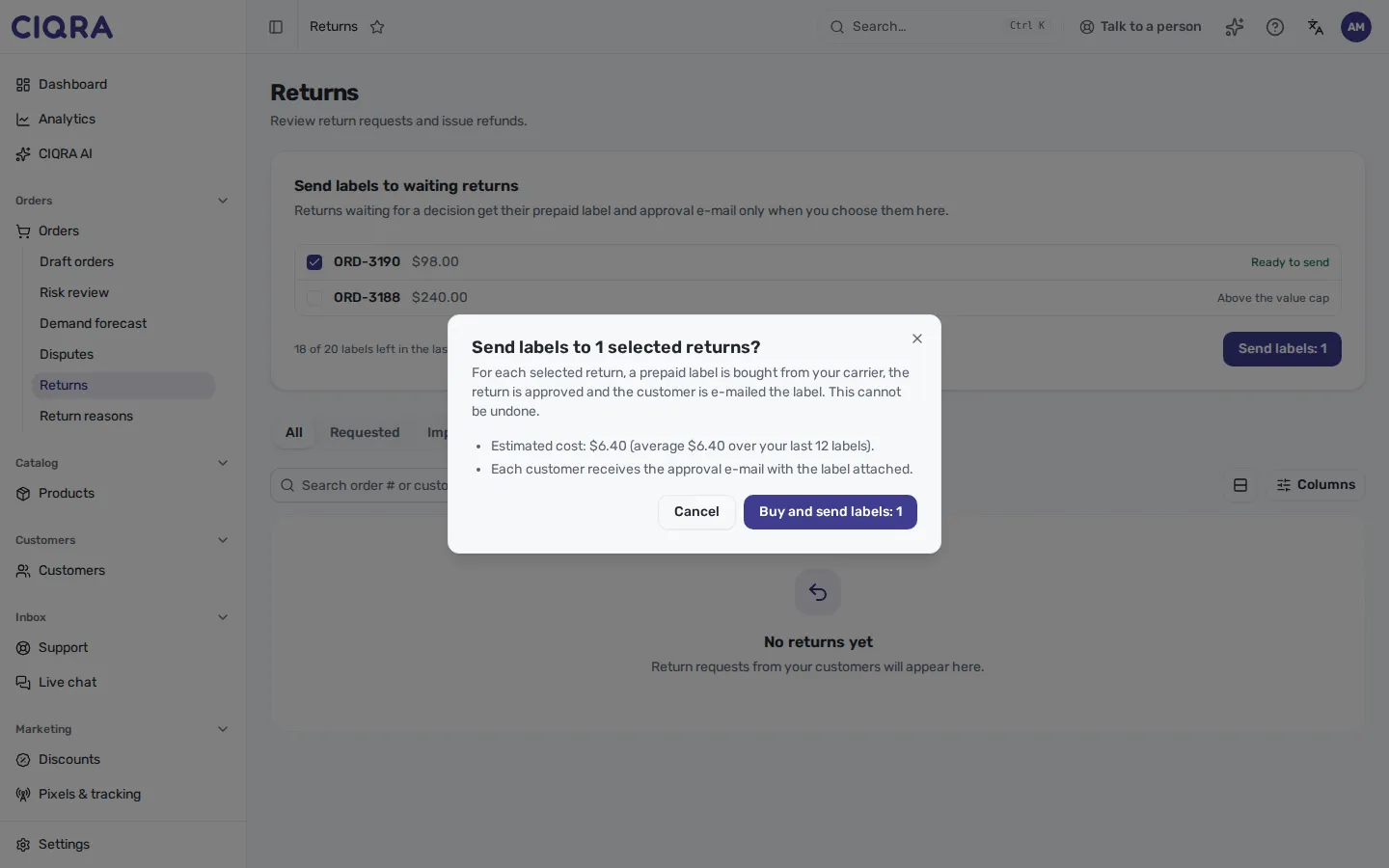
- 1Waiting returnsEach row shows why a return can or cannot be sent now.
- 2ConfirmationStates the count and the estimated cost. Each customer receives the approval email with the label attached.
Above the list, Return packages back at the warehouse lists returns the carrier delivered back in the last days that nobody has marked received yet.
Good to know
Section titled “Good to know”- Return labels come from the order’s carrier. When the carrier has no return-label service, the waiting-returns list marks the return The carrier has no return-label service. When approving a return on an order with no carrier at all, the dialog says the email goes without a label.
- The statutory withdrawal right is not limited by any condition you set in the policy.