Build collections
Collections “group products for storefront browsing — hand-picked, or filled automatically by rules.” They’re a flexible, non-hierarchical way to merchandise your store: a Summer picks shelf, an On sale rail, a home-page feature.
Manual vs smart
Section titled “Manual vs smart”There are two kinds of collection, and the list shows which is which with a Type badge — Manual or Smart — alongside its Membership (a product count or a rule count).
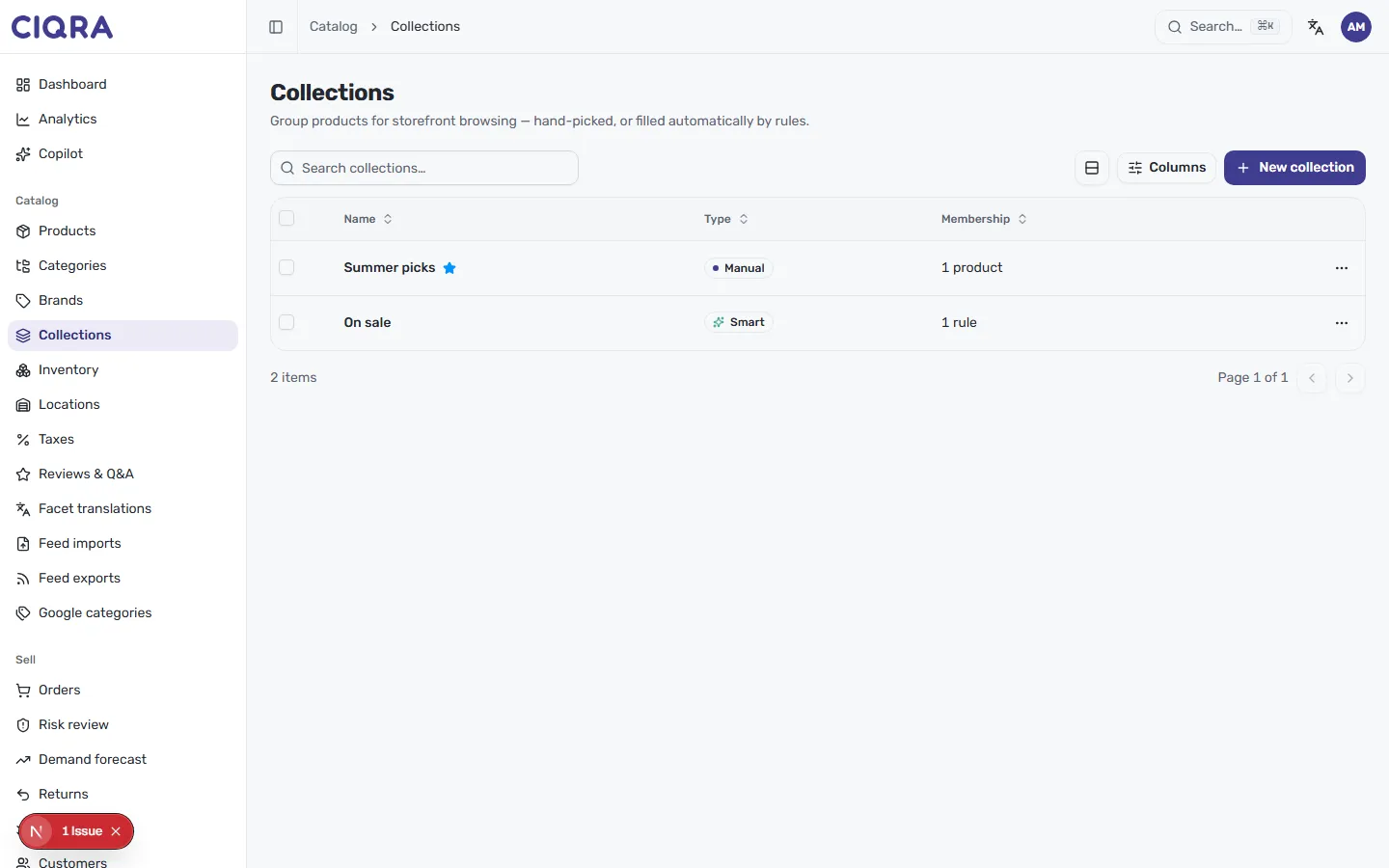
- A Manual collection is one you hand-pick product by product.
- A Smart collection fills itself — products join automatically whenever they match the rules you set.
Create a collection
Section titled “Create a collection”Open Collections from the sidebar and select New collection to “create a collection, then hand-pick products or set smart rules.”
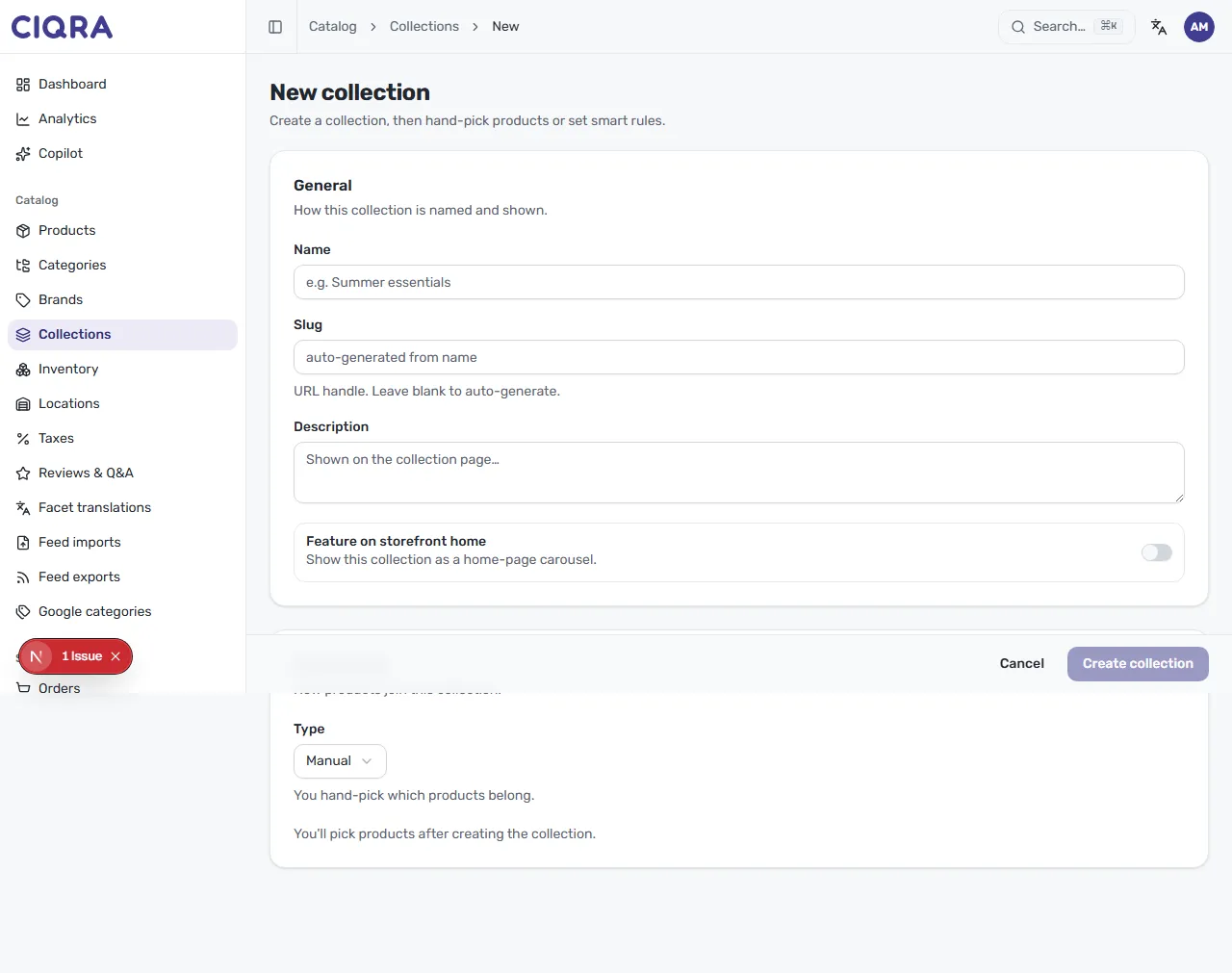
Under General — “how this collection is named and shown” — set:
- Name — for example Summer essentials.
- Slug — the URL handle; leave blank to auto-generate.
- Description — shown on the collection page.
- Feature on storefront home — toggle on to “show this collection as a home-page carousel.”
The Membership section sets the Type (Manual or Smart). As the form notes, you’ll pick products or set rules after creating the collection, so select Create collection to continue.
Hand-pick a manual collection
Section titled “Hand-pick a manual collection”When Type is Manual — “you hand-pick which products belong” — the Products panel lets you build the list. As it explains, you “hand-pick the products in this collection and set their order — the storefront shows them in this order.”
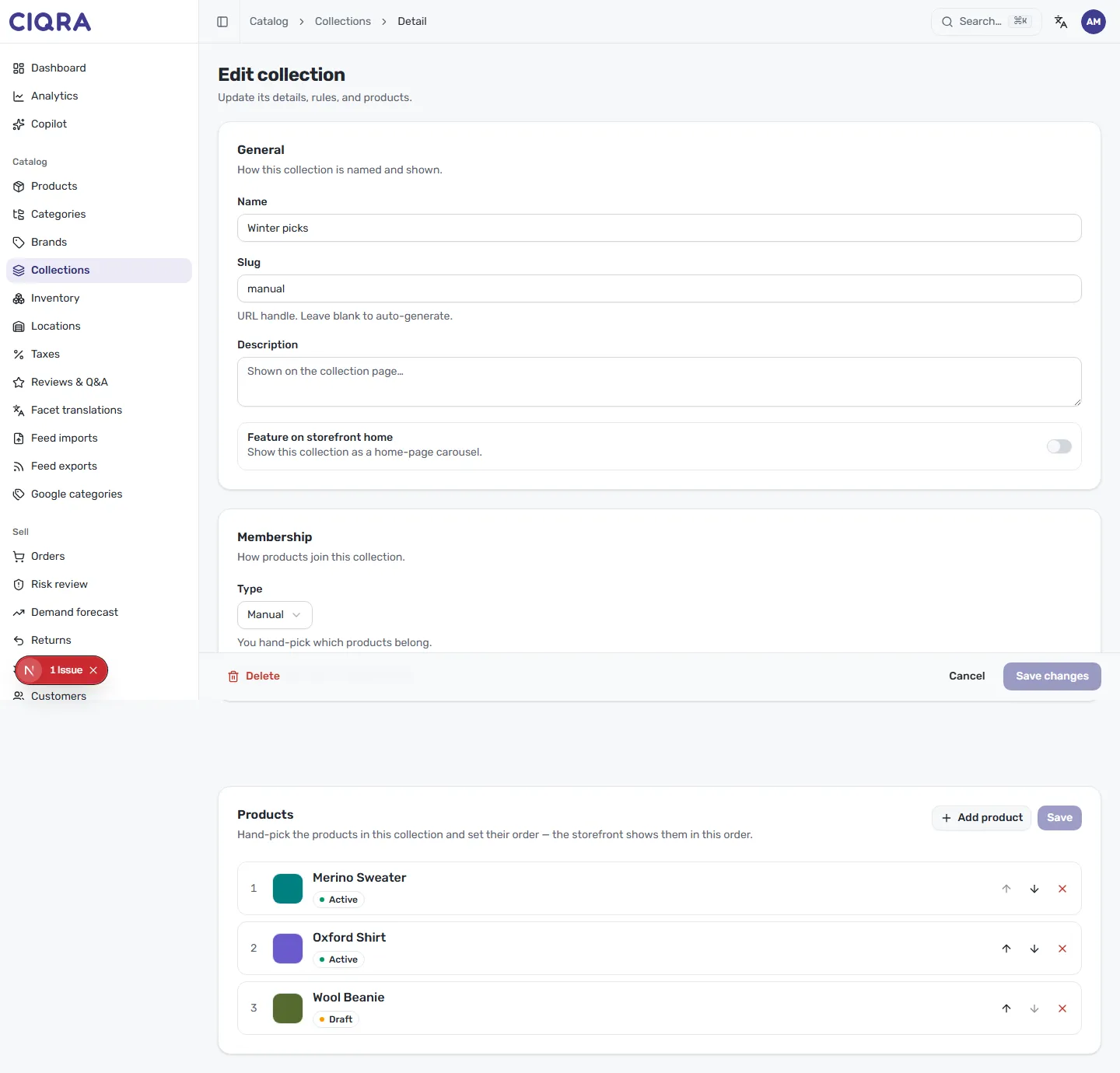
- Select Add product (or use the product search with checkboxes) to include products.
- Products are numbered in display order; use the up and down arrows to reorder them and the × to remove one.
- Select Save on the panel to keep your picks and order.
Set rules for a smart collection
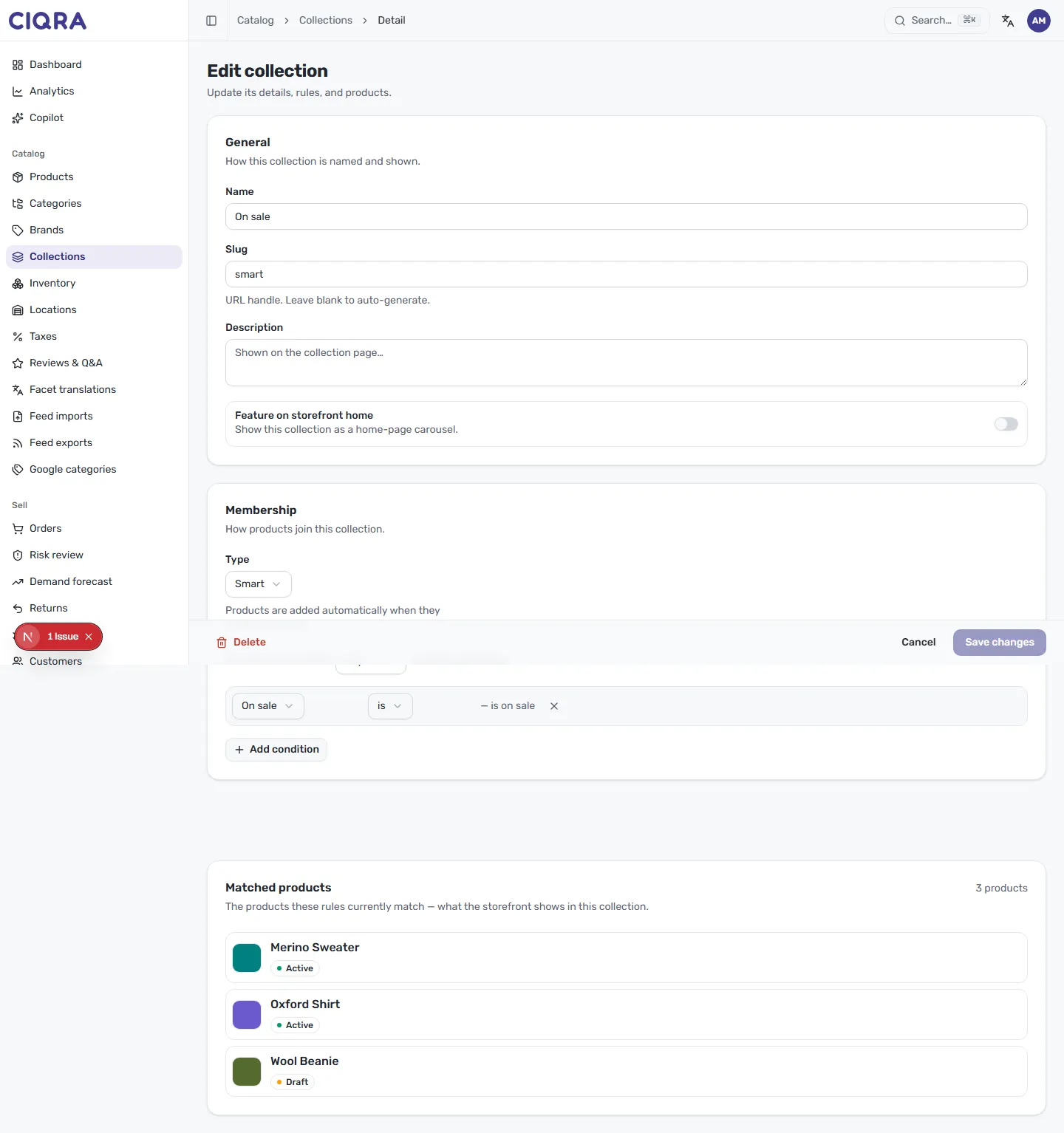
Section titled “Set rules for a smart collection”When Type is Smart, “products are added automatically when they match your rules.” You build the rules right in the Membership section.
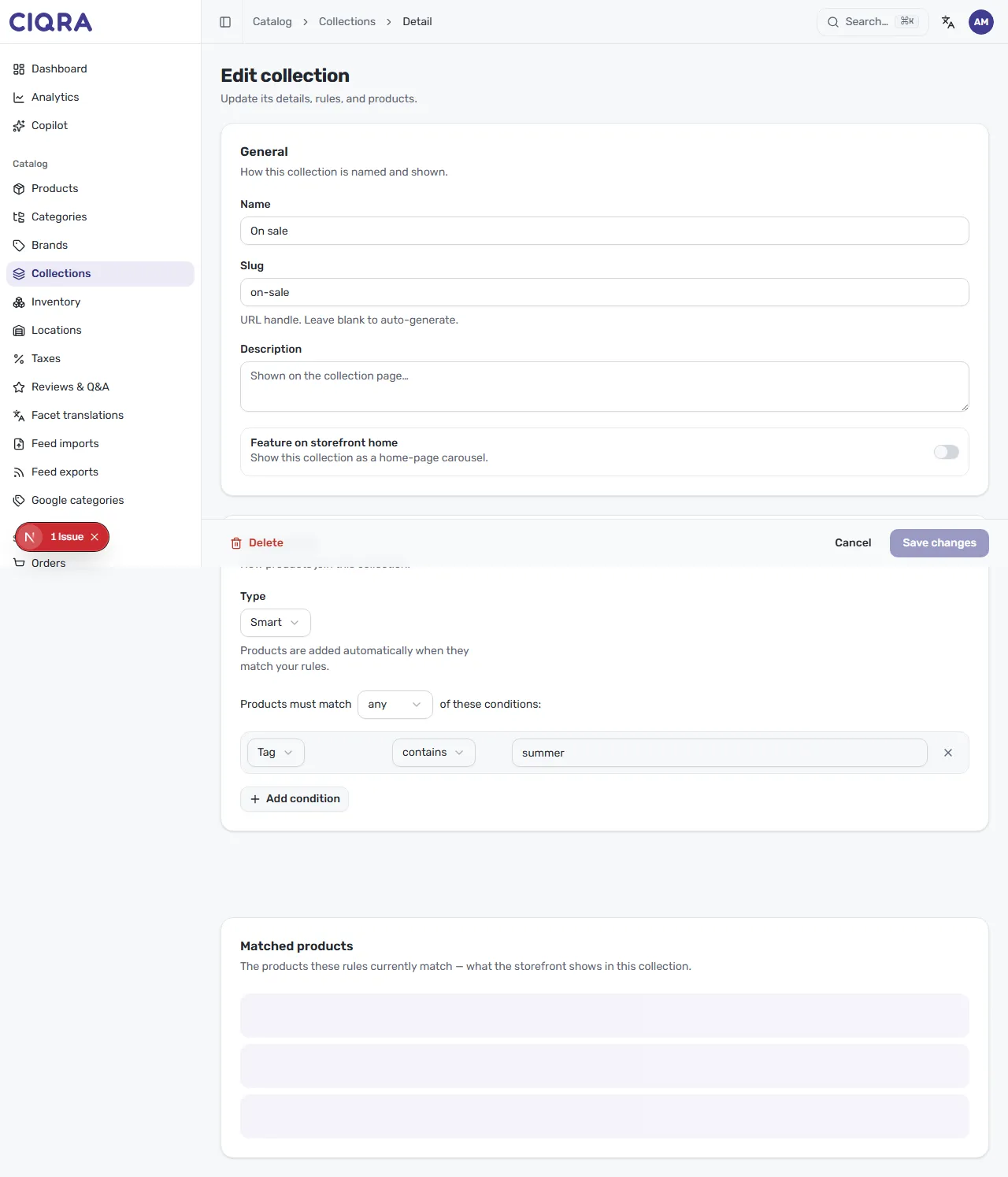
- Choose whether products must match any or all “of these conditions.”
- Build a condition from three parts — a field (such as Tag), an
operator (such as contains), and a value (such as
summer). - Select Add condition to stack more rules, or the × to remove one.
You can combine different fields — for example a Tag contains rule and an On sale is rule — to target exactly the products you want.
Preview what matches
Section titled “Preview what matches”A Matched products section shows “the products these rules currently match — what the storefront shows in this collection,” with a live count. Use it to confirm your rules catch the right products before you rely on them.