

Add and edit products
A product is anything you sell — a physical item, a digital download, or a product that comes in several variants. In CIQRA you build a product and its images, variants, and inventory together, then save it all in one step.
Create a product
Section titled “Create a product”From the Catalog group in the left sidebar, open Products, then start a new product. The New product form appears with its tabs — Details, Media, Variants, and Inventory — and a helpful reminder at the top: “Add details, images, and variants — everything is created together when you save.”
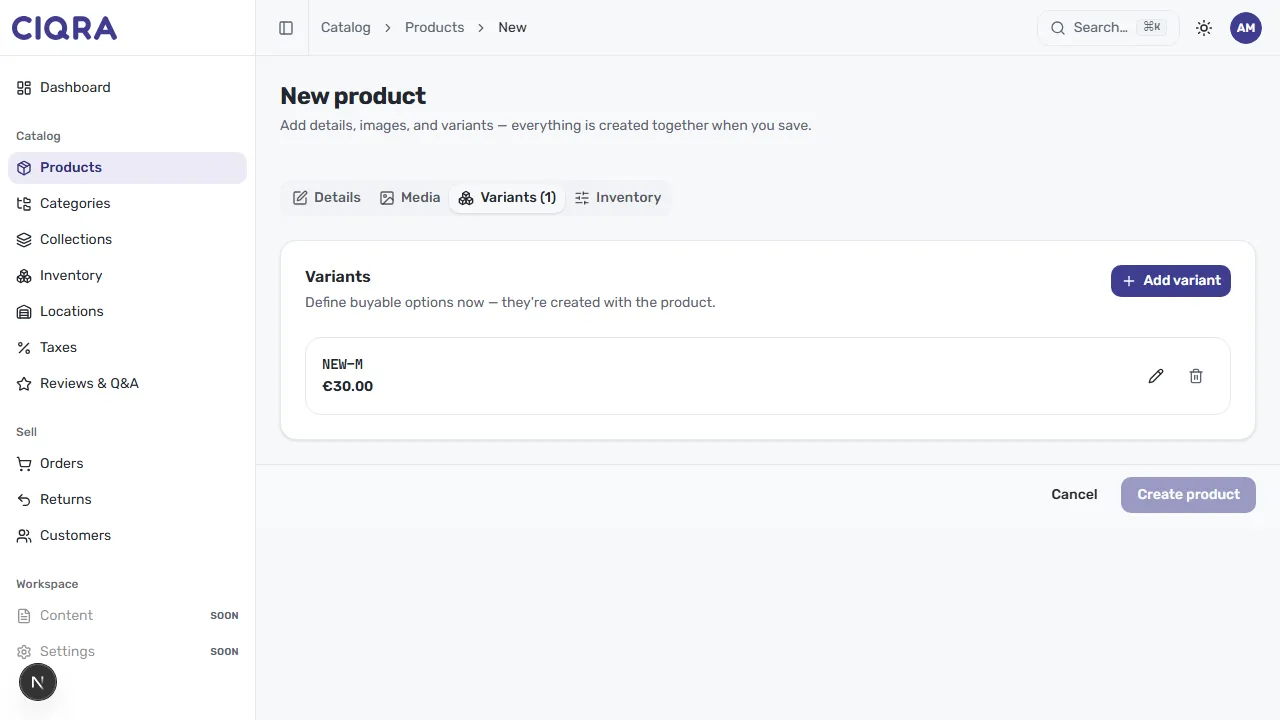
Work through the tabs in any order. When you’re ready, select Create product at the bottom right. If you change your mind, Cancel discards the new product.
Edit an existing product
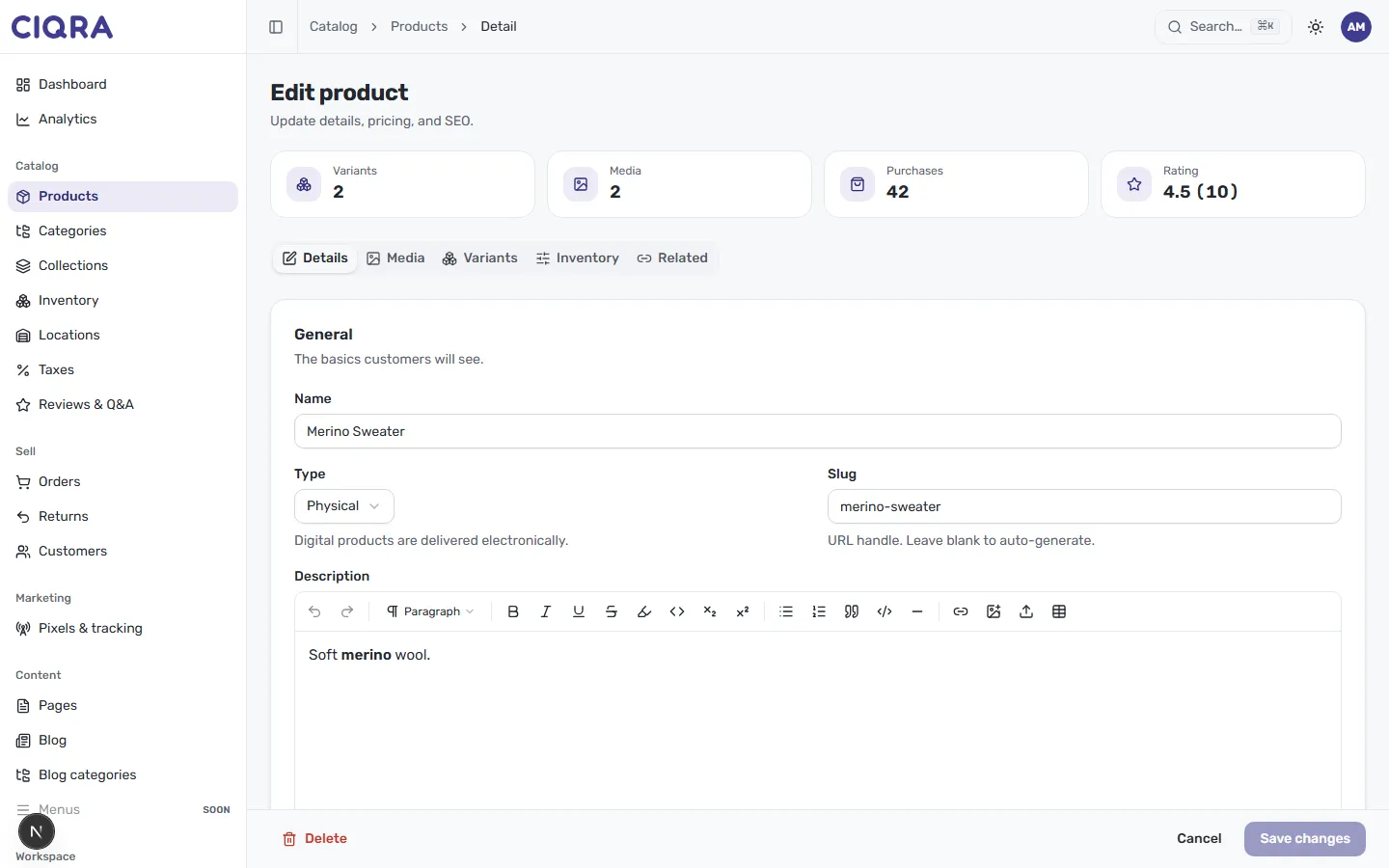
Section titled “Edit an existing product”Selecting a product from your list opens the Edit product screen, where you “Update details, pricing, and SEO.” Four cards across the top give you an at-a-glance summary of the product — Variants, Media, Purchases, and Rating — and the same tabs let you jump to each part of the product. On an existing product you’ll also see a Related tab for connecting related products.
The Details tab
Section titled “The Details tab”The Details tab holds the General information — “the basics customers will see”:
- Name — the product title shoppers see, for example Merino Sweater.
- Type — choose Physical or a digital type. As the form notes, digital products are delivered electronically.
- Slug — the URL handle for the product’s storefront page, such as
merino-sweater. Leave it blank to auto-generate one from the name. - Description — a rich-text editor with a full formatting toolbar: bold, italic, underline, headings, lists, quotes, links, images, code, and tables. Use it to tell the product’s story.
Save your changes
Section titled “Save your changes”When editing, select Save changes at the bottom right to apply your edits, or Cancel to leave them. Delete, on the bottom left, removes the product — use it with care.