

Publish, schedule, and status
Every product has a status that decides whether shoppers can see it. Getting this right is the difference between a product that sells and one that’s hidden — so it’s worth knowing the three states and the quick ways to move between them.
The three statuses
Section titled “The three statuses”- Active — published and visible on your storefront. Only Active products show to shoppers.
- Draft — a work in progress. Saved in your admin but not on the storefront.
- Archived — retired from your active catalog without being deleted. Keeps its data so you can restore it later.
In the Products list, each row’s status shows as a labelled dot — a colored Active, Draft, or Archived badge — and the tabs across the top let you view each state with a live count.
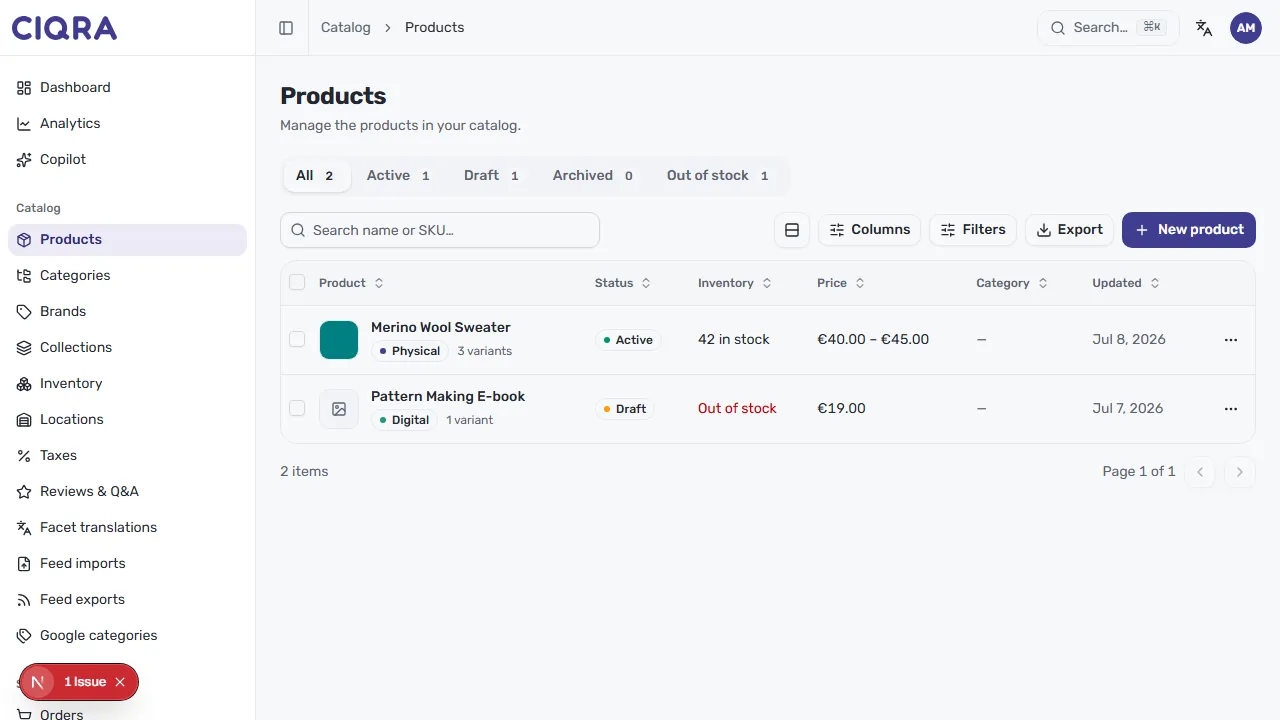
Set status on the product
Section titled “Set status on the product”Open a product and find the Status control in its Organization section, alongside tags, category, and tax class. Choose Draft, Active, or Archived, then Save changes. As the form notes, only Active products show on the storefront.
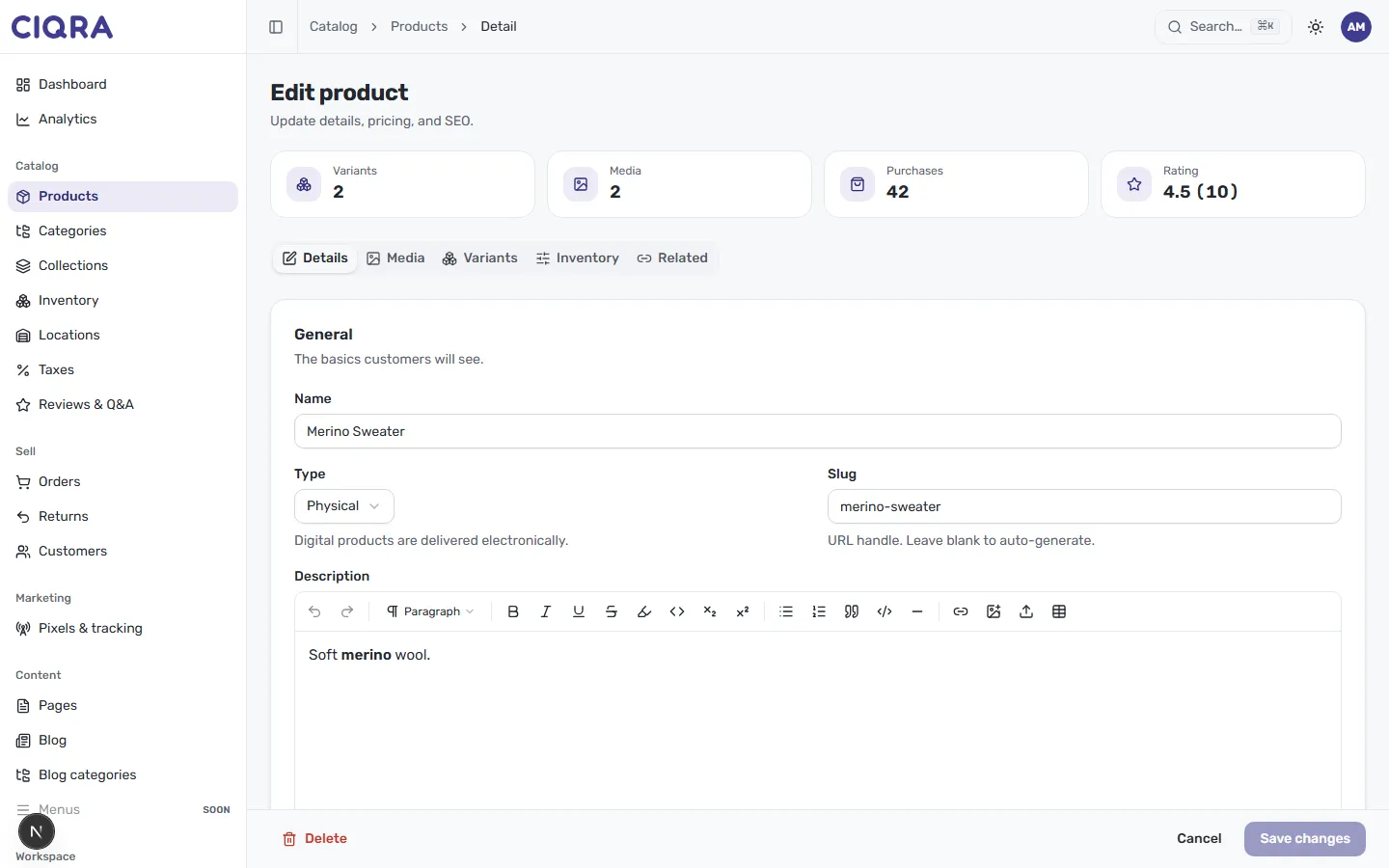
Quick ways to change status
Section titled “Quick ways to change status”You don’t always need to open the editor:
- From the row — the status badge in the list is a quick toggle, and the row’s ⋯ menu offers Activate, Set to draft, Archive, and Restore.
- In bulk — select several products and use Activate, Draft, or Archive in the action bar. See Bulk-edit products.
Schedule a go-live
Section titled “Schedule a go-live”You can line a product up to publish itself at a future time — perfect for a launch or a sale that should start overnight. While a product is a Draft, its Publishing panel lets you pick a go-live time; at that moment the product flips to Active on its own. You can Reschedule or Clear a pending time, and the panel shows when the product is scheduled to go live.