

Taxes — classes and rates
Taxes in CIQRA are organized as tax classes and the VAT rates products are charged at checkout. A class groups products that are taxed the same way; each class holds one or more rates that vary by country and product kind.
Your tax classes
Section titled “Your tax classes”Open Taxes from the Catalog group in the sidebar.
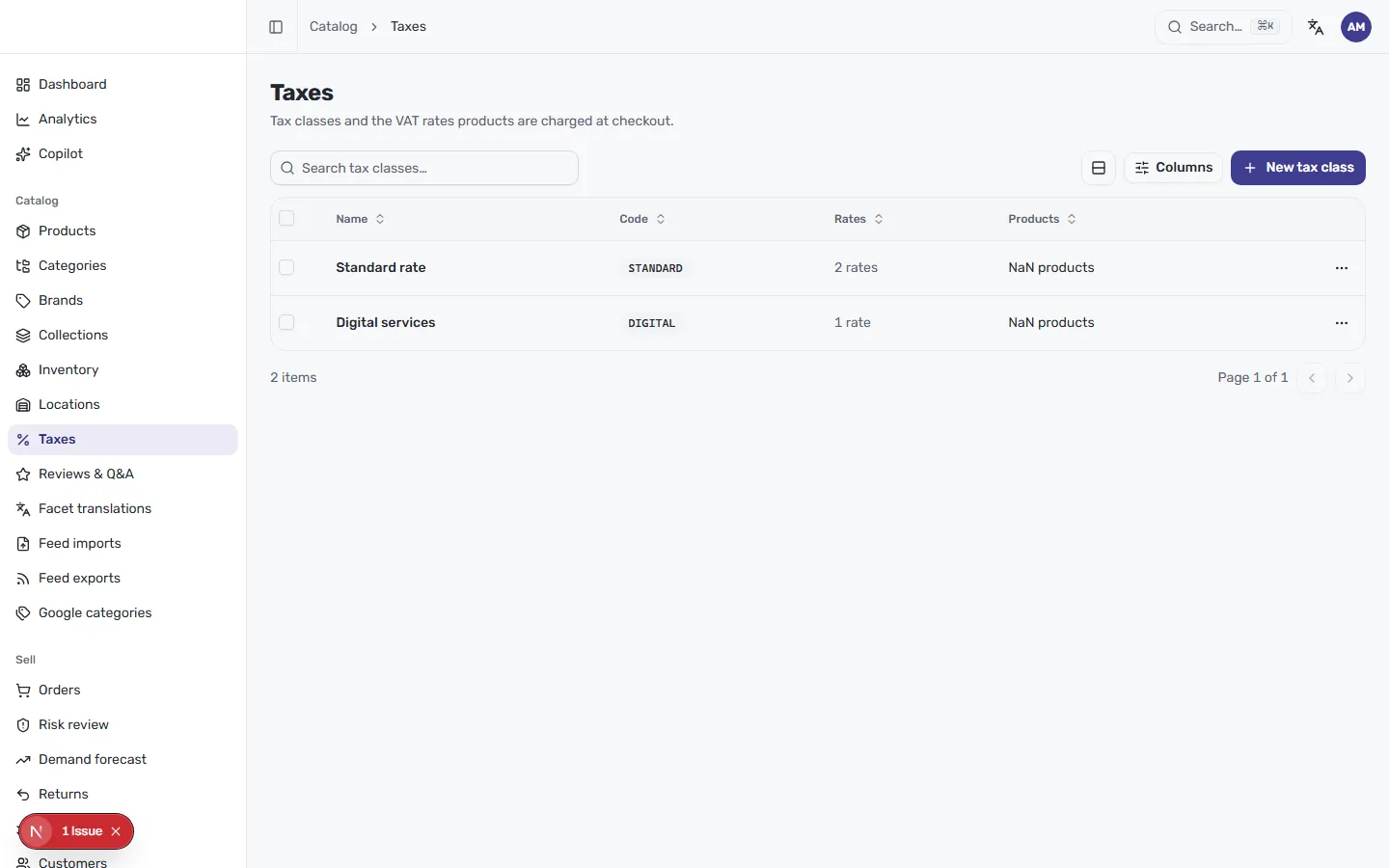
Each class shows its Name, a short Code badge (such as STANDARD or
DIGITAL), and how many Rates it contains. Search by name, adjust columns
with Columns, or open a class’s ⋯ menu.
Create a tax class
Section titled “Create a tax class”Select New tax class to “name the class, then add its rates once it’s created.” Under Details — “how this tax class is identified” — set:
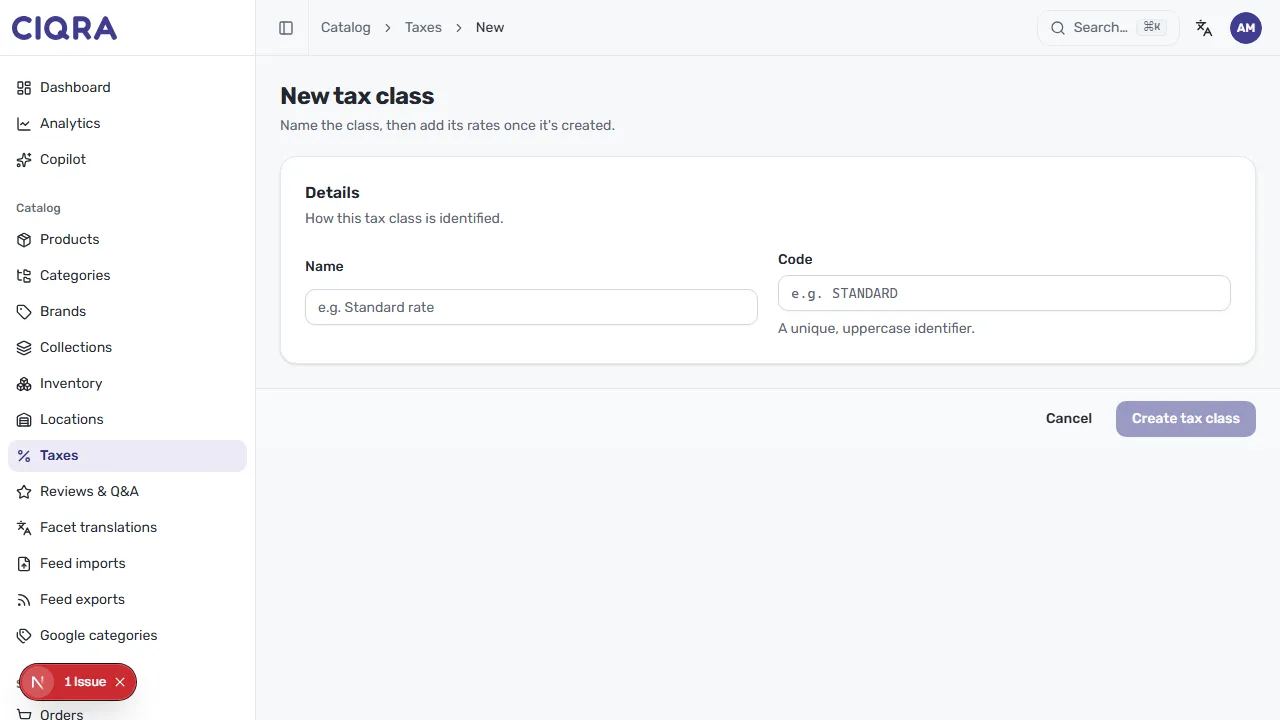
- Name — for example Standard rate.
- Code — “a unique, uppercase identifier” such as
STANDARD.
Select Create tax class. You add rates on the next screen.
Add rates to a class
Section titled “Add rates to a class”Opening a class shows Edit tax class, where you “update the class and manage its rates.” The Rates section lists the “VAT rates charged for this class, by place of supply.”
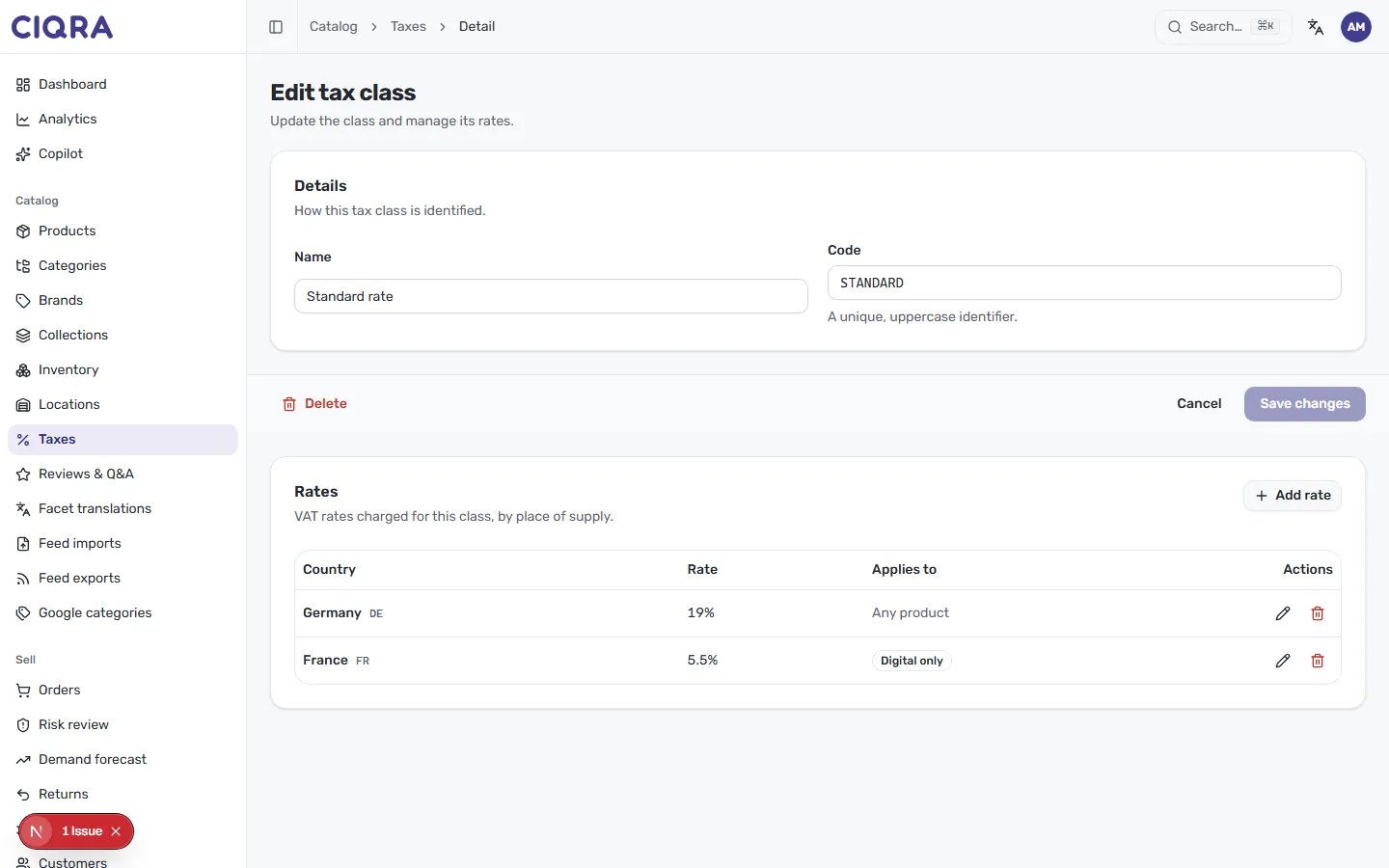
Each rate row shows the Country (with its code, such as DE or FR), the
Rate percentage, and what it Applies to — Any product or a kind such as
Digital only. Use the pencil to edit a rate, or the trash icon to remove it.
Select Add rate to open the rate dialog — “the VAT rate charged for this class in a given place of supply”:
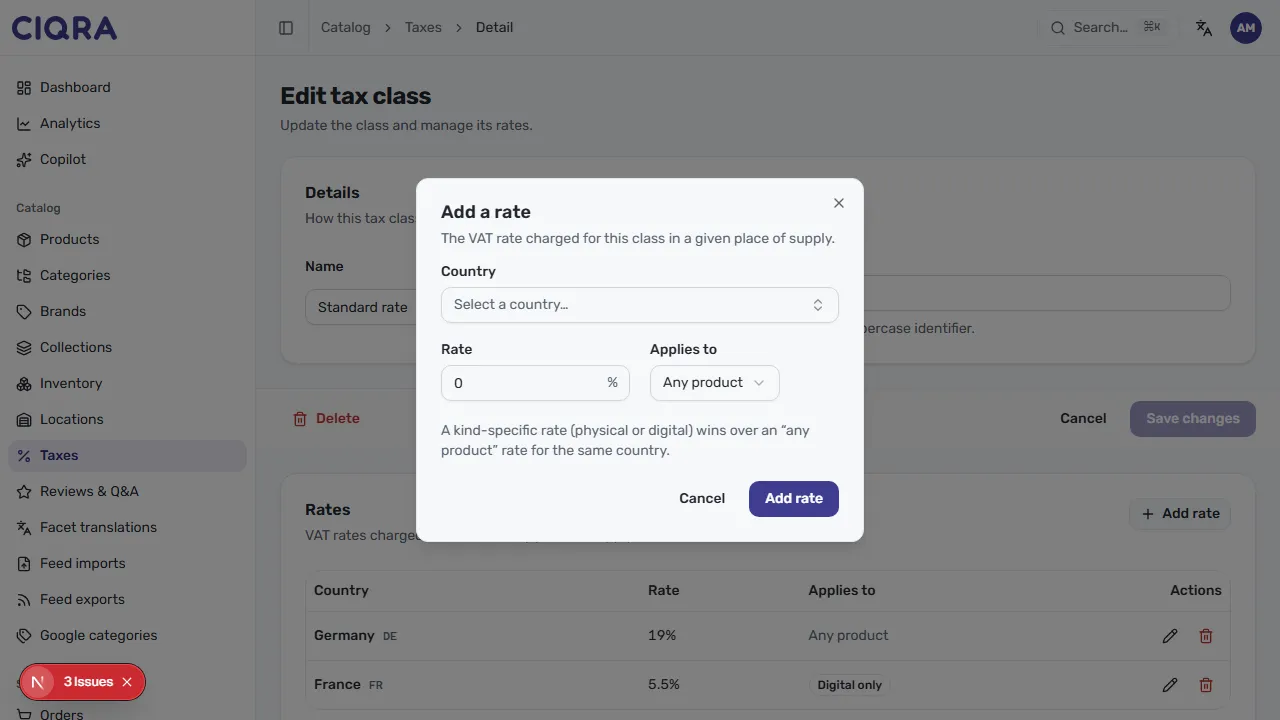
- Choose a Country from the list.
- Enter the Rate as a percentage (for example
19%). - Set Applies to — Any product, or a specific kind.
- Select Add rate to save it.