

Manage your orders
Your Orders list is home base for everything customers buy. It’s where you find a specific order, see what still needs work, and jump into the details. You’ll find it in the left sidebar under Sell → Orders.
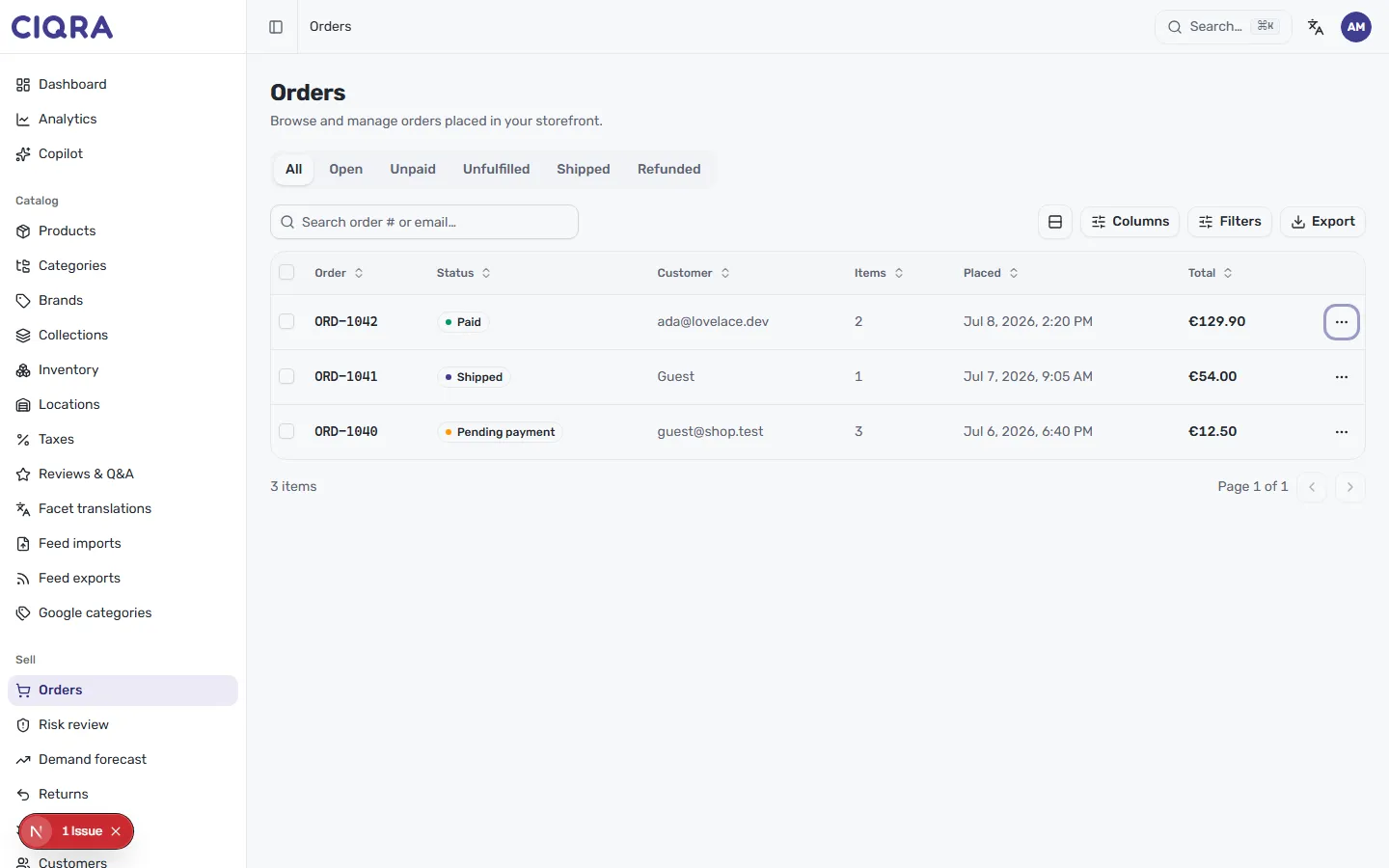
Read the list at a glance
Section titled “Read the list at a glance”Each order is one row, with the columns that matter most day to day:
- Order — the order number (for example,
ORD-1042). - Status — where the order is in its lifecycle, shown as a coloured label such as Paid, Shipped or Pending payment.
- Customer — the customer’s email, or Guest for a guest checkout.
- Items — how many line items are on the order.
- Placed — the date and time the order came in.
- Total — what the customer paid, in your store’s currency.
At the bottom, a count (for example, 3 items) and simple Page controls help you move through longer lists.
Filter by status
Section titled “Filter by status”The tabs above the table let you focus on one part of your workload at a time: All, Open, Unpaid, Unfulfilled, Shipped and Refunded. Selecting a tab filters the list to just those orders — handy when you want to see, say, only what’s still Unfulfilled and needs to go out the door.
Search for a specific order
Section titled “Search for a specific order”Use the search box to jump straight to an order by order number or email. This is the fastest way to pull up an order when a customer gets in touch.
Tailor and export the list
Section titled “Tailor and export the list”- Columns lets you choose which columns appear, so the table shows what you care about.
- Filters narrows the list by finer criteria, on top of the status tabs.
- Export downloads the current list, which is useful for reporting or sharing outside CIQRA.
Open an order
Section titled “Open an order”Select a row to open the full order, where you can work it end to end — fulfil items, add notes, issue refunds and more. Head to Process an order for the next step.